


If you’re looking to watch tv without the bloated cable bill, TiviMate has likely appeared on your radar. This comprehensive guide covers everything you need to know about the tivimate iptv player—from installation to advanced features, plus solid alternatives worth exploring.
Key Takeaways
TiviMate is a powerful IPTV player designed specifically for Android TV and Fire TV devices. It does not come with channels or content—you’ll need an existing iptv service or playlist to use it. Think of it as a premium remote control for your IPTV subscriptions, not the subscription itself.
- TiviMate works best on android tv devices, Google TV, and fire tv stick hardware. While technically compatible with phones and tablets, the interface is optimized for big screens and remote controls, making mobile use frustrating. Current versions like 5.1.6 (February 2025) and 5.2.0 reflect ongoing active development.
- TiviMate Premium is a one-time lifetime purchase around $33.99 covering up to 5 activated devices through the Companion App on google play. No recurring subscription fees for the app itself.
- Beware of fake “TiviMate IPTV subscription” websites claiming to sell channels. The tivimate app is only a player and never sells live tv packages or channel access.
- We also recommend exploring alternative iptv players like IPTV Smarters Pro, GSE Smart IPTV, and UHF IPTV app to find what works best for your specific device and preferences.
Introduction to IPTV Services
IPTV, or Internet Protocol Television, has transformed the way we watch TV by delivering live channels and on-demand content over the internet instead of traditional cable or satellite. With IPTV, viewers can access a vast selection of channels and shows from around the globe, all from the comfort of their living room or on the go. The TiviMate IPTV player stands out as one of the most popular choices for those looking to watch TV on modern devices. Whether you’re using Android TV devices, a Fire TV Stick, or Google TV, installing TiviMate allows you to turn your device into a powerful IPTV hub.
Getting started is simple: after you install TiviMate on your preferred TV devices, you just need to connect it to a reliable IPTV provider. This setup gives you access to multiple channels, letting you watch your favorite shows, sports, and movies whenever you want. TiviMate IPTV is designed to work seamlessly with Android TV, Fire TV, and other compatible platforms, making it easy to enjoy a premium TV experience without the limitations of traditional broadcasting. With the right IPTV service and the TiviMate app, you can access a world of entertainment, all optimized for your device and viewing preferences.
What Is TiviMate? (Core Concept Explained Fast)
TiviMate is an IPTV player app created by Armobsoft FZE (developer: Alexey Rabets) designed primarily for android tv and similar large-screen streaming devices. It transforms raw IPTV data into a polished, cable-TV-like viewing experience.
- The app does not host channels or VOD content. Instead, it reads playlists (M3U URLs, Xtream Codes, Stalker Portal protocols) provided by your iptv provider. TiviMate simply displays and organizes whatever content your service delivers.
- Supported platforms include Android TV boxes, NVIDIA Shield, Chromecast with Google TV, fire tv devices (via sideload), and certain Android-based smart TVs. The app handles multiple platforms but all share the big-screen optimization.
- While some APK variants technically run on phones and tablets, the interface assumes you’re using a remote control from across the room. Touch navigation feels clunky, and the EPG grid designed for 50-inch screens becomes cramped on a 6-inch display.
- TiviMate offers both a free app version (core playback plus basic EPG) and a paid Premium version that unlocks advanced features like multiple playlists management, favorite channels organization, catch-up TV, recording capabilities, and multiview support.
TiviMate Features Overview (Free vs Premium)
Understanding what you get for free versus what requires tivimate premium helps you decide whether the upgrade makes sense for your viewing habits.
Key Features of TiviMate
TiviMate stands out among IPTV apps thanks to its robust set of key features, including advanced customization options, efficient playlist management, a catch-up feature for past broadcasts, recording capabilities, and parental controls. These functionalities are designed to enhance user experience and usability.
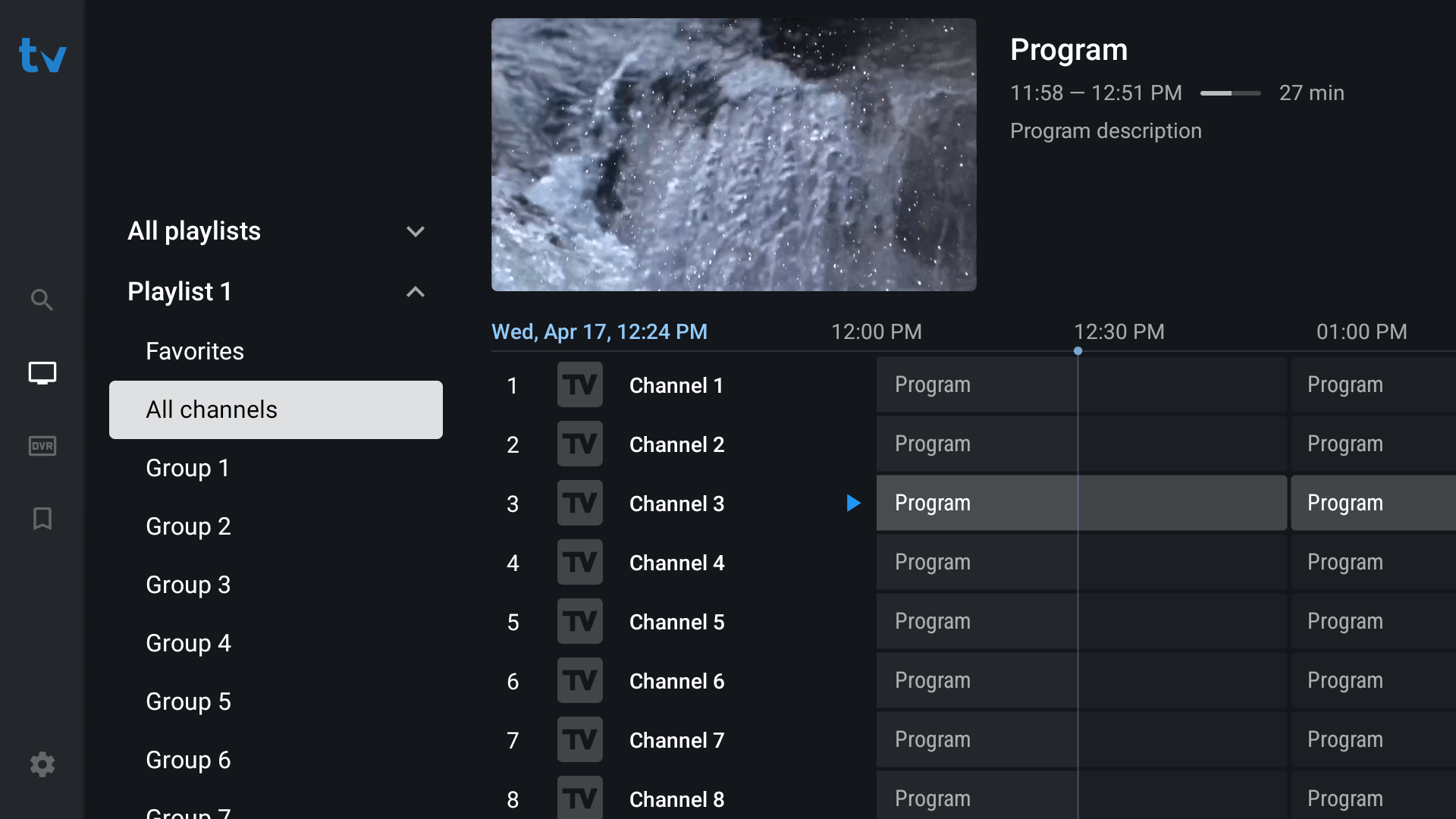
The catch-up feature allows users to access past broadcasts, ensuring you never miss a show even if you couldn’t watch it live. You can also bookmark your most-watched channels for instant access to your favorites. TiviMate includes an intuitive search function, making it easy to quickly find channels and shows. The built-in Electronic Program Guide (EPG) helps you browse through channel selections with ease. Additionally, TiviMate allows users to enable subtitles for channels, although subtitle availability may vary depending on the channel.
Free Version Features
| Feature | Availability |
|---|---|
| Live TV playback from M3U/Xtream URLs | ✓ |
| Basic EPG (TV Guide) | ✓ |
| Modern grid-style TV guide | ✓ |
| Channel search | ✓ |
| Basic group/category navigation | ✓ |
| Single playlist support | ✓ |
Tivimate Premium Features
| Feature | Availability |
|---|---|
| Favorites list management | Premium only |
| Multiple playlists support | Premium only |
| Advanced TV guide options | Premium only |
| Catch-up TV (if provider supports) | Premium only |
| Recording to external storage | Premium only |
| Multi-view (watch multiple channels) | Premium only |
| Custom groups and channel reordering | Premium only |
Beyond the feature split, TiviMate offers extensive customization options. You can hide or reorder channel categories, add custom logos where your playlist lacks them, and tweak interface colors, view styles, and time formats.
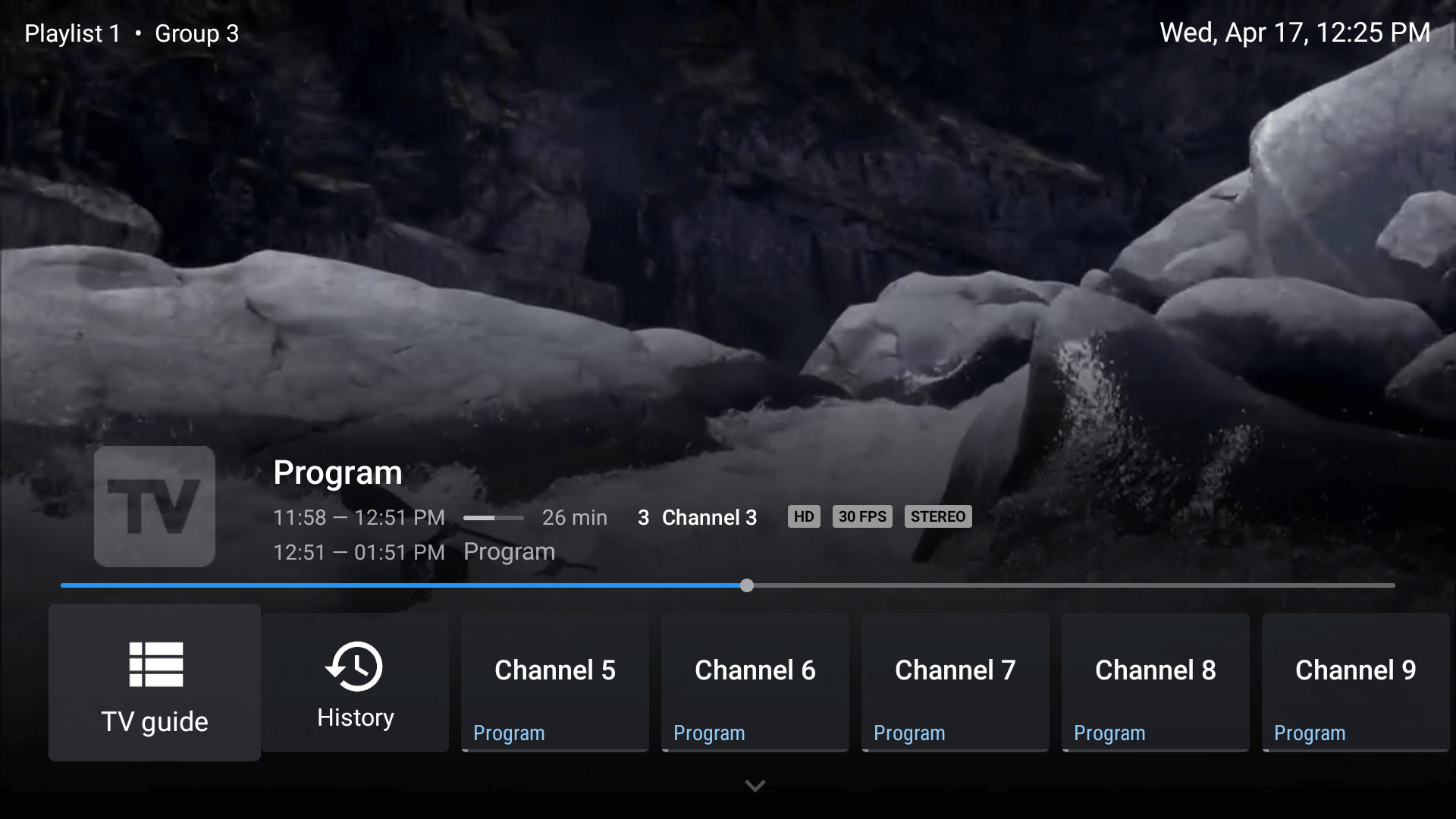
Quality-of-life tools include parental controls with PIN protection for a safe viewing environment, external media player integration, subtitle and audio track controls, and audio sync offset adjustment. Picture-in-Picture works on supported android tv and Google TV devices, letting you browse while keeping live tv visible.
Version 5.1.6 released in February 2025 brought performance fixes and EPG improvements, while version 5.2.0 appears in most current setup tutorials, indicating these builds represent the latest version most users should target.
TiviMate Premium Subscription: Pricing, Devices, and Companion App
TiviMate Premium isn’t purchased directly within the TV app. Instead, you’ll use the separate “TiviMate Companion” app available on google play store.
Current Pricing Structure:
- Lifetime license: approximately $33.99 (USD)
- Device limit: up to 5 different devices
- Payment: one-time, no recurring premium subscription fees
The 5-device limit means you can activate TiviMate Premium on your living room TV, bedroom TV, office Android box, and still have room for two more devices—all under one account managed through a single email.
How to Create an Account and Activate Premium
- Install TiviMate Companion from google play on an Android phone or tablet (or use an emulator like BlueStacks on your computer)
- Open the app and create an account with your email
- Complete the lifetime purchase through the app’s payment information system
- Sign into TiviMate on your TV device using those credentials
- Premium features unlock immediately
Once activated, your device shows new menu options including Favorites, Recording settings, and extended customization. You can manage or revoke activated devices from the official TiviMate account portal or through the Companion app if you need to switch hardware.
Critical Warning: Any website selling “TiviMate Premium with channels” or “TiviMate IPTV subscription packages” is fraudulent. The official premium purchase flow only exists through the TiviMate Companion app on google play. The app never sells channels—only the player upgrade.
How to Install TiviMate on Firestick and Android TV
Installation differs significantly between android tv (where the app often appears in official stores) and Amazon fire tv devices (which require sideloading from unknown sources).
Android TV Installation
- Open the google play store on your TV
- Search for “TiviMate IPTV Player” by Armobsoft FZE
- Verify the listing shows 1M+ installs and approximately 13.5 MB download size
- Click Install and wait for completion
- Open the app from your home screen or apps list
The process takes under two minutes on most devices with decent internet.
Fire TV Stick Installation (Sideloading)
Since Amazon doesn’t include TiviMate in their app store, you’ll need to sideload it:
- Install Downloader from the Amazon Appstore (it’s free)
- Enable Developer Options:
- Go to Settings → My Fire TV → About
- Click your device name 7 times rapidly
- Developer Options appears in the menu
- Allow Unknown Sources:
- Navigate to Settings → My Fire TV → Developer Options
- Enable “Install unknown apps” for Downloader
- Download TiviMate:
- Open Downloader
- Enter a toolbox code (like 250931 or 272483) or direct APK URL
- Download and install the latest version APK
- Clean up: Delete the installer file to save storage space
Always verify you’re downloading from legitimate sources. Confirm the developer is listed as Armobsoft FZE to avoid malware or modified clones with embedded tracking.
Minimum Requirements:
- Internet speed: 2-5 Mbps for SD content, 10-25 Mbps for stable HD/Full HD
- Connection: Wired Ethernet recommended; high-quality 5GHz Wi-Fi acceptable
- Device compatibility: Android 5.1+ with sufficient processing power
Setting Up TiviMate with Your IPTV Service
With TiviMate installed, you’ll see an empty interface. The app requires playlist data from an external iptv service—without it, there’s nothing to display. Your iptv provider should supply connection credentials in one of three formats.
Adding Your First Playlist
- Open TiviMate and navigate to “Add Playlist”
- Select your connection type:
- M3U URL: A direct link to your playlist file
- Xtream Codes: Username, password, and server URL
- Stalker Portal: Portal URL and MAC address
- Enter details exactly as provided by your service
- Let the app load channels and EPG data (may take 30 seconds to several minutes depending on playlist size)
Configuring EPG for Better Data
Many iptv providers supply separate EPG XML URLs alongside the main playlist. To add external EPG:
- Go to Settings → TV Guide → EPG Source
- Add your provider’s EPG URL
- Set automatic update intervals (every 12-24 hours works well)
- Adjust time offset if program schedules appear ahead or behind your timezone
Proper EPG configuration dramatically improves your streaming experience—you’ll see accurate show names, descriptions, and timing instead of generic channel numbers.
Managing Multiple Playlists (Premium)
Premium users can add second and third playlists from different channels providers:
- Navigate to Settings → Playlists → Add Playlist
- Repeat the connection process for each service
- Choose to merge channel groups across services or keep them separate
- Hide duplicate or unused categories from different channels sources
This creates a unified interface across all your subscriptions, letting you switch between providers seamlessly without app-hopping.
Creating Favorites for Quick Access
From the TV Guide, long-press any channel and select “Add to Favorites.” You can also press the star button while watching live content. Your favorite shows and preferred channels appear in a dedicated Favorites group, eliminating endless scrolling through hundreds of stations.
Troubleshooting Empty Channel Lists:
- Verify URLs are entered exactly (no extra spaces)
- Confirm password matches your provider’s records
- Check that your service subscription remains active
- Test the same playlist in another player (like GSE Smart IPTV) to isolate whether the issue is TiviMate or your provider
IPTV Service Providers: What to Know and How to Choose
Selecting the right IPTV service provider is crucial for a smooth and enjoyable streaming experience. With so many options available, it’s important to look for an IPTV provider that offers a broad selection of channels, including your favorite shows, sports, and international content. Reading user reviews and checking the provider’s reputation can help you avoid unreliable services and ensure you’re getting consistent quality.
A good IPTV service should support multiple playlists, allowing you to organize and access your favorite channels with ease. Many reputable providers also offer TiviMate premium features, such as advanced parental controls and the ability to manage favorite channels across different devices. When comparing providers, consider their streaming quality, uptime, and customer support, as these factors directly impact your viewing experience on Android TV, Fire TV, and other platforms.
Look for services that are compatible with TiviMate premium, so you can take full advantage of features like multiple playlists, custom channel groups, and a personalized streaming experience. By choosing a trusted IPTV provider, you’ll enjoy reliable access to a wide range of channels and features, making it easy to watch your favorite shows on any device, whether you’re at home or on the go.
TiviMate Advanced Features: Recording, EPG, Multiview & More
Power users get the most from TiviMate by mastering features beyond basic channel surfing. These capabilities transform the app from a simple player into a complete DVR replacement.
Recording Live TV
Recording requires external storage—internal memory on most tv devices won’t suffice for video files.
Setup Requirements:
- USB drive or external HDD formatted as FAT32 or exFAT
- Connection via USB port on your streaming device
- Storage designated in TiviMate settings before first recording
Recording Options:
- Instant Recording: While watching, press the record button to capture immediately
- Scheduled Recording: From the EPG, select a future program and choose “Record”
- Custom Timers: Create recurring recordings for shows you never want to miss
Recordings save to your external drive and appear in TiviMate’s Recording section for later playback. You can manage, rename, or delete recordings directly within the app.
EPG Customization
Fine-tune your electronic program guide for accuracy:
- Time Offset: Adjust if schedules show wrong times (common with international providers)
- Force Update: Manually refresh EPG data when information seems stale
- Multiple Sources: Choose between EPG options if your playlist provides alternatives
- Update Schedule: Set automatic refreshes during off-peak hours
Channel Organization and Groups
With potentially thousands of channels across multiple playlists, organization prevents overwhelm:
- Access group management from the TV Guide menu
- Hide entire categories you’ll never watch (foreign language groups, shopping channels)
- Rename groups for clarity (“Sports” instead of “SPORTS_HD_USA_UK”)
- Reorder to place most watched channels categories at the top
Multiview and Picture-in-Picture
On supported hardware, multiview lets you watch multiple channels simultaneously—invaluable for sports fans monitoring several games. Picture-in-Picture keeps a small live window visible while browsing the guide or using other Android apps.
External Player Integration
Some streams don’t play well with TiviMate’s built-in player. You can designate VLC, MX Player, or similar apps as external players:
- Go to Settings → Playback → External Player
- Select your preferred app
- Choose to apply globally or only for problematic channels
This fixes issues with unusual codecs, audio sync problems, or streams that otherwise refuse to load.
Audio and Subtitle Controls
Multi-language channels often include several audio tracks. While watching, access the audio menu to switch between languages. Subtitle support shows closed captions where available, and audio sync offset corrects situations where sound leads or trails the video.
Parental Controls: Keeping Your Viewing Family-Friendly
For families, ensuring a safe viewing environment is a top priority. The TiviMate IPTV player offers robust parental controls, making it easy to manage what content is accessible on your Android TV devices, Fire TV Stick, and other TV devices. With TiviMate IPTV, you can set up a secure PIN code to lock specific channels or entire playlists, preventing children from accessing inappropriate content.
These parental controls are especially useful for households with multiple devices, as you can manage restrictions across all your Android TV, Fire TV, and Google TV setups. The ability to customize access means you can tailor the viewing experience for each family member, ensuring that everyone enjoys age-appropriate content. By enabling parental controls in TiviMate, you create a safe viewing environment and gain peace of mind, knowing that your children are only watching suitable channels and shows. Managing these settings is straightforward, allowing you to quickly adjust access as your family’s needs change.
Security, Legality, and Common Scams Around TiviMate
The tivimate iptv player itself is completely legal software—especially when downloaded from google play. However, content legality depends entirely on your iptv provider and the playlists you connect.
Understanding the Legal Landscape
- The App: TiviMate is a media player, similar to VLC or Kodi. Downloading and using the player breaks no laws.
- The Content: Legal IPTV services exist (many regional providers, some international streaming services). Pirated services distributing unauthorized channels operate illegally in most jurisdictions.
- Your Responsibility: You’re responsible for ensuring your iptv service holds proper broadcast rights for channels you watch.
Avoiding Common Scams
The IPTV space attracts scammers. Watch for these red flags:
| Scam Type | Warning Signs |
|---|---|
| Fake “TiviMate with channels” packages | TiviMate never sells channels |
| Heavily discounted “lifetime IPTV” | Usually deleted within months |
| Telegram group offers | Often data harvesting or payment fraud |
| Modified APKs with “free premium” | Malware and credential theft risk |
Protecting Yourself
- Never share your iptv credentials with random websites or support groups
- Enable parental controls within TiviMate if children access your device
- Consider a reputable VPN on your router or streaming device for privacy
- Only download from legitimate sources (google play, official website links)
- Avoid “cracked” versions promising free premium access—the malware risk isn’t worth it
Your login credentials and data deserve protection. Treat IPTV account details like any other sensitive password.
Latest Version and Updates: Staying Current with TiviMate
Keeping your TiviMate IPTV player updated is essential for the best streaming experience. The latest version of the TiviMate app brings a host of improvements, including support for multiple playlists, enhanced parental controls, and new features that make it easier to access your favorite channels and shows instantly. Updates are regularly released through the Google Play Store, ensuring that users always have access to the newest fixes and enhancements.
By updating to the latest version, you benefit from improved performance, security patches that protect your data, and quick access to recent channels and personalized content. TiviMate’s commitment to ongoing development means that the app continues to evolve, offering better support for a wide range of devices and streaming needs. To stay current, simply check for updates on Google Play or visit the official TiviMate website. With each update, you’ll enjoy a smoother, more reliable streaming experience, with all the latest features designed to make watching TV on your preferred devices as enjoyable as possible.
Best TiviMate Alternatives: IPTV Smarters, GSE Smart IPTV, UHF App & More
Experienced IPTV users typically maintain 2-3 different player apps. Each has strengths for different devices and use cases.

IPTV Smarters Pro
Best for: Cross-platform users who watch on both TV and mobile devices
IPTV Smarters Pro supports android, iOS, some smart TVs, and Windows. It handles M3U and Xtream Codes connections, offering dedicated sections for live tv, movies, series, and catch-up content. Where TiviMate struggles on phones, IPTV Smarters delivers a polished mobile experience.
The interface feels slightly less customizable than TiviMate on big screens, but the trade-off is genuine device compatibility across your phone, tablet, and TV without interface compromises.
GSE Smart IPTV
Best for: Mobile-first users who also want solid tablet support
GSE Smart IPTV excels on android and iOS with touch-optimized controls that TiviMate lacks. Features include built-in EPG handling, multiple playlists support, parental controls, and a powerful interface suited for both phones and tablets.
Consider GSE Smart IPTV as your mobile companion alongside TiviMate on your TV—each app optimized for its respective device category.
UHF IPTV App
Best for: Users who want minimal interface complexity and fast channel switching
The UHF IPTV app focuses on stable streaming with straightforward category-based navigation. If TiviMate’s extensive settings feel overwhelming, UHF’s simpler approach might appeal. Quick channel zapping and minimal UI clutter make it ideal for users who just want to watch without configuration complexity.
Additional Alternatives Worth Exploring
- OTT Navigator: Different EPG layouts and organizational styles; strong reviews for low-power devices
- XCIPTV: Clean interface with good performance on budget Android boxes
- Kodi with IPTV Simple Client: Maximum flexibility for technical users willing to configure add-ons
All these apps—including TiviMate—require legal IPTV subscriptions or self-hosted playlists. None provide content by default. Pick the interface that feels best on your specific device.
Tips for the Best TiviMate Experience (Performance & Usability)
Proper configuration and a few small tweaks dramatically improve stability, channel switching speed, and overall satisfaction.
Network Optimization
- Use wired Ethernet whenever possible—it eliminates Wi-Fi interference entirely
- 5GHz Wi-Fi beats 2.4GHz for streaming if wired isn’t practical
- Minimum speeds: 10-25 Mbps for HD content, higher for multiview or 4K
- Router placement matters—walls and distance degrade signal quality
Channel List Hygiene
Your provider may deliver thousands of channels. You don’t need to see them all:
- Hide broken sources or countries you never watch
- Keep only essential groups visible (Sports, Movies, Local, Kids)
- Build your Favorites religiously—access recent channels instantly instead of scrolling
- Review and clean up periodically as your viewing habits change
EPG Configuration Best Practices
- Set the correct EPG source from your provider
- Adjust time shift if schedules display incorrectly
- Schedule automatic updates during sleeping hours (2-4 AM works well)
- Force manual refresh before important broadcasts you don’t want to miss
Storage and Performance
Fire TV Stick and budget Android boxes have limited internal storage:
- Move recordings to external USB drives
- Clear app cache periodically (Settings → Apps → TiviMate → Clear Cache)
- Uninstall unused apps competing for memory
- Avoid filling storage beyond 80% capacity
Explore Settings Thoroughly
Spend 15 minutes in TiviMate’s settings menu:
- Channel list styles: Grid vs. list presentation
- Guide format: 12-hour vs. 24-hour time display
- Auto-play behavior: Whether channels start automatically when browsing
- Exit confirmation: Prevents accidental app closure
- Buffer size: Larger buffers reduce stuttering on unstable connections
These optimizations create noticeably smoother daily use without requiring technical expertise.
FAQ
Does TiviMate come with channels or an IPTV subscription?
No. TiviMate never includes channels, VOD content, or any IPTV subscription. It functions purely as a media player that reads playlists provided by third-party IPTV services or personal media servers. You must obtain an iptv service separately before TiviMate displays anything. Any website claiming to sell “TiviMate with channels” is fraudulent.
Can I use TiviMate on my phone or tablet?
While some users successfully sideload TiviMate onto phones, the interface is built for big screens and remote control navigation. The experience on touch devices ranges from awkward to frustrating. For mobile IPTV viewing, apps like IPTV Smarters Pro or GSE Smart IPTV provide far better touch-optimized experiences while maintaining similar playlist compatibility.
How many devices can I use with one TiviMate Premium license?
A standard lifetime license (approximately $33.99) covers up to 5 multiple devices. You can manage and deactivate devices through the TiviMate Companion app or official website if you upgrade, replace, or no longer use certain hardware. Adding a sixth device requires removing one from your existing activated devices list.
Why is my TiviMate buffering or freezing?
Buffering typically stems from network issues or iptv provider server capacity—not TiviMate itself. Troubleshooting steps include: testing your internet speed (minimum 10+ Mbps for HD), switching to wired Ethernet, trying the same playlist in another app to isolate the problem, and contacting your provider about known server issues. If log shows consistent problems during peak hours, your provider may be overselling their service capacity.
Is TiviMate legal to use in my country?
The TiviMate app is legal IPTV playback software, particularly when downloaded from google play. Legal status depends entirely on the content sources you connect. Users should only link to IPTV services holding proper broadcast rights for their channels and must follow local copyright laws. The app itself—as a player—violates no regulations in any major jurisdiction.