

Turning your Amazon Fire TV Stick into a full-featured MAG box might sound complicated, but it’s actually straightforward with the right app. STB Emu Pro brings the familiar interface of dedicated IPTV hardware directly to your FireStick, letting you access portal-based streaming services without purchasing expensive set top box equipment.
This guide walks you through every step: from preparing your device for sideloading to configuring your portal settings and optimizing performance for smooth streaming.
Key Takeaways
- STB Emu Pro is a paid MAG box stb emulator (around $5.49 one-time) that works reliably on all Amazon FireStick and Fire TV models, providing an ad-free streaming experience
- The Pro version is ad-free and offers advanced features such as parental controls, time-shifting, and DVR functionality.
- You must sideload STB Emu Pro on FireStick using the Downloader app because the stbemu app is not available in the Amazon App Store
- An active IPTV subscription and portal URL from your iptv provider are required; STB Emu Pro does not provide channels and does not support M3U playlists
- The setup process involves enabling unknown sources, installing the APK, entering your portal settings and active mac address, then fine-tuning for performance. Users can also customize various aspects of the app, such as profiles, language, and interface options, to suit their preferences.
- Using a VPN is recommended for privacy protection and to avoid potential ISP throttling when streaming IPTV content
What Is STB Emu Pro on FireStick?
STB Emu Pro is a stb emulator app designed primarily for Android and Fire OS devices that replicates the functionality of physical MAG set top box hardware. Instead of purchasing dedicated IPTV equipment, you can install this app on your fire tv stick and access the same portal-based streaming services that MAG boxes support.
The key difference between the free STBEmu version and STB Emu Pro lies in the user experience. The free version displays advertisements and may feel sluggish during navigation, while the Pro version (approximately $5.49 on Google Play as of 2024) removes all ads and delivers smoother performance on your fire stick. With STB Emu Pro, you can also customize various aspects of the app, including app language, screen orientation, and other settings to personalize your IPTV streaming experience.
On FireStick, the stb emu app emulates popular MAG models including MAG 250, MAG 270, MAG 322, and MAG 324. This means any iptv service that supports these devices will work seamlessly through the emulator. Your provider simply sees what appears to be a legitimate MAG device connecting to their portal.
It’s important to understand that STB Emu Pro does not include any channels, VOD content, or streams. The app is purely an emulator—you must bring your own IPTV subscription and credentials from a separate provider to access content.
Key benefits for FireStick users include:
- Responsive remote control navigation optimized for the FireStick directional pad
- Familiar MAG-style interface with categories for Live TV, VOD, and TV Guide
- Profile-based configuration allowing you to configure more than one profile for different services
- EPG (Electronic Program Guide) integration for browsing channel schedules
- Support for high-quality video streaming including 4K when your device and connection allow
For a safe experience, it is recommended to connect STBEmu Pro only to legal, licensed IPTV providers.
Is STB Emu Pro Safe and Legal on FireStick?
Since STB Emu Pro isn’t in the amazon app store, you’ll need to install it through sideloading from a trusted APK source. This naturally raises questions about safety and legality that deserve clear answers.
The stbemu app is officially published on Google Play by its developer, which provides a baseline level of trust compared to random IPTV applications floating around the internet. When downloading the APK from reputable mirror sites, VirusTotal scans typically show the file as clean across nearly all security vendors—you might see something like 1/60 minor warnings, which is completely normal for sideloaded applications.
Regarding legal status: the emulator itself is legal software. STB Emu Pro simply mimics the behavior of MAG hardware, which isn’t illegal in any jurisdiction. However, how you use the app matters significantly. Streaming content through unlicensed or pirated iptv services may violate copyright laws depending on your country.
Safety and legal best practices:
- Download APKs only from verified sources or use the official Google Play version on compatible devices
- Verify your iptv provider holds legitimate broadcasting rights for the content they offer
- Check local regulations regarding IPTV streaming, especially for live sports and pay-TV content
- Use a reputable VPN on your FireStick to protect your privacy, hide your IP address, and prevent ISP throttling
A VPN adds an extra layer of security when streaming, encrypting your internet traffic and preventing your ISP from monitoring your viewing habits or throttling your connection speeds.
Prepare Your FireStick for STB Emu Pro (Enable Sideloading)
FireStick devices block apps from unknown sources by default, so you’ll need to adjust a few settings and install the Downloader app before proceeding with the STB Emu Pro installation.
Installing the Downloader App:
- From your Fire TV home screen, navigate to Find and then select Search
- Type “Downloader” using the on-screen keyboard
- Select the orange Downloader app by AFTVnews from the search results
- Click Download or Get to install the downloader app directly from the amazon app store
Enabling Developer Options and Unknown Sources:
- Press the Home button and scroll right to the gear icon to open Settings
- Scroll down and select My Fire TV (or Device on older models)
- Select Developer Options (if you don’t see this, go to About first and click on your device name 7 times rapidly to reveal it)
- Enable ADB Debugging if the option appears
- Navigate to Install unknown apps (or Apps from Unknown Sources on older Fire OS versions)
- Find the downloader app in the list and click turn its toggle to ON
On Fire OS 7 and 8, you’ll see per-app toggles for unknown sources. Only enable this permission for Downloader to maintain better security on your device. This approach limits which apps can install APKs rather than opening your FireStick to all unknown sources.
How to Install STB Emu Pro on FireStick
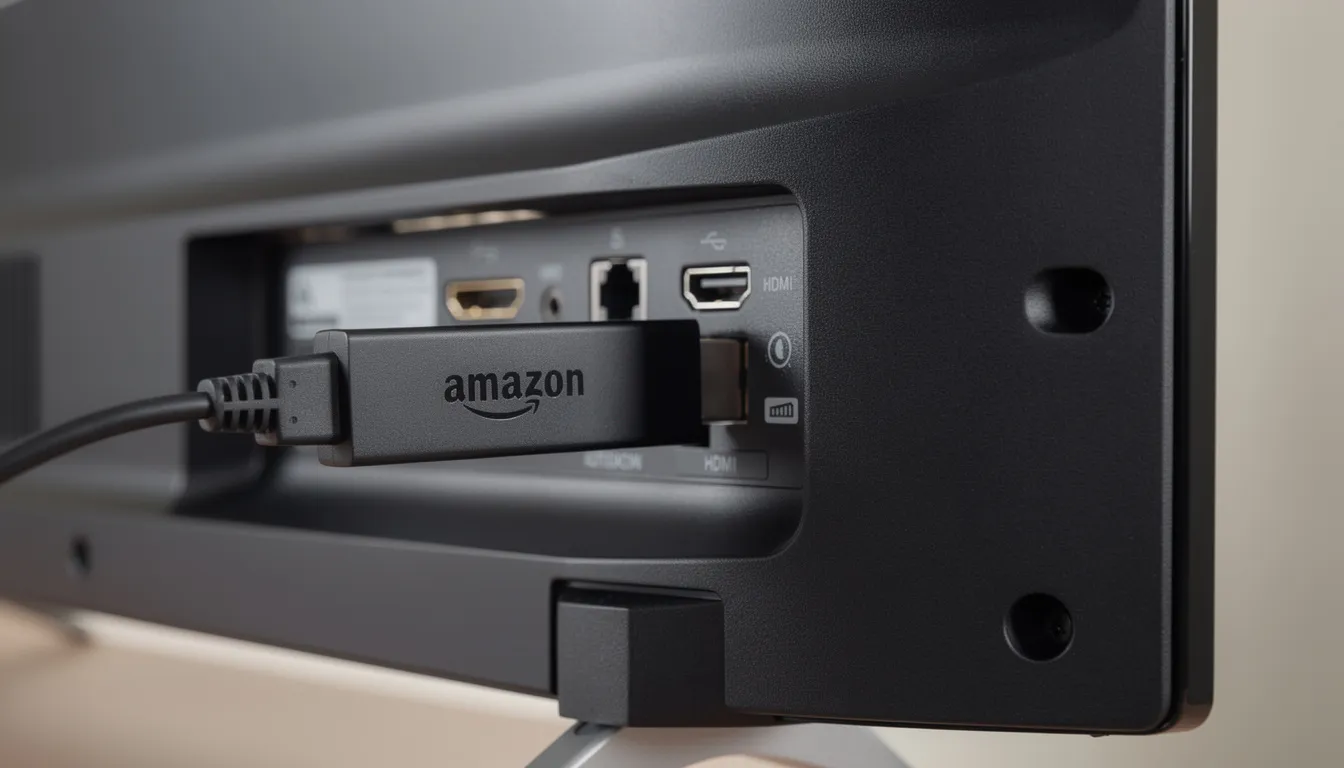
With Downloader installed and sideloading permissions configured, you’re ready to download and install stbemu Pro on your fire tv stick.
- Navigate to Your Apps & Channels on the FireStick home screen and launch the Downloader app
- Accept any first-run prompts about permissions or usage information
- When the app opens, you’ll see a URL field highlighted—press enter to select it
- Using the on-screen keyboard, enter the direct download link for the STB Emu Pro APK from a trusted source
- After typing the URL, click Go to start the download and wait for the APK file to finish downloading
- Once the download completes, Fire OS will display an installation screen—select Install
- Wait for the progress bar to complete, then select Done when you see the installation success message
- You’ll return to Downloader—select Delete to remove the APK file (click delete again to confirm)
- The stbemu app now appears in Your Apps & Channels on your home screen
To move STB Emu Pro to your front row for easier access, navigate to the app icon, press and hold the Options button (three horizontal lines) on your remote, and select Move to front. This saves you from scrolling through your app library every time you want to start streaming.
How to Configure STB Emu Pro on FireStick
When you first launch STB Emu Pro, you may see a blue screen or sample portal information. This is completely normal—the app needs your actual iptv provider details to connect and load channels.
Accessing Settings:
- Open STB Emu Pro on your fire stick
- Press the Menu or Options button on your FireStick remote to reveal on screen remote options or the app menu
- Select Settings or Configure application from the menu that appears
Creating and Editing Profiles:
- Navigate to Profiles within the settings menu
- Select Add or create a new profile with a recognizable name (like your provider’s name)
- You can also edit existing profiles to update portal URLs or MAC addresses as needed
- This allows you to manage multiple servers and switch between different iptv services later
Entering Portal Settings:
- Go to Portal settings and then select Portal URL
- Enter the exact URL provided by your iptv service (for example: http://provider.example.com:8080/c/)
- Ensure you type the URL exactly as provided, including http:// or https://, port numbers, and any trailing characters
- Press enter to confirm and save the portal url
Configuring MAC Address and STB Model:
- Navigate to STB configuration within settings
- Find the MAC address field and enter the address assigned or generated by your provider
- MAC addresses typically follow this format: 00:1A:79:XX:XX:XX
- Select upper case formatting if required by your provider
- Under STB model, choose the appropriate device type—MAG 250 or MAG 322 work for most providers
- If your provider specifies a different model in their setup instructions, use that one for compatibility
Optional Configuration:
- Set your preferred language and time zone under the appropriate settings menus
- You can customize the app’s interface, language, overlay buttons, and other settings to suit your preferences
- Configure EPG offset if your TV guide shows incorrect times
- Adjust audio and subtitle preferences for your profile
- For better streaming performance, it is recommended to change the default player to ‘LJK’ in the player settings
Connecting to Your Portal:
- Press the Back button to return to the main settings menu or profile list
- With your profile highlighted press enter to select it
- Select OK or Reload portal to let STB Emu Pro connect to your iptv provider
- After entering your details, you may need to activate your account or portal with your IPTV provider to start streaming
- The app will authenticate using your mac address and load your channel categories and EPG data

Basic Navigation & Everyday Use
Once your portal loads successfully, you’ll see the familiar MAG-style home screen with sections like Live TV, Video Club (VOD), Radio, and Settings. This interface should feel intuitive if you’ve used a MAG device before.
- Use the directional pad on your FireStick remote to scroll through channel categories and individual channel lists
- Press the OK button (center of the directional pad) to open a highlighted channel and start streaming
- The Menu or Options button opens quick access features including EPG, favorites management, audio track selection, and aspect ratio adjustments
- Some users may prefer to use a mouse cursor (via a remote app or physical mouse) for easier access to certain menus or on-screen elements in STB Emu Pro.
- Add frequently watched channels to your Favorites list for faster access during daily use
- Use the TV Guide to browse schedules ahead of time—particularly useful for sports events and live programming
- To properly exit STB Emu Pro, open the menu and choose Exit rather than just pressing the Home button—this ensures the app closes cleanly and frees up system resources
Performance & Troubleshooting Tips on FireStick
FireStick models have limited processing power and memory compared to dedicated streaming devices. A few targeted optimizations can significantly improve your streaming quality and reduce frustration.
Improving Connection Stability:
- Use a wired Ethernet adapter (via USB OTG) when possible—this provides more stable streams than Wi-Fi, especially on congested 2.4GHz networks
- Ensure your Wi-Fi connection delivers at least 20-25 Mbps for reliable HD streaming
- Position your FireStick away from interference sources like microwaves and cordless phones
Video Player Settings:
- Within STB Emu Pro settings, experiment with software versus hardware decoding if channels freeze or stutter
- Adjust buffer size settings to allow more preloading for unstable connections
- Consider lowering playback resolution to 1080p or 720p if 4K content causes buffering on slower connections
Quick Fixes for Common Issues:
| Problem | Solution |
|---|---|
| Buffering or stuttering | Reboot FireStick, check internet speed, try Ethernet adapter |
| Channels won’t load | Verify subscription is active, recheck portal url and mac address |
| Black or blue screen | Confirm correct STB model selected, reload portal |
| App crashes | Force close from Applications settings, clear cache, relaunch |
| All streams fail | Try connecting through VPN, contact iptv provider |
We hope these troubleshooting tips help you resolve the most common issues with STB Emu Pro on FireStick.
Regular Maintenance:
- Keep your FireStick software updated by going to Settings > My Fire TV > About > Check for Updates
- Periodically clear the stbemu app cache (not data) through Settings > Applications > Manage Installed Applications
- If portal connection issues persist, verify the time and date settings on your FireStick are accurate
Some ISPs actively block iptv portals or throttle streaming traffic. If you discover that only certain channels fail or all streams refuse to load despite correct configuration, connecting through a VPN before reloading the portal often resolves these access issues. Many users are satisfied with VPN services that offer a money-back guarantee, which provides peace of mind when streaming.
STB Emu Pro vs Free STBEmu on FireStick
Both versions share the same core stb emulator engine and offer identical functionality for connecting to MAG portals. The differences come down to user experience and daily usability.
Free STBEmu:
- Displays advertisements during navigation and menu access
- May feel slower on lower-powered FireStick models due to ad loading
- Same configuration options and portal compatibility as Pro
- Good for testing whether STB Emu works with your iptv provider before purchasing
STB Emu Pro:
- Completely ad-free interface for uninterrupted navigation
- Smoother overall performance on FireStick devices
- One-time purchase (approximately $5.49 on Google Play in 2024)
- No subscription fees or recurring costs
- Preferred choice for primary living room setups
Configuration and portal settings work identically between both versions. If you follow this guide with the free version first, everything transfers directly when you upgrade to Pro. The main question is whether the ad-free experience justifies the one-time cost—for daily iptv use on a family TV, most users find it absolutely worthwhile.
For bedroom FireSticks or secondary devices where you stream less frequently, the free version serves perfectly well. However, if you’re setting up a primary device that sees daily use, STB Emu Pro eliminates the frustration of accidental ad clicks and provides a cleaner experience overall.
Wrapping Up: Using STB Emu Pro as a MAG Emulator on FireStick
STB Emu Pro effectively transforms an affordable Amazon fire tv stick into a capable MAG-style iptv box without requiring expensive dedicated hardware. The stb emulator app select process and configuration take about 10-15 minutes, after which you’ll enjoy the same interface and functionality as physical MAG devices.
The key steps to remember: enable unknown sources in Developer Options, install the APK through the downloader app, configure your portal url and mac address exactly as your iptv provider specifies, then fine-tune video and performance settings based on your connection quality.
Keep your login details and portal information from your iptv service stored safely—you’ll need them again if you reset your device or set up additional FireSticks in other rooms. Many users appreciate the ability to create more than one profile for different services or family members.
Stream responsibly by choosing legitimate iptv services that hold proper broadcasting rights. Secure your connection with a VPN to maintain privacy and avoid potential ISP interference. Respect local copyright laws and understand the legal landscape in your region.
Once comfortable with basic setup, take time to discover advanced features like EPG offset configuration, multiple profiles for different portals, and parental controls. STB Emu Pro offers considerable customization potential that can enhance your streaming experience as you become more familiar with the app. With everything configured properly, you’ll have reliable access to your iptv content whenever you want to start streaming.
FAQ
Does STB Emu Pro work on all FireStick and Fire TV models?
STB Emu Pro runs well on most modern Fire OS devices, including FireStick Lite, Fire TV Stick (2nd generation and newer), Fire TV Stick 4K, Fire TV Stick 4K Max, and Fire TV Cube. The app is compatible with the limited resources these devices offer, though performance varies by model. Older Fire TV boxes may also work, but expect slightly slower navigation and longer loading times compared to newer 4K Max or Cube models, which handle 50+ profiles and 4K content more fluidly.
Can I use M3U playlists directly in STB Emu Pro?
STB Emu Pro is built specifically around MAG/STB portal protocols and does not natively load plain M3U playlists like many generic iptv players do. The app explicitly requires portal-based configurations rather than playlist formats. If you only have an M3U URL from your provider, you should either request MAG portal credentials from your iptv service or use a different IPTV application that supports M3U playlists, such as TiviMate or XCIPTV.
How many IPTV profiles can I add in STB Emu Pro on FireStick?
The app allows multiple profiles, letting you configure more than one iptv portal on a single device. This proves useful if you subscribe to separate services for sports content and international channels, for example. Each profile maintains its own mac address, portal url, and individual settings. Switching between profiles takes just a few clicks through the Profiles menu, making it easy to manage various iptv subscriptions without reconfiguring everything each time.
Why does STB Emu Pro show a blue or black screen after setup?
A blue or black screen typically indicates the portal failed to load properly. Common causes include an incorrectly typed portal url, wrong or disabled mac address, expired iptv subscription, or connectivity issues between your FireStick and the portal server. Start by double-checking your portal url and mac address character by character. Then verify your internet connection is working, restart your FireStick, and reload the portal. If trouble persists after these steps, contact your iptv provider to confirm your subscription is active and your credentials are correct.
Can I install STB Emu Pro on other devices besides FireStick?
STB Emu Pro is an Android application available through Google Play, so it also works on Android TV boxes, NVIDIA Shield, certain smart TVs running Android, and Android phones or tablets. The setup process follows the same general pattern—you’ll enter your portal url and mac address through the settings menu. Navigation may differ slightly depending on your remote control or input device, but the configuration options and portal compatibility remain consistent across all supported platforms.