
Key Takeaways
- “Jailbreak Fire Stick” in 2026 simply means enabling Install Unknown Apps and sideloading APKs through Amazon’s built-in settings – no hacking, rooting, or firmware modification required. The term jailbreak firestick refers to enabling these settings to install third-party apps, not hacking or rooting the device.
- The process is completely legal and fully reversible, but streaming copyrighted content without permission crosses into illegal territory.
- Jailbreaking a Fire Stick does not void the device’s warranty because it only involves enabling developer options provided by Amazon.
- The jailbreaking process is safe because it does not modify system files or install malware; it simply changes a setting that Amazon built into the Fire TV operating system.
- You’ll need just three things: the free Downloader app from the Amazon Appstore, the Install Unknown Apps toggle turned on, and optionally a trusted VPN for privacy.
- Never buy “fully loaded” or pre-jailbroken Fire Sticks from eBay, Facebook Marketplace, or similar platforms – they’re overpriced, often contain malware, put you at legal risk, and you won’t save money compared to jailbreaking your own Fire Stick.
- Some 2025-2026 Fire TV models (like the Fire TV Stick 4K Select) have restricted sideloading capabilities, so check your specific device before starting.
If you’ve been searching for a way to unlock more streaming potential from your Amazon Fire TV Stick, you’ve likely come across the term “jailbreak.” The good news? In 2026, jailbreaking a Fire Stick is easier than ever – and it’s nothing like the complex hacking you might imagine. This guide walks you through every step, explains what’s legal (and what isn’t), and helps you set up a safer, more flexible streaming experience.
What Does “Jailbreak Fire Stick” Really Mean in 2026?
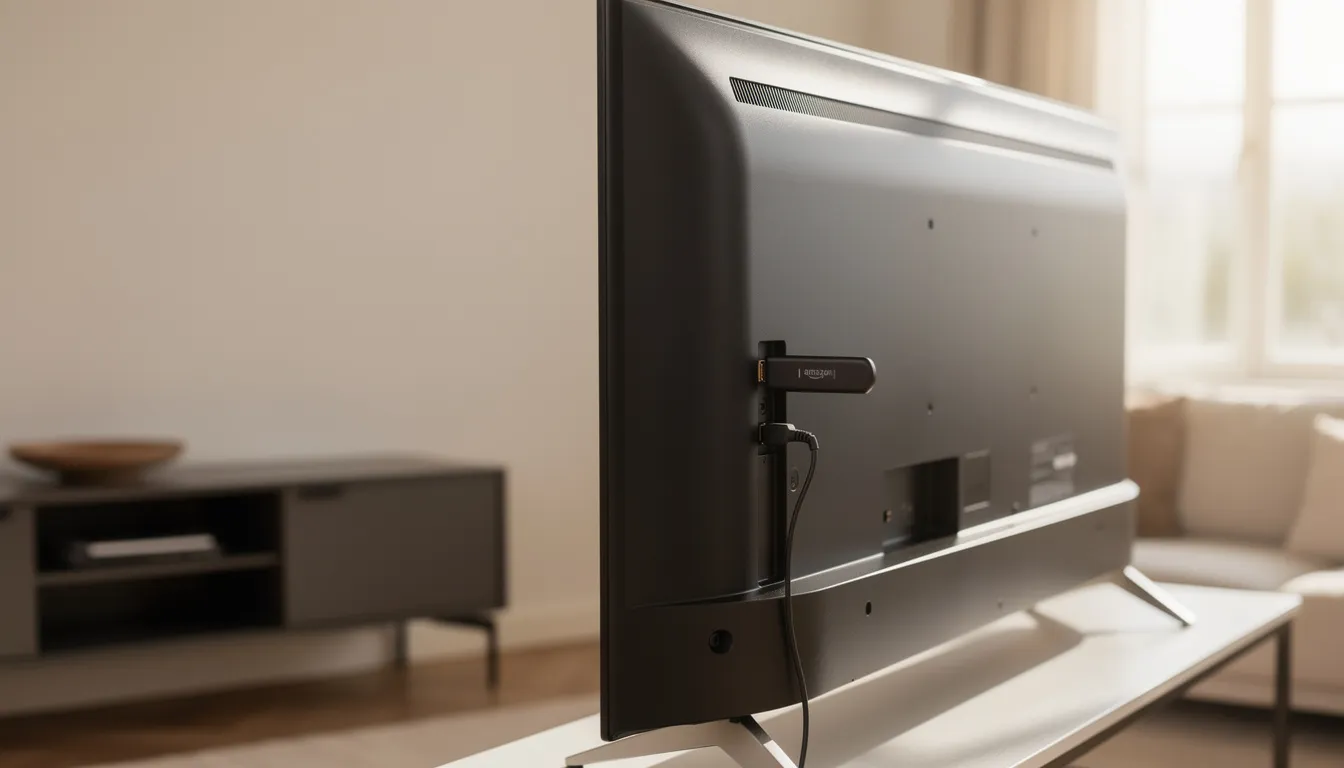
When people talk about how to jailbreak firestick, they’re not describing anything close to the iPhone jailbreaking of years past. There’s no unlocking bootloaders, no flashing custom firmware, and no voiding warranties through technical exploits. To jailbreak firestick, you simply adjust certain settings to allow the installation of third-party apps and expand your device’s capabilities, unlocking access to additional streaming content.
In plain English, jailbreaking a Fire Stick means simply adjusting your device settings to allow third party apps that aren’t available in the Amazon Appstore. After jailbreaking, users can access free, third-party apps for movies, TV shows, and live TV not available on the Amazon Appstore. It’s essentially the same as installing an APK file on any Android device – because Fire OS is built on Android at its core.
Here’s what you need to know about the terminology:
- Side loading – Installing apps from sources outside the official app store by downloading APK files directly to your device
- APK – Android Package Kit, the file format used for Android apps (and Fire TV apps, since Fire OS runs on Android)
- Unknown Apps – Amazon’s label for any app not vetted through their Amazon Appstore
- Developer Options – A hidden settings menu that lets you enable side loading capabilities
This process applies to most Fire TV and Firestick devices including:
| Device | Generation | Sideloading Support |
|---|---|---|
| Fire TV Stick | 2nd Gen and later | Full support |
| Fire TV Stick 4K | All versions | Full support |
| Fire TV Stick 4K Max | 1st & 2nd Gen | Full support |
| Fire TV Stick Lite | All versions | Full support |
| Fire TV Cube | All generations | Full support |
| Fire TV Stick 4K Select | 2025-2026 | Limited/Restricted |
One important caveat: The newest Fire TV Stick 4K Select rolling out in late 2025 and 2026 currently restricts sideloading in some regions. If you own this specific model, the exact method described here may not work or may be limited. In that case, an Android TV device or Google TV box might be a better alternative for your needs.
Is It Legal and Safe to Jailbreak a Fire Stick?
Let’s address the elephant in the room right away. In the US, UK, Canada, EU, and most other regions, changing Fire TV settings and installing apps from outside the Amazon Appstore is completely legal on a device you own.
You’re not breaking any laws by enabling developer options or using the Downloader app. To clarify, when you enable developer options, you are simply activating a legal feature provided by Amazon to allow sideloading and installation of third-party apps. Amazon built these features into Fire OS intentionally – they’re just tucked away from the main interface.
However, there’s a critical distinction that every end user must understand:
- Legal: Enabling sideloading, installing legitimate streaming apps, using media players like Kodi, adding utility apps
- Potentially Illegal: Using those apps to access content you haven’t paid for or don’t have rights to stream
The jailbreaking process itself doesn’t violate copyright law or terms of service in a way that creates legal trouble. What matters is what you do afterward.
Key points about safety and warranties:
- Enabling Install Unknown Apps does not void your standard Amazon warranty
- The process does not directly damage your Fire TV hardware
- Everything happens through official Amazon menus – no system files are modified
- The entire process is reversible in under two minutes
That said, realistic risks do exist:
- Malware from shady APK sites that host unverified apps
- Data collection by unknown apps that haven’t been vetted
- Potential ISP notices if you stream infringing content without protection
- Some poorly coded apps may cause performance issues
Your internet service provider can see your streaming activity unless you use a VPN. If you’re accessing content through questionable sources, this visibility becomes a genuine concern.
Avoid Buying “Fully Loaded” or Pre‑Jailbroken Fire Sticks
This warning deserves its own section because the pre-jailbroken Fire Stick market is filled with scams, security risks, and potential legal exposure.
You’ll find listings on eBay, Facebook Marketplace, Alibaba, and local classifieds advertising Fire Sticks that are “fully loaded” with “every channel free forever.” These should be avoided entirely.
Here’s why:
- Overpriced – Sellers charge $100-200+ for a $30-50 device with free apps you could install yourself in ten minutes
- Outdated apps – Many pre-loaded apps stop working within weeks or months as sources change
- Obvious piracy – These devices are often configured to stream unlicensed content immediately, putting you at legal risk
- Security concerns – Unknown APKs may include spyware, crypto-miners, or adware that track your activity or slow down the device
In 2024-2025, UK authorities conducted raids specifically targeting sellers of pre-jailbroken streaming devices. Buyers who purchased these devices also received warning letters.
Jailbreaking your own Fire Stick using this guide is easier, safer, cheaper, and gives you full control over what gets installed on your jailbroken device.
Before You Start: Check Your Device & Settings
Before diving into the jailbreaking process, take two minutes to confirm your setup and gather some basic information.
Start by checking exactly which Fire TV device you own:
- Navigate to Settings > My Fire TV > About
- Note your device model name (e.g., “Fire TV Stick 4K Max”, “Amazon Firestick”, or “Fire Cube”)
- Check your Fire OS version (most 2026 devices run Fire OS 8 or higher)
Next, ensure your firmware is up to date:
- Go to Settings > My Fire TV > About > Check for Updates
- Install any available updates before proceeding
- Note: You can optionally disable automatic updates later if you plan to use custom launchers
- Updating your firmware also prepares your device to install apps not found in the Amazon Appstore, which is essential for sideloading third-party apps.
Optional privacy tweaks to consider:
- Settings > Preferences > Privacy Settings – Review App Usage Data and Interest-based Ads
- Toggle these off if you’re concerned about Amazon analytics on third party apps
- These settings don’t affect the jailbreak but may improve your overall privacy
Fire TV Features
Fire TV devices, including the Fire TV Stick and Fire TV Cube, are designed to deliver a flexible and powerful streaming experience right out of the box. One of the standout features of these devices is the ability to install third-party apps, giving users access to a much wider range of streaming apps and services than what’s available in the standard Amazon App Store. By enabling the “Install Unknown Apps” option in the settings menu, you can easily sideload apps using the popular Downloader app, which is available directly from the Amazon App Store. This opens the door to installing everything from media players like Kodi—with its vast library of add-ons for streaming content—to utility apps that enhance your device’s functionality.
Beyond third-party app support, Fire TV devices come packed with built-in features that make streaming even more enjoyable. With Alexa voice control, you can search for your favorite TV shows, launch apps, or control playback using just your voice. The Fire TV Cube takes this a step further with hands-free control, allowing you to manage your TV, soundbar, and even smart home devices without lifting a finger. For those who crave high-quality visuals and sound, Fire TV supports 4K Ultra HD streaming and advanced audio formats like Dolby Atmos, ensuring your movies and shows look and sound their best.
Customization is another area where Fire TV shines. Advanced users can personalize their home screen with custom launchers, rearrange app icons, and even add widgets for quick access to their favorite streaming apps. Jailbreaking a Fire Stick or Fire TV Cube unlocks even more possibilities, such as installing apps not found in the Amazon App Store, experimenting with new app stores, and disabling automatic updates for greater control. However, it’s important to remember that while jailbreaking can enhance your streaming experience, it also comes with risks—especially if you install unknown apps from untrusted sources, which can lead to illegal streaming or security issues.
Whether you’re looking to watch free movies, explore new streaming content, or simply organize your apps for easier access, Fire TV devices offer a robust set of features to suit every need. By following safe practices—like only installing apps from reputable sources and regularly reviewing your settings menu—you can enjoy a customized, secure, and seamless streaming experience on your Fire TV Stick, Fire TV Cube, or any other Fire TV device.
How to Jailbreak a Fire Stick – Step‑by‑Step Guide (Updated Feb 2026)
To jailbreak Fire Stick, you follow a process that allows you to access apps and content not available through the official Amazon App Store.
The complete jailbreaking process breaks down into clear steps: install the Downloader app, enable Unknown Apps, use side loading to install your first third-party app, then optionally add a VPN for privacy. Most people complete everything in under fifteen minutes.
The instructions below reflect the current 2026 Fire TV interface with the top navigation bar featuring Home, Find, Live, and other tabs. Screenshots would show firestick devices like the Fire TV Stick 4K Max (2nd Gen) or the 2025 Fire TV Stick refresh.
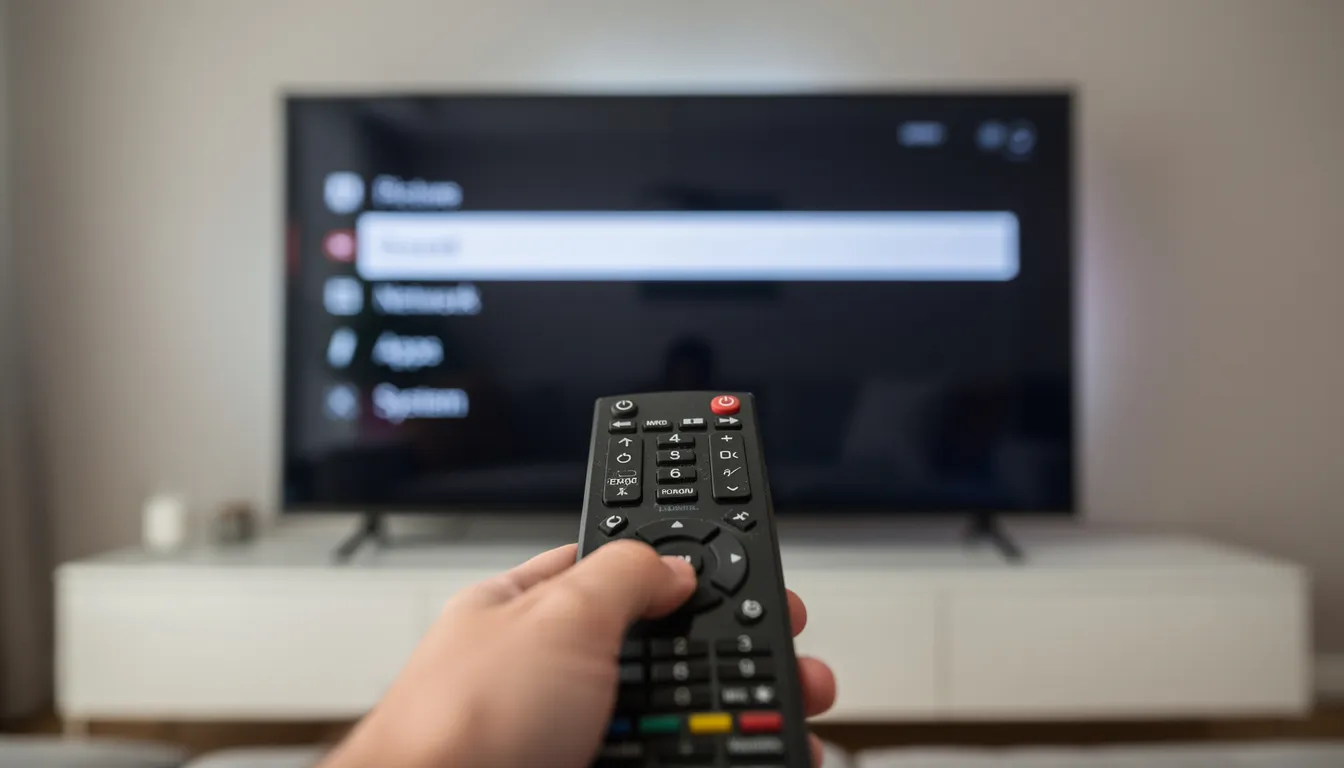
Step 1 – Install the Free Downloader App from Amazon Appstore
The Downloader app is your gateway to sideloading. It’s a legitimate app available directly from Amazon, developed by AFTVnews.com, and serves as both a web browser and APK installer.
To install it:
- From the Fire TV home screen, navigate to the top menu and select Find
- Click Search and select the search icon before using the search bar to type “Downloader” with the on-screen keyboard
- Look for the official Downloader app with an orange icon – it’s developed by AFTVnews.com
- Select the app and click Downloader to initiate the download (Download or Get)
- Wait for installation (typically under one minute)
- You’ll see a confirmation message: “Downloader is ready to launch”
The app is completely free and has no premium features or hidden costs. Once installed, you can find it under “Your Apps & Channels” on the home screen.
How to Install on Firestick (Step-by-Step Guide for 2026)
Step 2 – Turn On “Install Unknown Apps” for Downloader
This step is where you enable developer options – the actual “jailbreak” happens here, though as you now know, it’s just flipping a built-in switch.
Navigate through these menus:
- Press the Home button and scroll to the far right to find the Settings gear icon
- Select My Fire TV
- Look for Developer Options
If you don’t see Developer Options, you need to enable developer options first:
- Go to Settings > My Fire TV > About
- Click on the device name (e.g., “Fire TV Stick 4K”) seven times
- You’ll see a message saying “You are now a developer”
- Go back to My Fire TV – Developer Options should now appear
Once in Developer Options:
- Select Install Unknown Apps (or “Apps from Unknown Sources” on older Fire OS versions)
- Find Downloader in the list
- Toggle it to ON
- Leave other apps set to OFF by default for security
This toggle allows Downloader to install APK files it downloads. You haven’t modified any system files or rooted the device – you’ve simply enabled a feature Amazon built into Fire OS.
Step 3 – Use Downloader to Access a Trusted Toolbox or Direct APK URLs
Now open the Downloader app for the first time. You’ll be prompted to allow permissions for files and media – accept these so the app can save downloaded APK files to your device.
The main Downloader interface is straightforward:
- The URL text box at the top is where you’ll enter web addresses
- You can type full HTTPS links to specific APK downloads
- Some users enter short codes that lead to curated “toolbox” pages
A toolbox is essentially a curated webpage listing multiple apps and utilities in one place. These pages often feature categories like streaming apps, utility apps, VPNs, and alternative app stores.
Best practices for using Downloader:
- Only enter URLs from well-known, reputable sources
- Verify you’re on official websites (e.g., kodi.tv, not kodi-free-download.xyz)
- Avoid random shortened links shared in YouTube comments or unknown forums
- When in doubt, search for the official developer website directly
- Delete APK files after installation to save storage
The Downloader app makes it easy to click download, install, and then delete the installation file in one workflow.
Step 4 – Install a Starter Streaming App (e.g., Kodi or Other Legal Apps)
Kodi is the most widely recognized legal media center for Fire TV devices, making it an excellent first sideload. It’s free, open-source, and available from its official website.
To install Kodi via Downloader:
- Open Downloader and use the URL bar to navigate to kodi.tv/download
- Select Android from the platform options
- Choose ARMV8A (64-bit) for most modern Fire TV devices (4K models from 2019 onward)
- Click the download link – the APK file will begin downloading
- When the download completes, a prompt appears – click Install
- After installation finishes, click Open to launch Kodi or Done to return to Downloader
You can find Kodi under “Your Apps & Channels” on your Fire TV home screen. If it doesn’t appear in the front row, select “See All” to find it in your full app list.
Kodi itself is completely legal – it’s a media player, nothing more. What determines legality is which Kodi add ons you install and what streaming content you access through them. Stick to official addons from the Kodi repository for the safest experience.
Step 5 – Install an Alternative App Store (Optional but Recommended)
While you can sideload every app manually through Downloader, an alternative app store makes browsing and updating easier. Think of it as a new app store specifically for Android apps not found in the Amazon Appstore.
Popular options include:
- Aptoide TV – Designed specifically for television interfaces
- APKTime – Offers categorized listings of streaming apps and utilities
- FileLinked alternatives – Various community-maintained app repositories
The installation process is identical to Kodi:
- Open Downloader
- Enter the official URL for your chosen store (verify it’s the legitimate site)
- Download the APK file
- Click Install when prompted
- Launch from your Apps section
Once installed, these stores let you browse apps by category, read descriptions, and install with a few clicks.
A word of caution: Be selective inside alternative stores. Focus on reputable utility apps, media players, and productivity tools. Avoid anything promising “every movie free forever” or “all premium channels unlocked” – these are red flags for piracy apps that could cause legal trouble.
Step 6 – Protect Your Connection with a VPN
A VPN isn’t required to jailbreak a Fire Stick, but it’s strongly recommended for anyone using third party apps regularly. Most major VPN providers offer apps compatible with the Amazon Firestick, making it easy to securely access streaming content and protect your privacy.
Why use a VPN on your jailbroken Firestick:
- ISP invisibility – Your internet service provider can’t see what you’re streaming
- Throttling prevention – Some ISPs slow down streaming traffic; a VPN prevents this
- Geo-unblocking – Access content that may be restricted in your region
- Privacy from apps – Even legitimate sideloaded apps may collect usage data
The easiest installation method:
- Search the Amazon Appstore directly for your preferred VPN (many have native Fire TV apps)
- Download and install like any other app
- Sign in with your account credentials
- Connect to a server before streaming
Choose a paid, no-logs VPN with a strong reputation. Free VPNs often log your data, inject ads, or sell your browsing history – the opposite of what you want for privacy.
Quality VPNs typically maintain 80-90% of your original internet speed, so buffering shouldn’t increase significantly if your connection was already adequate.
How to Use a Jailbroken Fire Stick Day‑to‑Day
After jailbreaking, your daily streaming experience remains largely the same – you just have more options and more control. Sideloaded apps are added through a process called side loading, which allows you to install third-party applications not available in the official Amazon App Store.
Finding and launching sideloaded apps:
- Press Home and scroll to “Your Apps & Channels”
- Select See All to view your complete app list
- Long-press an app to Move to Front for easier access
- Rearrange your app grid so frequently used apps appear first
Legal use cases to explore:
- Official streaming services you subscribe to
- Free ad-supported TV (FAST) channels
- Public domain movie libraries
- Local media playback via Plex, Emby, or Kodi
- VPN apps for privacy protection
- File managers and utility apps
Performance tips for smooth streaming:
- Use 5 GHz Wi-Fi if your router supports it (faster, less interference)
- Close unused apps running in the background
- Restart your Fire Stick weekly to clear temporary files
- Avoid running multiple heavy apps simultaneously on older models
- Keep at least 500MB-1GB of free storage for smooth operation
Kodi Addons and Builds – Staying on the Right Side of the Law
Kodi’s power comes from its addon system – plugins that fetch content from various online sources. Understanding the difference between official and third-party addons is crucial for staying legal.
Official Kodi addons (from the official Kodi repository):
- YouTube, Vimeo, and other video platforms
- News channels and podcast players
- Legal on-demand libraries
- Weather, sports scores, and utilities
Third-party addons (from external repositories):
- Vary wildly in quality and legality
- Some access legitimate free streams
- Others scrape pirated content
- Install at your own risk
“Builds” are pre-configured Kodi setups that bundle multiple addons with custom skins. They’re convenient but often include unverified apps you haven’t vetted yourself.
Best practices:
- Check where an addon/build originates before installing
- Research the developer’s reputation
- Uninstall anything that behaves suspiciously (pop-ups, constant buffering, weird permission requests)
- Stick to official addons when possible
The bottom line: Kodi is legal. Using it to watch your own media files is legal. Installing official addons is legal. The gray area begins when third-party addons access content without proper licensing.
Advanced Options for Jailbroken Fire Sticks
The following tweaks are optional and intended for power users who want more customization. These may be affected by future Fire OS updates, so always verify compatibility with your specific model and firmware version. Some advanced modifications, such as enabling custom launchers or improving media capabilities, are also possible on the Fire Cube.
Custom Launchers and Cleaning Up the Home Screen
Amazon’s default Fire TV home screen includes sponsored content tiles and recommendations that some users find intrusive. Custom launchers like Wolf Launcher or Projectivity Launcher can replace this interface with a cleaner, ad-free layout.
Benefits of custom launchers:
- Faster access to your apps without scrolling through ads
- No sponsored content tiles cluttering your home screen
- Customizable layouts and organization
- Simpler interface for family members
Current status in 2026:
- Amazon periodically pushes updates that attempt to block custom launchers
- Community workarounds typically emerge within days or weeks
- Some methods involve blocking specific Amazon processes
- Success varies by Fire TV model and firmware version
Installation follows the same sideloading process as other apps. However, treat this as an advanced option – you should be comfortable reverting changes or performing a factory reset if something doesn’t work correctly.
Blocking Updates and App Blacklists (Advanced, Use with Caution)
Some enthusiasts use router-level blocking, DNS rules, or specialized apps to prevent Fire OS updates that might remove features like custom launcher support.
Conceptually, this involves:
- Blocking Amazon’s update servers at your router
- Using DNS filtering to prevent update checks
- Installing apps that monitor and block specific processes
Why most users should avoid this:
- Blocked updates mean no security patches
- You miss out on new features and bug fixes
- Misconfigured blocking can break app installations
- You may need a factory reset to recover from errors
- Not recommended for primary household streaming devices
If you’re interested in these methods, community discussions on technical forums and subreddits cover the specifics. Research thoroughly before attempting anything, and understand that you’re taking on additional risk.
Best Types of Apps for a Jailbroken Fire Stick
Once your Fire Stick is jailbroken, you can mix Amazon Appstore apps, sideloaded apps, and alternative store apps in one unified interface.
| Category | Examples | Notes |
|---|---|---|
| Media Players | Kodi, VLC, MX Player | Play local files and streams |
| Alternative Stores | Aptoide TV, APKTime | Browse apps not in Amazon’s store |
| VPNs | Surfshark, ExpressVPN, NordVPN | Privacy and geo-unblocking |
| File Managers | X-plore, ES File Explorer | Manage downloads and APK files |
| Utility Apps | Mouse Toggle, Button Mapper | Improve navigation and control |
| Local Media Servers | Plex, Emby, Jellyfin | Stream from your home network |
When evaluating new apps:
- Read reviews from multiple sources
- Check when the app was last updated (avoid abandoned projects)
- Review permissions before installing
- Uninstall apps you don’t use to free storage
- Be skeptical of anything promising premium content for free
Debrid, IPTV, and Other Premium Add‑Ons
Beyond free apps, some users invest in premium services that enhance their streaming experience.
Debrid services (Real-Debrid, Premiumize, AllDebrid):
- Premium link providers that offer faster, more reliable streaming sources
- Work within certain Kodi addons and standalone apps
- Reduce buffering and provide higher quality streams
- Cost typically $3-5/month
- Completely legal services – they’re essentially premium file hosts
IPTV services:
- Subscription services providing live TV channels over the internet
- Legal IPTV exists (some cable providers offer it)
- Many “gray market” IPTV services stream channels without proper licensing
- Verify any IPTV service’s legitimacy before subscribing
- If a service offers hundreds of premium channels for $10/month, question its legality
Before signing up for any premium service:
- Research the provider’s reputation
- Verify legal status in your country
- Never enter payment details on your Fire Stick through unverified apps
- Use PayPal or virtual cards when possible
Troubleshooting Common Jailbreak Fire Stick Problems
Most issues after jailbreaking are simple to fix. Here’s a quick reference for common problems:
- App won’t install – Check that Install Unknown Apps is still enabled for Downloader in Developer Options
- Downloader fails to download – Verify the URL is correct and the source website is online
- Device freezing or slow – Clear app cache via Settings > Applications > Manage Installed Applications, then restart
- Sideloaded app missing from home screen – Check “Your Apps & Channels > See All” – it may just not be in the front row. You can also use the ‘Find’ option located in the middle bar of the Fire TV interface to search for your app.
- “Parse error” during install – The APK may be corrupted or incompatible; re-download from the source
- Not enough storage – Uninstall unused apps and delete old APK files via a file manager
- Developer Options disappeared – Return to Settings > My Fire TV > About and click the device name seven times again
- Streaming buffering constantly – Try a different server if using VPN, or check your Wi-Fi signal strength
- App crashes immediately – May be incompatible with your Fire OS version; check for an updated version
Last resort: Perform a factory reset via Settings > My Fire TV > Reset to Factory Defaults. This removes all sideloaded apps and returns your device to its original state – effectively “un-jailbreaking” it.
Final Thoughts on Jailbreaking a Fire Stick in 2026
In February 2026, jailbreaking a Fire Stick remains exactly what it’s been for years: enabling a built-in setting, installing the Downloader app, and sideloading the apps you want. No technical expertise required, no permanent modifications made.
The power of a jailbroken device depends entirely on how you choose to use it. You can expand your streaming options legally with alternative app stores, media players like Kodi, and VPNs for privacy. Or you can venture into gray areas with unlicensed streams – but that’s a choice that carries real risks.
For the best experience, keep your setup lean:
- A handful of trusted streaming apps and utility apps
- A quality VPN for privacy protection
- Regular maintenance (updates, cache clearing, uninstalling unused apps)
- Stay informed about Fire OS changes and new sideloading options
The Amazon Fire TV platform continues to evolve, and the sideloading community adapts alongside it. What works today may need small adjustments in six months. But the fundamental approach – enabling unknown sources and using Downloader – has remained stable for years and shows no signs of disappearing.
Frequently Asked Questions
Can I undo a Fire Stick jailbreak if I change my mind?
Absolutely. Undoing the jailbreak is as simple as returning to Settings > My Fire TV > Developer Options > Install Unknown Apps and toggling Downloader (and any other apps) back to OFF.
If you want to fully return to an Amazon-only environment, uninstall any sideloaded apps from the Apps menu. For a complete clean slate, perform a factory reset through Settings > My Fire TV > Reset to Factory Defaults. This removes everything and restores your Fire Stick to its out-of-box state.
The entire reversal process takes less than five minutes, and there’s no permanent trace of the jailbreak once you’ve reset.
Will jailbreaking slow down or damage my Fire Stick over time?
The jailbreak setting itself causes zero slowdown or hardware damage. Performance issues typically come from having too many apps installed, poorly coded third-party apps running in the background, or insufficient storage space.
To maintain performance:
- Uninstall apps you don’t actively use
- Clear cache on heavy apps periodically
- Restart your Fire Stick once a week
- Keep at least 500MB of free storage
Note that older Fire TV Stick models (especially pre-4K versions with 1GB RAM) may struggle with some modern apps due to hardware limitations – this isn’t a jailbreak issue but simply device age.
Do I need a separate Amazon account to use a jailbroken Fire Stick?
No special account is required. Most people continue using their regular Amazon account without any issues. Jailbreaking doesn’t require a “developer account” or any special registration.
Some privacy-conscious users create a secondary Amazon account with minimal personal information tied to it, but this is entirely optional. Your Prime benefits, purchased apps, and watchlist all remain tied to whichever Amazon account is signed into the device, jailbroken or not.
Can I get free local channels and sports legally on a jailbroken Fire Stick?
Yes – many legitimate options exist regardless of whether your Fire Stick is jailbroken. Official apps from news networks, local broadcasters, and sports leagues often offer free or ad-supported streams.
Explore free ad-supported TV (FAST) services like Pluto TV, Tubi, and Freevee (Amazon’s own free service). These provide news, entertainment, and some sports content legally at no cost.
Be extremely skeptical of any third-party app promising “every sports channel worldwide for free.” If it sounds too good to be true, it’s almost certainly relying on unlicensed streams and should be avoided.
Is there any benefit to jailbreaking if I only use official services like Netflix and Prime Video?
For users who exclusively use major subscription platforms, the benefits of jailbreaking are limited but still exist:
- Install VPN apps not available in the Amazon Appstore
- Add file managers for easier device maintenance
- Use alternative media players for local files
- Install niche apps from Android developers who haven’t published to Amazon
However, if you’re satisfied with Netflix, Prime Video, and similar services, jailbreaking may not be worth your time. The process is most valuable for users who want additional flexibility: local media servers, alternative app stores, interface customization, or access to apps Amazon doesn’t carry.
Consider your actual use case before deciding. Jailbreaking is easy and reversible, but there’s no need to do it “just because” if your current setup already meets your needs.
Accessing Restricted Content on Your Jailbroken Fire Stick
One of the biggest advantages of jailbreaking your Fire Stick is the ability to access restricted content that isn’t available through the standard Amazon App Store. By enabling the “Install unknown apps” option in your settings, you unlock the ability to install third party apps and streaming platforms that open up a world of free movies, TV shows, live TV, and more.
To get started, make sure you’ve already set up your device to allow unknown apps. With this setting enabled, you can use the Downloader app—easily found by searching for “Downloader” in the search bar on your Fire Stick’s home screen—to install a wide variety of third party apps. Popular choices like Kodi, APKTime, and Aptoide TV act as alternative app stores, giving you access to streaming apps and utility apps that aren’t available in the official Amazon app store.
These third party apps can help you save money by providing free or ad-supported streaming content, including movies, TV shows, and even live TV channels. Many users also take advantage of custom launchers to personalize their home screen, making it easier to organize and access their favorite apps. Utility apps can further enhance your device’s performance, helping you get the most out of your streaming experience.
It’s important to remember that while jailbreaking your Fire Stick and installing unknown apps is completely legal, accessing certain types of restricted content may violate the terms of service of your internet service provider or Amazon. Always review these policies before streaming, and consider using a VPN to protect your privacy and keep your streaming habits secure.
When installing third party apps, stick to trusted sources and official websites to avoid malware or unverified apps that could put your device at risk. Following the latest streaming trends—like using APK files for new apps, customizing your home screen, and exploring new app stores—can help you unlock even more content and features on your jailbroken Fire Stick.
By taking these precautions and exploring the wide range of apps available, you can enjoy a richer, more flexible streaming experience while keeping your device and personal information safe.