
Key Takeaways
- Setting up any fire tv stick model (Lite, Fire TV Stick, 4K, Fire TV Stick 4K Max) involves three phases: physical setup with HDMI and power connections, on screen configuration for Wi-Fi and Amazon account registration, and installing apps from the Amazon Appstore.
- No Amazon Prime subscription is required—only a free amazon account and stable internet connection of at least 10 Mbps for HD or 25 Mbps for 4K streaming.
- The entire installation process typically takes 20-30 minutes, with the on-screen wizard handling most of the heavy lifting.
- This guide also covers how to reset your fire stick, troubleshoot setup issues, and optimize fire tv settings for smoother streaming.
- Instructions apply worldwide, though app availability may vary by region (US, UK, EU, and beyond).
Introduction: What “Install on Firestick” Actually Means
When people search for “how to install on firestick,” they’re typically looking for one of two things: setting up a new fire tv stick device from scratch, or installing apps on an already-activated device. This guide covers both scenarios comprehensively.
These instructions are updated for Fire OS versions shipping as of January 2025 and work seamlessly with the Fire TV Stick 3rd Gen, Fire TV Stick 4K (2nd Gen), and 4K Max (2nd Gen). The good news is that the setup wizard handles most of the work automatically—you just need to follow the on screen instructions and make a few choices along the way.
By the end of this guide, you’ll have your fire tv device plugged in, connected to your wi fi network, registered to your amazon account, core streaming apps installed, and basic performance and privacy settings configured to your preferences.
Choosing the Right Model
Selecting the best Amazon Fire TV Stick for your home setup starts with understanding the differences between the available models. The standard Fire TV Stick is a great entry-level option for HD streaming, while the Fire TV Stick 4K and Fire TV Stick 4K Max are designed for those who want to enjoy ultra-high-definition content with enhanced performance and features.
If your TV supports 4K Ultra HD resolution, opting for the Fire TV Stick 4K or 4K Max will ensure you get the most out of your display, with support for HDR, Dolby Vision, and faster processing speeds. The 4K Max model also offers improved WiFi standards, making it ideal for households with fast internet connections or multiple devices streaming at once.
When choosing your fire tv device, consider your TV’s resolution, the speed and reliability of your internet connection, and the types of content you plan to stream. If you’re mainly watching HD content on an older TV, the standard Fire TV Stick is sufficient. For a more future-proof setup, especially with a 4K TV, the Fire TV Stick 4K or 4K Max is recommended.
You can compare the latest models and their features on the Amazon website or by following the on screen instructions during the initial setup of your amazon fire tv stick. This ensures you select the right device for your streaming needs and enjoy a seamless amazon fire tv experience from day one.
TiviMate IPTV Player: Complete Guide, Setup, and Best Alternatives
Compatible Devices and TVs
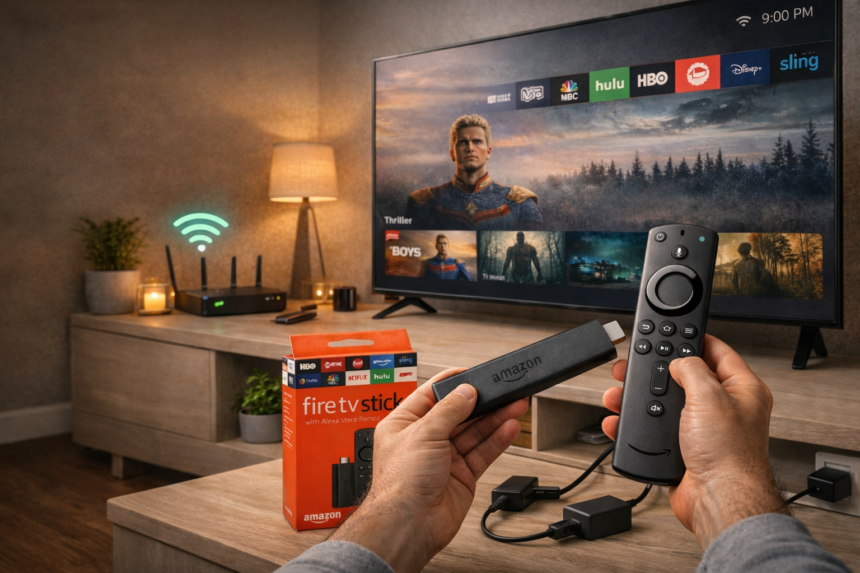
The Amazon Fire TV Stick is designed to work with a wide variety of TVs and devices, making it a flexible addition to any living room setup. All you need is a TV with an available HDMI port—simply plug your Fire TV Stick into the HDMI port, and you’re ready to start the setup process. Whether you have a brand-new 4K TV or an older HD television, the Fire TV Stick is compatible and can instantly upgrade your viewing experience.
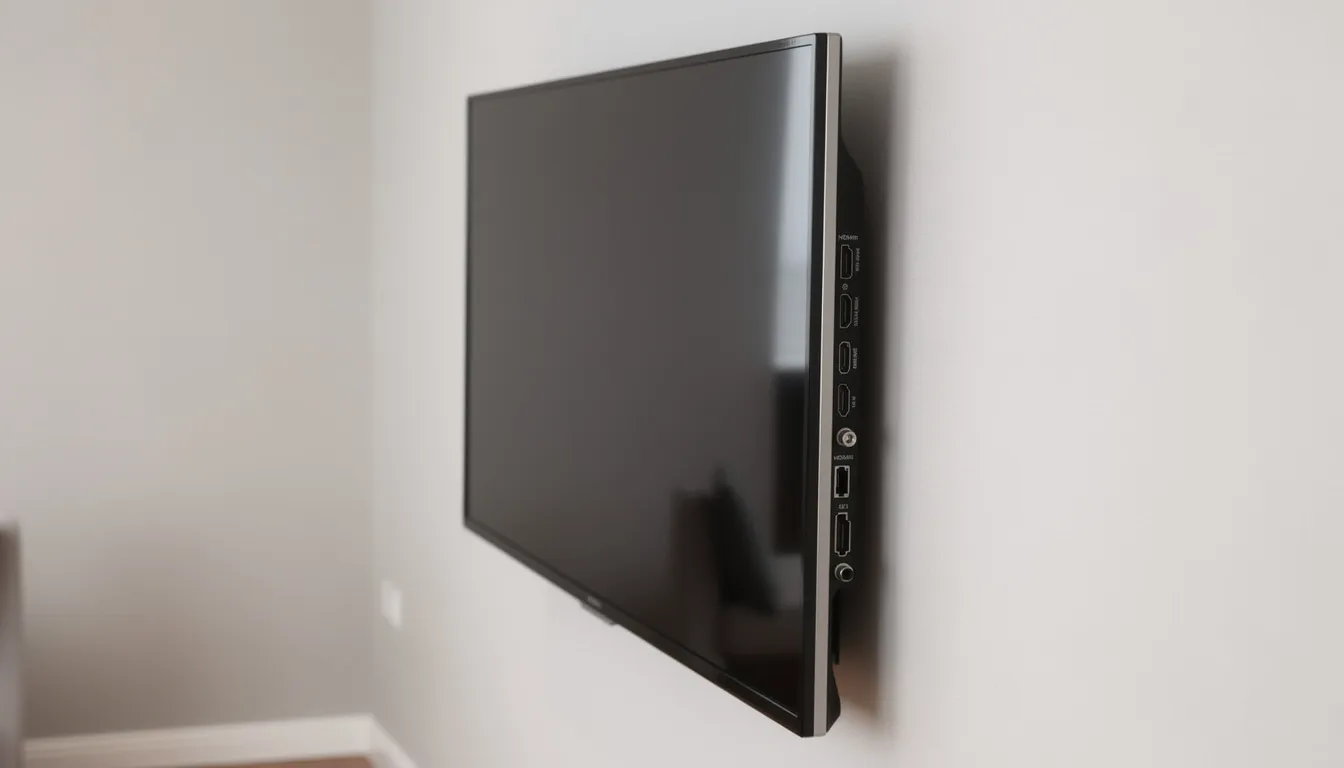
In addition to TVs, the Fire TV Stick can be connected alongside other devices like soundbars or cable boxes, helping you create a seamless entertainment hub. If your TV is wall-mounted or the HDMI ports are hard to reach, the included HDMI extender cable can make installation even easier. For the best results, check your TV’s specifications to confirm it has an available HDMI port, then follow the on-screen instructions to connect your Fire TV Stick and complete the setup. With broad compatibility and simple installation, it’s easy to connect your Fire TV and enjoy streaming movies, shows, and more.
What You Need Before You Start
Gathering everything beforehand makes the amazon fire tv stick installation take under 15-20 minutes. Here’s your complete checklist:
Hardware Requirements:
- Fire TV Stick, Fire TV Stick 4K, or 4K Max device
- Official usb cable and power adapter (included in box)
- Hdmi extender cable (if included—useful for tight spaces)
- Alexa voice remote with two fresh aaa alkaline batteries (the remote also features preset app buttons for quick access to popular streaming apps)
Television Requirements:
- Any HDTV or 4K TV with an available hdmi port
- Support for at least 720p resolution
- Does not need to be one of those smart tvs—your fire stick provides all the smart features
Internet Requirements:
- Active wi fi connection (2.4 GHz or 5 GHz network)
- Your wi fi password ready to enter
- Minimum speeds: 10 Mbps for HD streaming, 25 Mbps for 4K content
- Higher speeds recommended if multiple users share the line with your internet service provider
Account Information:
- Free Amazon account email and password prepared
- Amazon Prime subscription is optional and can be skipped during setup prompts
- No credit card required for free apps
Internet Requirements and Connectivity
A reliable internet connection is essential for getting the most out of your Amazon Fire TV Stick. The device relies on a strong Wi-Fi connection to stream movies, TV shows, and apps smoothly. During setup, you’ll be prompted to connect to your Wi-Fi network—just follow the on-screen instructions to enter your Wi-Fi password and establish a connection.
The Fire TV Stick supports the latest Wi-Fi standards, including Wi-Fi 6 and Wi-Fi 6E, ensuring fast and stable streaming even in busy households. If you experience buffering or connection drops, check that your internet service provider is delivering consistent speeds, and consider using a Wi-Fi extender to boost your signal. For troubleshooting, head to the Fire TV settings, select “Network,” and follow the on-screen instructions to diagnose and fix common Wi-Fi issues. With a solid internet connection and a few quick setup steps, you’ll be ready to enjoy everything your Fire TV has to offer.
How to Physically Install Your Firestick on the TV’s HDMI Port
This section covers the physical connections—power, HDMI, and remote preparation—which typically takes about 5 minutes. Follow these steps in order for the smoothest experience. The device’s remote is essential for navigating and controlling the Fire TV during and after setup, offering features such as voice control, playback buttons, app navigation, and easy battery replacement for added convenience and usability.
Step 1 – Insert batteries into the Alexa Voice Remote
Start by sliding down the back cover of the device’s remote. Insert the two AAA batteries with the positive and negative ends aligned correctly according to the markings inside the compartment. Once the batteries are in and you’ve replaced the cover, the remote will be ready to pair automatically when your TV displays the Fire TV interface.
Step 2 – Connect the USB power cable to the Firestick
Take the included micro-USB cable and plug one end into the power port on your fire tv stick device. Connect the other end to the power adapter rather than your TV’s USB port. Most TV USB ports don’t deliver sufficient power, which can cause random restarts and performance issues.
Step 3 – Plug the Firestick into your TV’s HDMI port and connect the power cord to a power outlet
To set up your Fire TV Stick, plug it into the HDMI port on your TV and connect the power cord to a power outlet. Locate an available hdmi port on your television—these are typically found on the back or side of the TV, labeled HDMI 1, HDMI 2, and so on. Insert the fire tv device directly into the port. If your TV is wall-mounted or the ports are recessed in a tight space, use the included hdmi extender cable as an intermediate connector. This prevents physical strain on both the device and your tv’s hdmi port.
After plugging in the Fire TV Stick, turn on your TV and select the correct HDMI source to see the Fire TV splash screen.
Step 4 – Plug the power adapter into a wall outlet
Connect the power adapter to a wall outlet or surge protector. Avoid using power strips with switches that might accidentally cut power, and definitely avoid plugging the usb cable directly into low-power TV USB ports. The “insufficient power” warning appears on screen when the fire stick doesn’t receive adequate electricity.
Step 5 – Switch your TV input to the correct HDMI source
Use your tv remote to press the “Input” or “Source” button. Navigate through the list of inputs until you find the correct hdmi input where your fire tv stick connect is located (such as HDMI 1 or HDMI 2). Select it, and the Fire TV logo should appear on your screen within seconds. If nothing appears on screen, try a different HDMI port or check that all cables are securely connected.
Navigating the Fire TV Remote
Your Fire TV remote is the gateway to everything your Fire TV device has to offer. With its intuitive design, you can easily move through the Fire TV interface, launch your favorite apps, and control playback with just a few clicks. The remote features a directional pad for navigation, a select button for making choices, and dedicated buttons for back, home, and menu functions.
The Alexa voice remote takes things a step further, allowing you to use voice commands to search for content, open apps, and even control smart home devices. Simply press and hold the microphone button, speak your command, and let Alexa handle the rest. This makes finding shows, adjusting settings, or even asking for the weather quick and hands-free.
To personalize your Fire TV experience, explore the Fire TV settings menu. Here, you can adjust the volume, set up Fire TV’s parental controls—a built-in feature that allows you to set age-based restrictions and require a PIN code to restrict children from accessing certain content—and pair Bluetooth headphones for private listening. Fire TV’s parental controls make it easy for families to manage what children can watch by setting up both age restrictions and PIN protection directly from the settings menu. The remote also supports equipment control, letting you manage your TV’s power and volume directly from the Fire TV remote. Take a few minutes to familiarize yourself with the button layout and available shortcuts—your TV remote will quickly become your favorite tool for effortless streaming.
Using the Alexa Voice Remote
The Alexa Voice Remote is your all-in-one controller for the Amazon Fire TV Stick, making it easy to navigate, search, and control your streaming experience. To use voice commands, simply press and hold the Alexa button on your remote and say what you want—like “Launch Prime Video,” “Play music,” or “Fast forward video content.” The remote also features preset app buttons for instant access to popular streaming services, so you can jump right into your favorite shows.
For basic controls, use the remote to adjust the volume, play, pause, or skip ahead in your videos. To insert batteries, turn the remote upside down, press firmly on the back cover, and slide it down to open. Insert two AAA alkaline batteries, replace the cover, and your remote is ready to go. With the Alexa Voice Remote, controlling your Fire TV Stick is simple, fast, and hands-free.
On-Screen Setup: Language, Wi-Fi, Amazon Account, and On Screen Instructions
Once the Fire TV logo appears on screen, the installation wizard takes over. This automated process guides you through language selection, network configuration, software updates, and account registration.
Choose your language
Use the navigation ring on your fire tv remote to highlight your preferred language—English (United States), English (United Kingdom), or any other available option. Press the Select button in the center of the navigation ring to confirm. The follow on screen instructions will then display in your chosen language.
Pair the Alexa Voice Remote if prompted
In most cases, the remote pairs automatically when you insert batteries. If pairing doesn’t happen automatically, hold the Home button on the remote for 10 seconds. Watch for a confirmation message that the remote upside pairing was successful. Without a working remote, you’ll need to use the fire tv app on your mobile phone as a temporary controller.
Connect to your Wi-Fi network
The setup wizard displays a list of available wi fi networks, including any hidden networks if you choose to enter them manually. Select your home network from the list, then use the on-screen keyboard to enter your wi fi password carefully. Watch for the checkmark icon confirming successful connection. If you experience wi fi issues, ensure your router is functioning and other devices can connect normally.
Let the Firestick download and install system updates
The first update in 2025 can take 5-10 minutes depending on your internet connection speed. Your fire tv device may restart once or twice during this process—this is completely normal. Don’t unplug the device during updates, as this can corrupt the software and require a factory reset.
Sign in or create an Amazon account
If you purchased your amazon fire stick directly from Amazon, you may find your account pre-registered to the device. Otherwise, you’ll see two options: sign in directly on the TV using the on-screen keyboard, or use a browser on your computer or phone to visit amazon.com/code and enter the on screen web address code displayed on your TV. Many users find the browser method faster since typing on a phone is easier than using the remote.
Configure parental controls and optional services
The setup wizard asks about fire tv’s parental controls, which allow you to enable a PIN for purchases and restrict access to mature content. Fire tv’s parental controls help manage user access and set content restrictions based on age. You can enable these controls through the built in parental controls system. Feel free to skip any extra subscriptions or free trials you don’t want—you can always add them later through fire tv settings. Don’t feel pressured by countdown timers on trial offers; the “No thanks” option is always available.
Updating the Fire TV Software
Keeping your Fire TV device up to date is essential for accessing the latest features, security patches, and performance improvements. While your fire tv will usually check for updates automatically and prompt you to install them, you can also manually check for updates at any time.
To do this, go to the fire tv settings menu, select “System,” and then choose “System Update.” Follow the on screen instructions to download and install any available updates. For the smoothest update process, make sure your fire tv device is connected to a stable internet connection and use the official usb cable and power adapter provided in the box.
Regularly updating your device ensures you get the best possible fire tv experience, with new features, bug fixes, and enhanced compatibility with the latest apps. If you ever encounter issues, updating the software is often the first step in troubleshooting—so make it a habit to check for updates and follow the on screen prompts to keep your fire tv running smoothly.
How to Install Apps on Firestick from the Amazon Appstore
With the base system installed, the next step is populating your device with streaming apps. Whether you want to launch prime video, watch Netflix, enjoy Disney+, or catch up on YouTube, the Amazon Appstore makes installation straightforward.
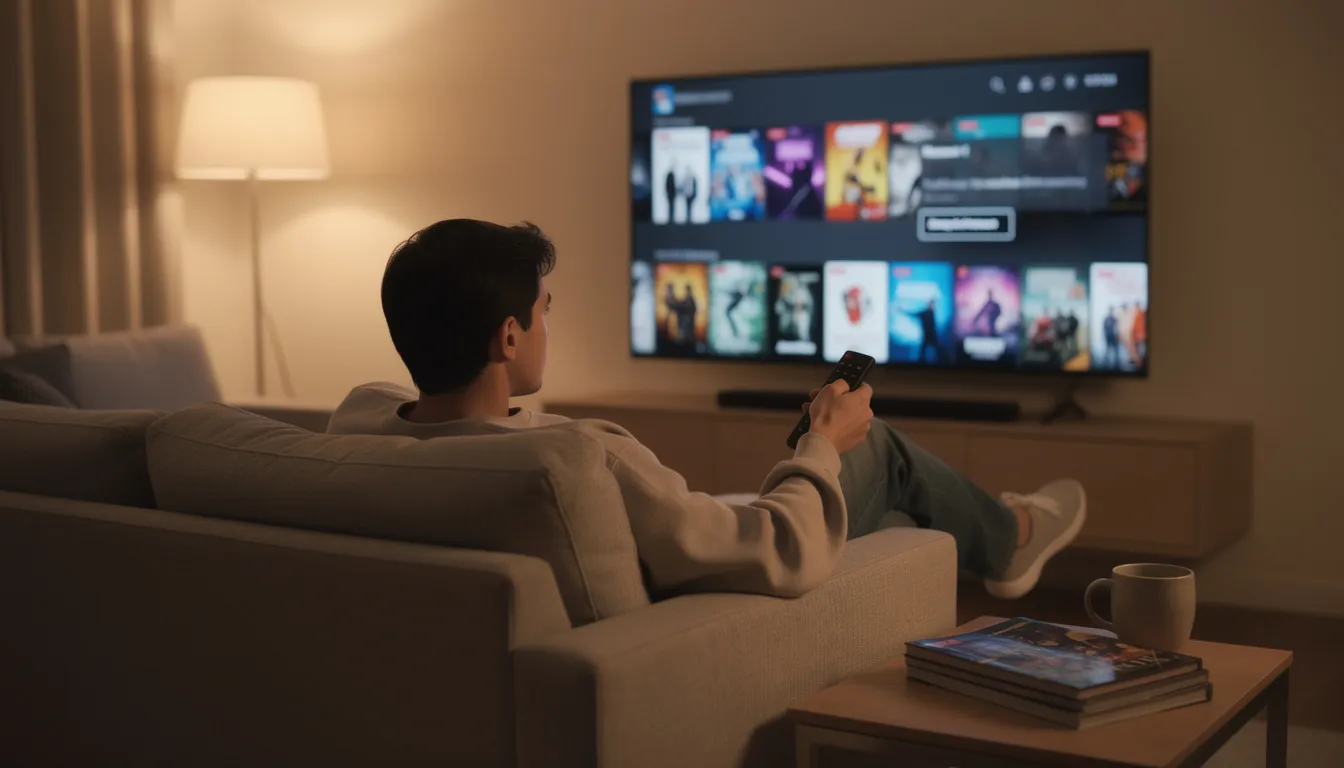
Use the Search icon on the Fire TV home screen
Navigate to the magnifying glass or “Find” option on the fire tv interface home screen. From there, type the app name using the on-screen keyboard. The search results update in real-time as you type, often showing the app you want after just a few letters.
Or use Alexa voice search for faster navigation
Hold the Alexa button on your alexa voice remote and speak commands like “Find Netflix” or “Search for YouTube app.” Voice search is dramatically faster than typing and works reliably for most popular streaming services. You can also say “Download Hulu” to jump directly to the app’s detail page.
Select the app from search results
Official apps display an “App” label and Amazon customer ratings. Before installing, confirm the publisher name matches the expected company (Netflix, Inc. for Netflix; Google LLC for YouTube, and so on). This verification step helps you avoid accidentally installing unofficial or potentially harmful applications.
Click Get or Download to install
Most streaming apps are free to download from the Amazon Appstore. Press the Get or Download button on the device detail page to begin installation. Keep in mind that while download apps is free, many services require separate paid subscriptions or sign-ins when you open them for the first time. The preset apps vary by region and device model.
Open installed apps from Your Apps & Channels
Press and hold the Home button to open the app grid, or select apps directly from the top row of the home screen. As Fire TV learns your usage patterns, it automatically surfaces your most-used apps for quicker access. You can find all installed apps by scrolling right on the “Your Apps & Channels” row and selecting “See All.”
Move favorite apps to the top row
Press the Menu button (three horizontal lines) while highlighting an app, choose “Move,” and use the navigation ring to place it toward the front of your app list. This customization saves time when you want to enjoy streaming movies without scrolling through dozens of installed apps.
How to Use Your Firestick After Installation
After completing the set up your fire process and installing your core apps, it’s time to learn the basics of daily navigation. This knowledge transforms your fire tv experience from functional to truly enjoyable.
Remote Overview
Before you start navigating, here’s a remote overview: The Fire TV remote features a directional pad for navigation, a select button in the center, dedicated Home, Back, and Menu buttons, as well as volume and power controls on newer models. The Alexa voice button lets you use voice commands for hands-free operation. You can also customize certain remote functions in the Settings menu, such as pairing with your TV or soundbar. Understanding this remote overview will help you operate and personalize your Firestick experience.
Navigating the Fire TV home screen
The fire tv interface organizes content into main tabs: Home, Find, Live, Apps, and Settings. Use the directional pad on your fire tv remote to move horizontally between tabs and vertically through content rows. The Home tab surfaces personalized recommendations, while the Live tab (where available) shows streaming channels and live content.
Using Alexa voice commands effectively
Your alexa voice remote does far more than basic navigation. Try commands like “Alexa, open Prime Video,” “Alexa, play The Grand Tour,” or “Alexa, fast forward video content 30 seconds.” You can also ask questions—“Alexa, what’s the weather?”—and she’ll respond directly on screen. For equipment control convenience, say “Alexa, turn off TV” if you’ve configured TV power controls.
Watching live TV channels where supported
In supported countries, the Live tab provides access to streaming channels. UK viewers can access BBC, ITV, Channel 4, and more through their respective apps. Say “Alexa, open TV guide” to pull up the channel listing. This feature varies significantly by region, so explore what’s available in your area.
Controlling TV power and volume with the Firestick remote
Newer Fire TV Stick, 4K, and 4K Max remotes include TV control buttons for power and volume. If these weren’t configured during initial setup, navigate to Settings > Equipment Control > Manage Equipment to add your TV. The remote appearance may vary slightly between generations, but the functionality remains consistent.
Using the Fire TV app on your smartphone
Download the amazon fire tv app on Android or iOS for an alternative control method. The app provides touch navigation, a full keyboard for easier text entry, and voice input. It’s particularly useful when your device’s remote batteries die unexpectedly or when entering long passwords.
Managing the “Continue Watching” row
Fire TV automatically tracks your viewing across supported apps, surfacing recently watched content in the “Continue Watching” row. If privacy is a concern, highlight any title and press the Menu button to remove it from this list. This feature works across multiple streaming services that support it.
Watching Live TV on Amazon Fire TV
With the Amazon Fire TV Stick, enjoying live TV is easier than ever. Simply navigate to the “Live” tab on your fire tv home screen to access a comprehensive channel guide, or use your alexa voice remote and say, “Alexa, open TV guide.” The live TV guide displays upcoming programs for the next seven days, making it simple to browse, schedule, and tune into your favorite shows.
Many popular live TV apps are available for the fire tv stick and amazon fire tv, offering access to local channels, sports, news, and more. Some apps may require a subscription or authentication with your TV provider, so be sure to review each app’s requirements before signing up.
For added flexibility, download the fire tv app on your mobile phone. This lets you stream live TV content, set DVR recordings (where supported), and even control your fire tv device from your phone. Whether you’re watching on the big screen or catching up on the go, the fire tv stick makes it easy to stay connected to live entertainment.
Accessing Fire TV Tips
To make the most of your Amazon Fire TV Stick, take advantage of the built-in Fire TV tips and resources. Navigate to the Fire TV settings and select the “Help” option to find tutorials, troubleshooting guides, and step-by-step instructions for using your device. You can also discover Fire TV tips online, including articles and videos that walk you through advanced features and settings.
For even more control, download the Fire TV app on your mobile phone. The app lets you download apps, manage parental controls, and adjust your Fire TV Stick’s settings right from your phone. Just sign in with your Amazon account to unlock these features. Whether you’re a new user or looking to explore advanced options, these Fire TV tips will help you get the most out of your streaming experience.
Advanced Installation: Enabling Third-Party Apps (Sideloading)
This optional section covers installing apps that aren’t available in the official Amazon Appstore. Sideloading is intended for experienced users who understand the associated risks and want access to specialized applications.
Step 1 – Install the Downloader app from the Amazon Appstore
Search for “Downloader” by AFTVnews.com in the Appstore and click Get. This free utility provides a simple browser for downloading APK files directly to your fire tv stick device.
Step 2 – Allow installation from unknown apps
Navigate to Settings > My Fire TV > Developer Options (or Privacy & Security on some Fire OS versions). Find the “Install unknown apps” option and enable it specifically for Downloader. This permission allows Downloader to install applications from sources outside the Amazon Appstore.
Step 3 – Use Downloader to enter a direct URL
Open Downloader and type the full HTTPS address of the APK file you want to install. Only download from reputable, legal sources—avoid any sites offering pirated content or suspicious applications. Legitimate developers often provide direct download links for their Fire TV-compatible apps.
Step 4 – Run through the Android-style install prompt
Once the APK downloads, an installation prompt appears. Scroll down to review the permissions requested, then select Install. After installation completes, choose Open to launch immediately or Done to return to Downloader.
Step 5 – Find sideloaded apps under Your Apps & Channels
Sideloaded applications may not appear on your home screen’s front row automatically. Navigate to Your Apps & Channels > See All to find them. From there, you can move them to a more accessible position using the Menu button.
Safety disclaimer: Sideloading creates potential security and stability risks. Some third-party apps aren’t optimized for the fire tv remote or television screen size. Only install software from sources you trust, keep your device updated, and understand that sideloading certain applications may violate terms of service.
Using the Amazon Fire Stick with Other Devices
The Amazon Fire TV Stick is designed to work seamlessly with a variety of devices, giving you a flexible and customizable streaming setup. To connect your fire tv stick, simply plug it into your TV’s hdmi port. If space is tight or the port is hard to reach, use the included hdmi extender cable for easier installation and better WiFi reception.
Connect your fire tv to the internet using the WiFi connection option during setup, and enter your WiFi password when prompted. For private listening or enhanced audio, pair Bluetooth headphones or speakers through the fire tv settings menu. This is perfect for late-night viewing or when you want to enjoy immersive sound without disturbing others.
You can also use the fire tv app on your mobile phone as a remote control, to launch apps, or to stream content directly to your TV. The fire tv remote supports equipment control, allowing you to manage your TV, soundbar, or other compatible devices—all from one place. By exploring these features and settings, you can create a living room setup that’s tailored to your preferences and enjoy streaming movies, shows, and more with your amazon fire tv stick.
How to Reset Firestick and Fix Common Installation Problems
Even the smoothest living room setup can encounter hiccups. Here are solutions to the most common issues users face during or after installation.
Soft restart the Firestick
For minor glitches, hold the Select and Play/Pause buttons together for 5-10 seconds until the device restarts. Alternatively, navigate to Settings > My Fire TV > Restart. This soft reset clears temporary memory issues without affecting your installed apps or settings. It’s the first troubleshooting step for more solutions to common problems.
Factory reset when installation is badly corrupted
If your new fire tv stick is completely unresponsive or stuck in boot loops, a factory reset may be necessary. Press and hold the Back button and the right side of the navigation ring simultaneously for 10 seconds. When the reset option appears on screen, select Continue. Warning: this erases all apps, accounts, settings, and returns the device to factory condition.
Fixing Wi-Fi or network failures during setup
If your fire tv stick connect fails during network configuration, try moving the device closer to your router. Consider switching from 5 GHz to 2.4 GHz if range is problematic—2.4 GHz penetrates walls better despite slower speeds. Double-check your password entry and restart your router if other devices also show connectivity problems.
Dealing with “Optimizing System Storage and Applications” loops
This message can repeat endlessly if storage is critically low. Unplug your fire stick for 60 seconds, then reconnect. After booting, immediately remove unused apps and clear cache from Settings > Applications. Maintain at least 1-1.5 GB of free storage to prevent repeat errors and ensure smooth operation.
If the Firestick keeps rebooting or turning off
Persistent power issues almost always stem from inadequate power supply. Use the official power adapter rather than TV USB ports or third-party chargers. Check for loose HDMI and power connections—sometimes a slight wiggle reveals the problem. If issues persist with old tv sets, try a different HDMI port or test the fire stick on another television.
Additional troubleshooting resources
Amazon provides online help through their support website, and you can access audio descriptions and screen magnifier accessibility features through Settings > Accessibility. For bluetooth device connections, including how to connect bluetooth headphones, navigate to Settings > Controllers & Bluetooth Devices.
FAQ
Do I need a smart TV to install and use a Firestick?
No, you don’t need a smart TV. Any television with at least one HDMI port works perfectly, including older “dumb” HDTVs and old smart tvs alike. The fire tv stick provides all the smart features, apps, and Wi-Fi connectivity independently. Your TV simply acts as the display screen—the fire tv device handles everything else, from streaming to voice commands to app management.
Can I install apps on Firestick without an Amazon account?
An Amazon account is required to activate the Firestick and access the Amazon Appstore. However, this can be a completely free basic account with no paid Prime membership attached. You won’t need a default payment method or credit card to download free apps. Paid content and subscriptions require payment information, but basic functionality works with just an email address and password.
How long does a full Firestick installation usually take?
Physical installation typically takes about 5 minutes. First-time software updates add another 5-10 minutes depending on your internet connection speed. Installing core streaming apps generally requires an additional 5-15 minutes. Most users complete setup—from unboxing to streaming their first show—within 20-30 minutes total. Having your Wi-Fi password and Amazon credentials ready beforehand speeds up the process considerably.
Can I move my Firestick to a different TV after installation?
Absolutely. Simply unplug the fire tv stick from one TV and plug it into an HDMI port on another television. You may need to reselect your Wi-Fi network if the new location has a different network, but all your installed apps, login information, amazon account data, and preferences remain intact. The fire tv stick device stores everything internally, not on the specific TV it was first connected to.
Is it safe to install third-party apps on Firestick?
Fire OS allows installation from unknown sources when you enable the appropriate setting. However, you should only sideload software from reputable, legal sources. Stick to well-known developers with established track records. Understand that some third-party apps may not be optimized for fire tv tips and remote navigation, meaning they might require a cable box-style approach with an external keyboard or mouse. Keep your device updated and avoid any applications that promise free access to paid content—these often contain malware or violate streaming service terms of use. When exploring the on screen qr code or web address methods for sideloading, verify the source before proceeding.
Conclusion
In conclusion, the Amazon Fire TV Stick is a powerful and user-friendly streaming solution that fits seamlessly into any living room setup. With its straightforward installation process, compatibility with a wide range of TVs and devices, and reliable internet connection, you can enjoy streaming movies and TV shows in stunning quality. The Alexa Voice Remote adds convenience and hands-free control, while built-in Fire TV tips and the Fire TV app help you personalize your experience and troubleshoot setup issues with ease.
Whether you’re upgrading an old smart TV or building a new entertainment center, the Fire TV Stick delivers a smooth, enjoyable streaming experience. Just follow the on-screen instructions, explore the many features available, and don’t hesitate to reach out to Amazon support if you need help. With the Fire TV Stick, you’re just a few steps away from enjoying your favorite content anytime you want.
Introduction to Amazon Fire TV Stick
The Amazon Fire TV Stick is a compact yet powerful streaming device that transforms any television with an HDMI port into a smart entertainment hub. Whether you have a brand-new 4K TV or want to breathe new life into an old smart TV, the Fire TV Stick plugs directly into your TV’s HDMI port and instantly gives you access to a world of streaming movies, TV shows, and apps.
Setting up your Fire TV Stick is simple: just connect it to your TV’s HDMI port, plug in the power adapter, and follow the on screen instructions to complete setup. The device connects to your home Wi-Fi, allowing you to stream content from your favorite services like Amazon Prime Video, Netflix, Hulu, and more. With the included Alexa Voice Remote, you can easily navigate menus, launch Prime Video, search for content, and even control your TV’s power and volume—all with your voice or the press of a button.
The Fire TV Stick is part of the broader Amazon Fire TV family, designed to enhance your viewing experience with features like parental controls, Bluetooth headphone support for private listening, and equipment control for managing your TV and soundbar. The remote overview includes preset app buttons for quick access to popular streaming apps, and the screen magnifier feature helps make on-screen text easier to read. You can also use the Fire TV app on your mobile phone to control your device, download apps, and adjust fire tv settings for a personalized experience.
One of the biggest advantages of the Fire TV Stick is its compatibility. It works with virtually any TV that has an HDMI port, making it a great upgrade for old smart TVs or standard HDTVs. The device detail page on Amazon provides information about supported features and compatibility, so you can be confident it will work with your setup. Plus, with built-in parental controls, you can restrict access to certain content and manage what your family can watch.
To get the most out of your Fire TV Stick, explore the fire tv settings menu to adjust display and sound options, connect Bluetooth headphones, and set up your fire tv for the best streaming experience. If you ever need help, just follow the on screen instructions or visit the device detail page for troubleshooting tips and more solutions.
Whether you’re looking to enjoy streaming movies, catch up on live TV, or simply upgrade your living room setup, the Amazon Fire TV Stick offers a user-friendly, feature-rich solution. Its compact design, easy installation, and wide range of features make it an excellent choice for anyone wanting to enhance their TV viewing experience—no matter what kind of TV you have.