
Key Takeaways
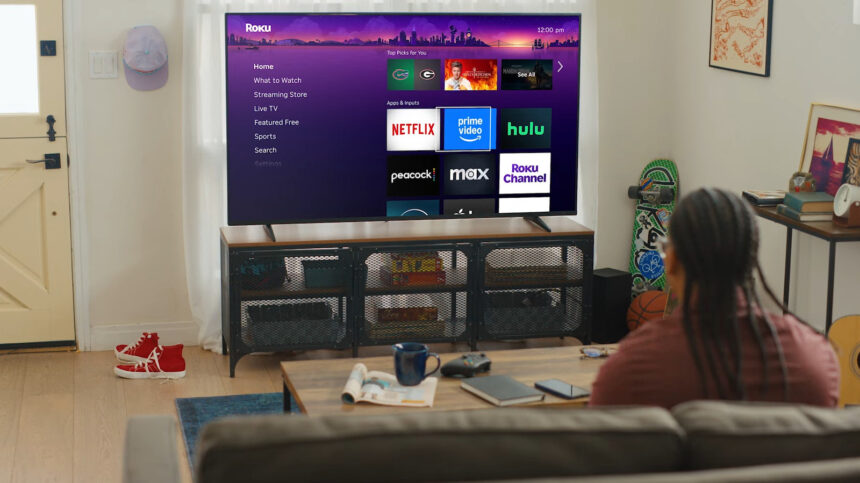
- A roku streaming stick is a compact HDMI streaming device that transforms any TV into a smart TV with access to Netflix, Disney+, Max, YouTube, and thousands of other apps through the intuitive roku os interface.
- The Roku Streaming Stick 4K is the best all-rounder for most buyers in 2026, offering dolby vision support, dual band wireless connectivity, and a simple remote for typically $40–$60.
- The Roku Express 4K+ delivers exceptional value at around $30–$40, making it the best budget-friendly option with full 4K HDR support.
- Compared to the amazon fire tv stick and google tv streamer, Roku devices offer a cleaner, platform-neutral interface with fewer aggressive content recommendations and ads.
- Setup takes under 15 minutes, no monthly fees are required to use the hardware, and the streaming stick design makes it highly portable for travel and hotel use.
Introduction: What Is a Roku TV Stick and Why It Still Matters in 2026
A tv stick roku is a compact streaming device that plugs directly into your tv’s hdmi port and connects to your WiFi network, transforming virtually any television into a full-featured smart tv. Once connected, you gain instant access to streaming platforms like Netflix, YouTube, Hulu, Disney+, and thousands of other streaming channels through the roku interface. The device draws power from your tv’s usb port or an included wall adapter, making installation remarkably simple.
Roku launched its first streaming player back in May 2008, emerging from a Netflix hardware project that was spun off to become an independent company. Since then, the company has evolved from bulky set-top boxes to sleek streaming sticks that condense powerful hardware into a form factor not much larger than a USB drive. The roku operating system was specifically engineered as the first OS designed exclusively for TV streaming, and Roku’s innovations earned the company the first Emmy Award for Television Enhancement Devices in 2015.
Even with smart TVs dominating store shelves in 2026, a dedicated streaming stick remains remarkably relevant. Built-in TV software often becomes slow and outdated within a few years, loses support for newer apps, and varies wildly in quality between TV brands. A modern roku stick delivers faster performance, consistent updates, and the same familiar home screen experience whether you’re watching in your living room, bedroom, or vacation rental. For under $60, you can essentially future-proof any TV rather than spending hundreds on a replacement.
This guide focuses specifically on Roku’s stick-form-factor streaming devices—the Streaming Stick line and Express 4K+—while mentioning the roku ultra and roku tv options where helpful for context. You’ll learn which roku model fits your needs, how to set it up, and how to get the most out of your purchase.
The Quick List: Best Roku TV Stick Picks for Different Users
Before diving into detailed breakdowns, here’s a quick snapshot of the best roku devices for different situations:
Roku Streaming Stick 4K – Best for Most People: This is the mainstream recommendation for anyone wanting excellent picture quality with dolby vision, HDR10+, and long-range dual band wireless connectivity. It typically sells for $40–$60 and handles everything from casual viewing to home theater setups with ease.
Roku Express 4K+ – Best Value Option: At around $30–$40, this roku product delivers full 4K HDR support in a compact form factor. You sacrifice dolby vision support and the absolute fastest performance, but for secondary TVs or budget-conscious buyers, it’s hard to beat.
Roku Ultra – Best Premium Choice: While technically a box rather than a stick, the roku ultra offers Ethernet for rock-solid streaming, USB ports for local media, and the voice remote pro with rechargeable battery. It’s ideal for home theater enthusiasts who demand zero buffering.
Roku Streambar – Best All-in-One Solution: If you want to upgrade both your streaming and your TV audio, the roku streambar combines a 4K streaming device with a decent soundbar featuring dolby audio, eliminating the need for separate devices.
Best Roku TV Stick for Most People: Roku Streaming Stick 4K
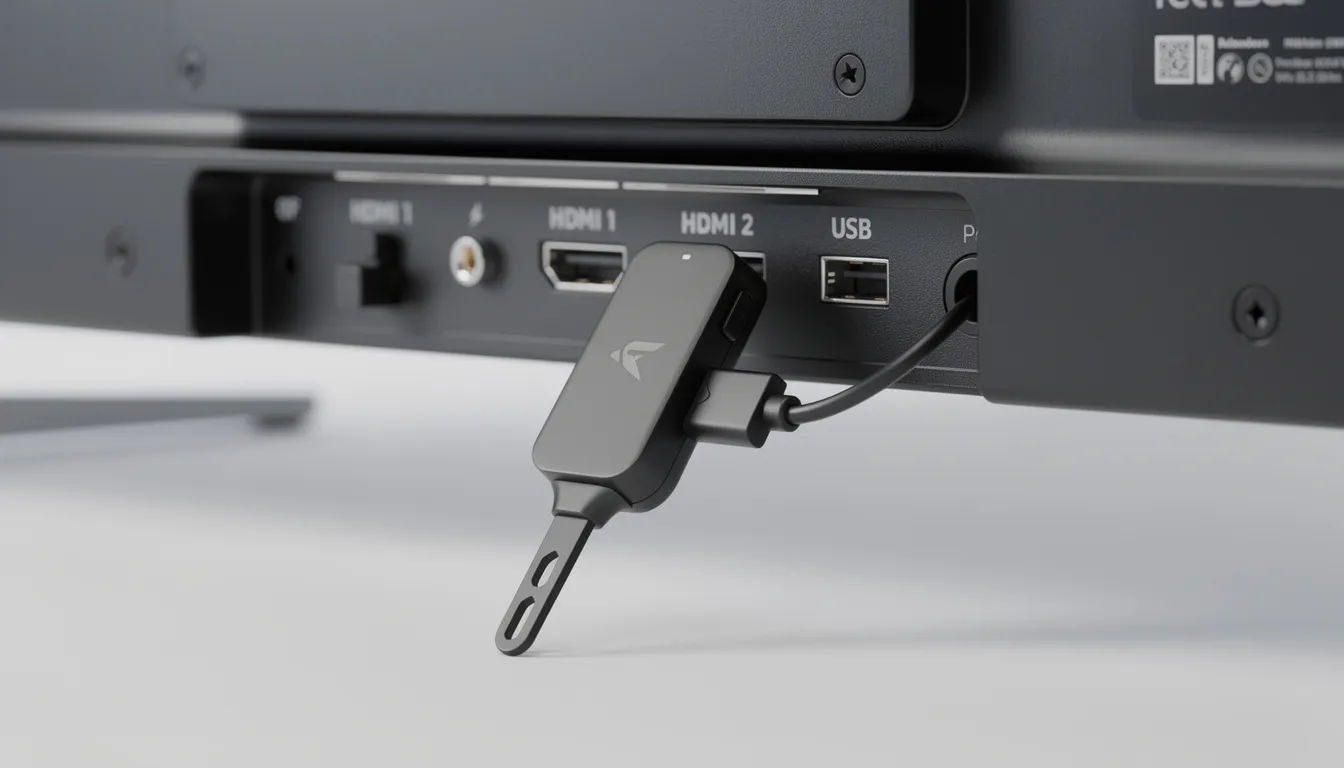
The roku streaming stick 4k represents the sweet spot in Roku’s lineup for 2026, combining excellent picture quality, responsive performance, and user-friendly design at a price that won’t break the bank. If you’re buying your first streaming stick or upgrading from an older device, this is where most people should start.
Design and Connectivity
The streaming stick 4k features a compact form factor that plugs directly into your TV’s hdmi port, virtually disappearing behind your television. It’s powered via a micro usb cable connected to either your tv’s usb port or the included power brick for TVs that don’t supply adequate USB power. The small footprint makes it ideal for wall-mounted TVs where a box would be awkward or visible.
Picture Quality
This model supports 4K resolution at 60fps along with comprehensive hdr formats including dolby vision, HDR10, HDR10+, and HLG. For anyone with a modern 4K TV, this translates to brighter highlights, richer colors, and more detail in dark scenes. The difference between HDR and standard content is immediately noticeable when watching high-quality productions on streaming platforms.
Performance and WiFi
Under the hood, a quad-core processor keeps the roku os navigation snappy, with quick app launches and smooth transitions between streaming channels. The long-range g n dual band wireless antenna—an upgrade introduced with earlier Streaming Stick+ models—provides more stable 4K streaming even in apartments with congested WiFi or in larger homes where distance from the router could otherwise cause buffering.
Remote and Ease of Use
The included voice remote features a microphone button for voice control, plus dedicated buttons for the tv’s power, volume, and mute that can be programmed during setup to control your TV directly. The tile-based home screen is cleaner and more intuitive than many competing platforms, making it easy for kids, guests, and less tech-savvy family members to start watching immediately.
Ideal Buyer
Choose the Roku Streaming Stick 4K if you have a 4K TV, want a single simple remote to control everything, value portability for travel, or simply want a reliable streaming experience without complexity. Many users are a huge fan of this device for its user-friendly design and reliability. It’s the roku stick that does everything most households need without paying for features they won’t use.
TiviMate IPTV Player: Complete Guide, Setup, and Best Alternatives
The Best Value Roku TV Stick: Roku Express 4K+
For buyers watching their budget—or outfitting secondary TVs in bedrooms, guest rooms, or kids’ spaces—the roku express 4K+ delivers remarkable value. This device proves you don’t need to spend $50 or more to enjoy modern 4K streaming.
Pricing and Value
The Express 4K+ frequently sells for $30–$35, and often dips even lower during sales events like Black Friday or Prime Day. At this price point, it undercuts even the basic fire tv stick 4k while offering comparable resolution and streaming performance.
Resolution and HDR Support
You get full 4K resolution with HDR10 and HDR10+ support, ensuring your content looks sharp and vibrant on any 4K-capable TV. The main sacrifice compared to the Streaming Stick 4K is the absence of dolby vision support. For most casual viewers, this difference is barely noticeable, though videophiles may miss the enhanced dynamic range on compatible content.
Hardware and Form Factor
Unlike the stick design, the Express 4K+ uses a small wedge or puck shape that sits near your TV with a short HDMI cable running to the port. This form factor is slightly less portable than a stick but works perfectly for permanent setups. Power comes from either your tv’s power supply via USB or the included adapter.
Remote and Features
The device includes a standard roku remote with voice control capabilities and four shortcut buttons for quick access to popular streaming services. It supports AirPlay 2 for casting from Apple devices and screen mirroring from compatible phones and tablets, adding flexibility beyond traditional app-based streaming.
Who Should Buy
The roku express makes perfect sense for secondary TVs, children’s rooms, college dorm setups, or anyone upgrading a 4K TV that came with poor built-in software. If you’re unsure whether streaming is right for you, starting here minimizes your investment while still delivering a premium viewing experience.
Best Premium Roku Device for Home Theater: Roku Ultra (Box, Not Stick)
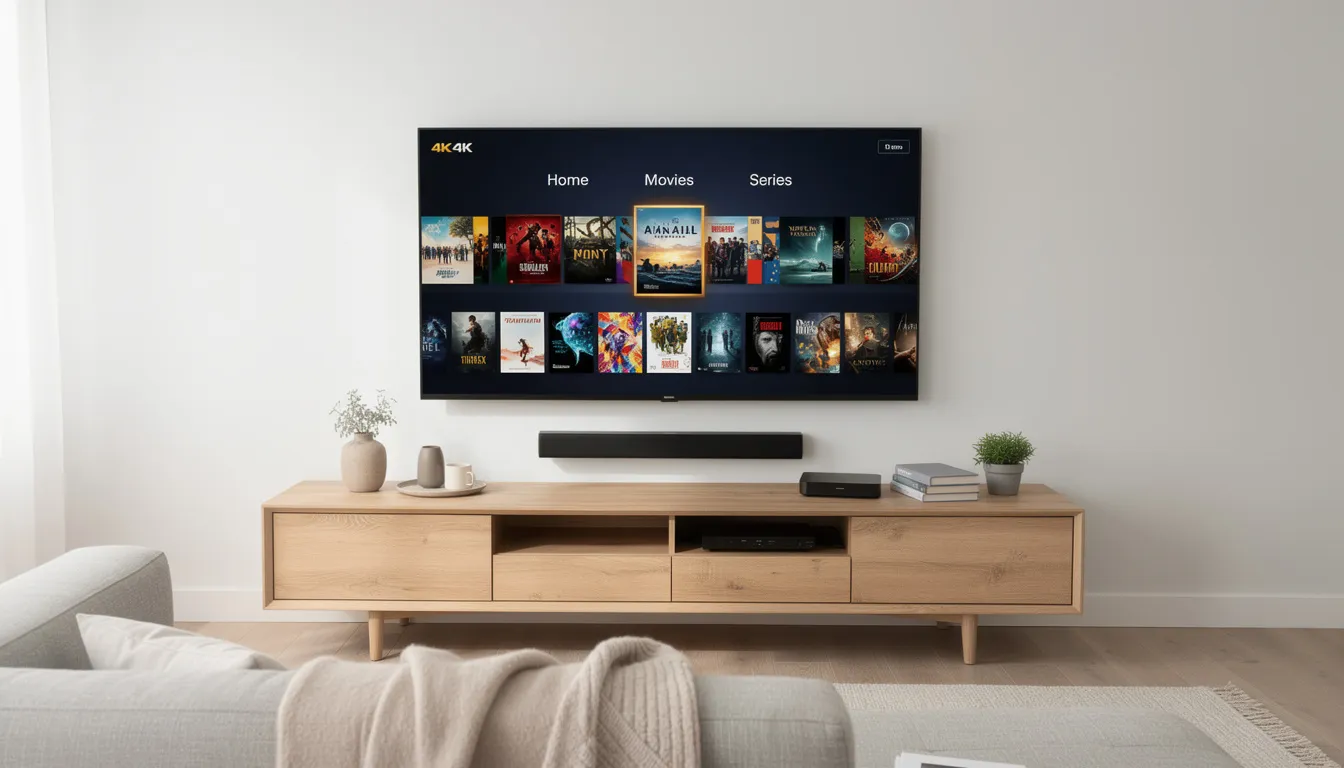
While this guide focuses on stick-form-factor streaming devices, the roku ultra deserves mention for buyers who need capabilities beyond what any streaming stick can offer. This compact set-top box represents Roku’s flagship product for serious home theater enthusiasts.
Connectivity Options
The Ultra’s standout feature is its Ethernet port, enabling wired network connections for absolutely stable 4K streaming without WiFi variability. This matters in homes with congested wireless networks, thick walls, or situations where you simply can’t tolerate any buffering. A USB port also allows local media playback from external drives—a feature absent from all Roku sticks.
HDR and Audio Capabilities
Full support for dolby vision, HDR10, HDR10+, and HLG ensures your picture quality matches or exceeds any streaming stick. Audio capabilities include dolby atmos passthrough when connected to compatible receivers or soundbars, making this the only Roku device truly designed for high-end home theater systems.
Voice Remote Pro Experience
The bundled voice remote pro elevates the control experience significantly. It features a rechargeable battery (no more hunting for aaa batteries), hands-free hey roku voice activation, a headphone jack for private listening during late-night viewing, and a remote finder feature that plays a sound when you’ve lost the remote in the couch cushions.
Performance and Speed
The Ultra’s faster processor delivers snappier navigation, quicker app launches, and smoother handling when switching between multiple apps. If you’ve ever felt frustrated waiting for an app to load on a budget streaming device, the Ultra’s responsiveness is immediately apparent.
Target Audience
Choose the Roku Ultra if you have a dedicated home theater setup with a 4K HDR TV, want Ethernet connectivity for guaranteed stability, need USB playback for personal media files, or simply refuse to compromise on performance. It’s overkill for a bedroom TV but perfect for a primary viewing space.
How to Choose the Right Roku TV Stick for Your TV and Budget
Picking the right roku device doesn’t require deep technical knowledge—just honest assessment of your needs. This decision framework will help you avoid overpaying while ensuring you don’t end up with an underpowered device.
Match Device to TV Resolution
| TV Type | Recommended Roku | Why |
|---|---|---|
| 1080p HDTV | Roku Express or Express 4K+ | 4K device still works, future-proofs for TV upgrade |
| 4K TV without HDR | Express 4K+ or Streaming Stick 4K | Either works well, stick offers better portability |
| 4K TV with Dolby Vision | Streaming Stick 4K or Ultra | Dolby Vision support maximizes your TV’s capabilities |
| Home Theater System | Roku Ultra | Ethernet, Dolby Atmos, and USB playback |
Understand HDR Formats
HDR can feel confusing, but here’s the simple breakdown: HDR10 is the baseline format supported by virtually all 4K content. HDR10+ adds dynamic metadata for scene-by-scene optimization. Dolby Vision offers the most sophisticated HDR with industry-wide support from major studios. For casual viewing, HDR10 is plenty. For home theater enthusiasts, dolby vision support on the Streaming Stick 4K or Ultra is worthwhile.
Evaluate Your Network
WiFi works perfectly for most apartments and houses. The g n dual band wireless connectivity on modern Roku sticks handles 4K streaming reliably unless you have significant interference or are streaming far from your router. If you regularly experience buffering or live in a large multi-story home, the Ultra’s Ethernet port eliminates wireless variables entirely.
Choose Your Remote Level
| Remote Type | Features | Best For |
|---|---|---|
| Simple Remote | Basic navigation, no voice | Those who prefer minimal buttons |
| Voice Remote | Voice search, TV power/volume | Most households |
| Voice Remote Pro | Rechargeable, hands-free voice, remote finder, private listening | Families, accessibility needs |
The standard voice remote included with most Roku sticks handles everyday needs well. Upgrade to the voice remote pro (included with Ultra or purchased separately) if you frequently lose remotes, want rechargeable battery convenience, or need private listening via headphones.
Content and Ecosystem Considerations
The roku platform supports virtually every major streaming service: Netflix, Disney+, Max, prime video, YouTube, youtube tv, Hulu, Peacock, Paramount+, and more. The roku channel provides free content including movies, series, and live tv channels without any subscription. Unlike some competitors, Roku maintains a service-agnostic approach—no streaming platform receives preferential treatment in search results or home screen placement.
Roku Stick vs Amazon Fire TV Stick vs Google TV Streamer
All three streaming device families deliver capable 4K streaming at similar price points, but their philosophies differ significantly. Understanding these differences helps you choose the platform that fits your preferences.
Interface and Advertising
Roku’s tile-based home screen prioritizes simplicity with your installed channels displayed prominently. While some ad placements exist, they’re generally less intrusive than competitors. The amazon fire tv stick features a more ad-heavy layout with frequent promotions for Amazon content. The google tv streamer uses a content-first approach with recommendation rows that can feel overwhelming but surface relevant shows effectively.
Voice Assistants and Smart Home
The fire tv stick 4k deeply integrates Amazon Alexa, enabling smart home control and Alexa skills directly from your TV. google tv uses Google Assistant with similar smart home capabilities. Roku offers hey roku voice control for content search and device control, and can work alongside Alexa or Google Assistant through separate devices, but isn’t as tightly integrated into either ecosystem.
Content Neutrality
Here’s where Roku genuinely differs: fire tv heavily promotes prime video throughout its interface, and google tv naturally favors YouTube and Google Play content. Roku’s roku interface treats all streaming services equally—search results surface content based on relevance and price, not platform ownership. For households using multiple streaming platforms, this neutrality is refreshing.
Pricing and Sales
Amazon frequently offers aggressive discounts on fire stick models during Prime Day and holiday sales, sometimes dropping prices below $20. The google tv streamer sees periodic discounts through Google and retailers. Roku sticks regularly match competitor pricing during major sales events. All three platforms deliver excellent value; choose based on interface preference rather than chasing the lowest sale price.
When to Choose Roku
The tv stick roku makes most sense for users who prioritize simplicity over smart home integration, want a consistent interface across multiple TVs in different rooms, prefer platform-neutral content discovery, or simply want the easiest possible setup process for non-technical family members.
Streaming Stick Features: What to Look for in 2026
When choosing a streaming stick in 2026, it’s important to focus on features that will deliver the best streaming experience for your TV setup and viewing habits. Here’s what to prioritize:
1. Resolution and Picture QualityLook for a streaming stick that supports at least HD, but ideally 4K Ultra HD resolution for the sharpest visuals. Devices like the Roku Streaming Stick 4K and Fire TV Stick 4K are designed to make the most of modern TVs, ensuring crisp detail and vibrant colors. If your TV supports it, opt for a streaming stick with HDR (High Dynamic Range) capabilities—especially Dolby Vision—for enhanced contrast and lifelike picture quality. The Roku Streaming Stick Plus and Fire TV Stick 4K both offer robust HDR support, but not all entry-level sticks do, so check the specs before you buy.
2. Voice Control and Remote FeaturesA good streaming stick should come with a voice remote, making it easy to search for shows, launch apps, and control your TV hands-free. Roku’s voice remote is known for its intuitive design and reliable performance, letting you simply say what you want to watch. Voice control is also available on Fire TV devices, but many users find the Roku remote more user-friendly for everyday use.
3. Operating System and Channel SelectionThe operating system shapes your entire streaming experience. Roku OS is widely praised for its clean, easy-to-navigate interface and platform-neutral approach. The Roku Channel Store offers thousands of apps, including all the major streaming services and plenty of free content via the Roku Channel. Amazon Fire TV OS is also robust, but tends to promote Prime Video content more heavily. If you want a straightforward, ad-light experience, the Roku platform is a top choice.
4. Portability and Power OptionsStreaming sticks like the Roku Streaming Stick and Fire TV Stick are compact and plug directly into your TV’s HDMI port, drawing power from your TV’s USB port or a wall adapter. This makes them easy to move between TVs or take on the go.
5. Advanced FeaturesConsider extras like Dolby Vision support for the best HDR experience, dual-band WiFi for stable streaming, and features like private listening or a remote finder (available on select Roku models). The Roku Streaming Stick Plus and Streaming Stick 4K are great examples of devices that pack in these advanced features without breaking the bank.
By focusing on these key features—picture quality, voice control, user interface, and advanced capabilities—you’ll find a streaming stick that keeps your TV experience fast, flexible, and future-proof.
How to Set Up a Roku TV Stick (Step-by-Step)
The setup process for any roku streaming stick takes under 15 minutes and requires only a WiFi network and a free Roku account. Here’s exactly what to expect.
Physical Installation
Start by plugging the roku stick directly into an available hdmi port on your TV. Connect the micro usb power cable to either your tv’s usb port or the included power adapter. If using USB power from your TV and the device doesn’t boot properly, switch to the wall adapter—some TV USB ports don’t provide adequate power. Finally, switch your TV to the correct HDMI input using your TV’s remote or input button.
On-Screen Configuration
The Roku will boot to a language selection screen. After selecting your language, you’ll connect to your WiFi network by selecting it from the list and entering your password using the on-screen keyboard. Alternatively, use the Roku mobile app on your smartphone to complete setup more quickly with your phone’s keyboard.
Account and Activation
You’ll either sign into an existing Roku account or create a new one. For faster setup, the screen displays a code you can enter at roku.com/link on your phone or computer, avoiding the tedious process of typing email addresses and passwords with a remote.
Channel Installation
After activation, Roku suggests popular streaming channels based on your region. You can add Netflix, Disney+, prime video, hbo max, and others with a single click, or skip and add them later from the roku channel store. Downloaded channels appear on your home screen ready for login with your streaming service credentials.
TV Control Configuration
During setup (or later via Settings), you can program the roku remote to control your TV’s power and volume. The device sends test signals to your TV to identify the correct codes. Once configured, you can use a single remote for both streaming and tv controls, eliminating the need to juggle multiple remotes.
Best Practice Tips
Enable automatic updates to ensure your device always has the latest features and security patches. Organize your home screen by moving your most-used apps to the top row for faster access.
Consider enabling a PIN for purchases if children use the device, preventing accidental subscription sign-ups or movie rentals.
Using a Roku TV Stick Away from Home: Travel and Hotel Tips
One of the most underappreciated advantages of a streaming stick is portability. Unlike a roku tv or set-top box, you can toss a roku stick in your bag and enjoy your streaming accounts anywhere with a TV and WiFi.
What to Pack
Bring the roku stick itself, the USB power cable, and the power adapter (hotel TV USB ports often don’t work). If your stick came with an HDMI extender cable, pack that too—hotel TV ports are sometimes recessed or positioned at awkward angles. The voice remote uses aaa batteries; consider packing spares or switching to a better remote with a rechargeable battery for frequent travel.
Hotel WiFi Sign-In
Most hotel networks require browser-based authentication—a problem since Roku lacks a full web browser. Enable “Hotel & Dorm Connect” mode (Settings > Network > Set up connection > Hotel & Dorm), connect to the hotel’s network, then use your phone or laptop to complete the captive portal login. Roku provides a link that your phone can access to authenticate the streaming stick’s connection.
Accessing TV Inputs
Hotel TVs often lock down inputs to prevent tampering. Look for physical Input or Source buttons on the TV itself (usually on the side or bottom edge). If the TV’s own remote has been restricted, ask the front desk if they can unlock HDMI inputs or provide an unrestricted remote.
Protecting Your Accounts
Since you’re using your personal accounts on a TV that others will access, take precautions. Enable a PIN for purchases to prevent charges to your account. When checking out, consider logging out of sensitive apps like banking or email if you’ve installed them. Most streaming services also allow you to remotely log out of devices via their websites if you forget.
International Travel Considerations
Content libraries vary significantly by country—your U.S. Netflix account may show different content abroad. Some U.S.-only services like certain live tv apps won’t work outside the country at all. You’ll also need a power plug adapter for the wall adapter in regions with different outlet types, though the adapter itself typically handles voltage differences automatically.
Live TV and Sports Integration on Roku
Roku devices make it easier than ever to watch live TV and keep up with your favorite sports, all from a single, user-friendly interface. Whether you’re a cord-cutter or just want more flexibility, Roku has you covered.
Free Live TV with The Roku ChannelThe Roku Channel offers a wide selection of free live TV channels, including news, sports, and entertainment. You can browse live programming directly from the Roku interface, making it simple to find something to watch without a subscription.
Support for Popular Live TV Streaming ServicesRoku devices are compatible with leading live TV streaming services like YouTube TV, Hulu with Live TV, and Sling TV. This means you can access local channels, national networks, and live sports events right alongside your on-demand streaming apps. Just download your preferred service from the Roku Channel Store and sign in with your subscription.
Dedicated Sports ZoneThe Roku interface features a dedicated “Sports” tab, which aggregates live and upcoming games from across your installed apps. This makes it easy to find and watch live sports, whether you’re looking for the big game or niche events. Simply use voice control—say “Hey Roku, watch ESPN”—to jump straight to the action.
Enhanced Viewing on Premium ModelsIf you’re a sports fanatic, consider a Roku Ultra for the ultimate experience. With Dolby Vision support, you’ll enjoy stunning picture quality, and the remote finder feature ensures you never miss a play searching for your remote. Voice control makes it easy to switch between games, check scores, or launch your favorite sports app.
With Roku, live TV and sports are always just a click or voice command away, making it a top choice for fans who want flexibility and convenience.
Voice Control and Navigation: Hands-Free Streaming with Roku
Roku streaming sticks and devices are designed to make streaming as effortless as possible, thanks to robust voice control and intuitive navigation features.
Voice Remote for Easy CommandsMost Roku streaming sticks, including the Roku Streaming Stick 4K and Streaming Stick 4K, come with a voice remote. With the press of a button, you can search for movies, launch streaming channels, adjust the volume, or even turn your TV on and off—all by speaking naturally. This hands-free approach is perfect for quickly finding what you want to watch without scrolling through endless menus.
“Hey Roku” Voice ActivationSelect Roku devices support “Hey Roku” voice activation, allowing you to control your streaming stick completely hands-free. Just say “Hey Roku” followed by your command, and your device will respond—no need to touch the remote at all.
Private Listening and Advanced FeaturesSome Roku models offer private listening, letting you enjoy your shows through headphones connected to the remote or your mobile device. This is ideal for late-night viewing or when you don’t want to disturb others.
Works with Alexa and Google AssistantRoku devices also integrate with Amazon Alexa and Google Assistant, so you can use your existing smart home setup to control your Roku streaming stick with voice commands.
Seamless NavigationThe Roku OS is designed for simplicity, with a clean home screen and easy-to-navigate menus. Voice control makes it even easier to jump between apps, search for content, and control playback, ensuring a smooth and enjoyable streaming experience for everyone in the household.
Roku OS, Channels, and Free Content on The Roku Channel
The roku os powering all Roku streaming players, sticks, and Roku TVs was specifically engineered as the first operating system designed exclusively for TV streaming. This purpose-built design results in a user interface that’s faster, simpler, and more stable than general-purpose smart TV platforms.
Understanding Channels
Roku calls apps “channels,” a holdover from the platform’s early days. You add, remove, and rearrange channels through the roku channel store accessible from your home screen or the Roku mobile app. The store includes thousands of options from major streaming services to niche content providers, news outlets, and fitness apps.
The Roku Channel – Free Content
The roku channel deserves special attention as Roku’s own free content offering. Launched in 2017, it provides ad-supported movies, TV series, kids’ programming, and FAST (free ad-supported streaming TV) channels without requiring any subscription. The library has expanded significantly to include original programming alongside licensed content. For cord-cutters seeking free content, this alone justifies a Roku device.
Live TV and Sports
Roku’s live tv section aggregates content from free channels and some subscription services, making it easier to find what’s currently airing. The Sports zone helps fans locate live games across different apps. Full integration with paid live tv services like youtube tv, Sling, or Hulu + Live TV depends on app partnerships, but most major services work seamlessly.
Managing Premium Subscriptions
You can subscribe to services like Max (formerly hbo max), STARZ, Paramount+, and others directly through the roku platform, with billing consolidated through your Roku account. Alternatively, sign in with existing subscriptions from other providers. Managing subscriptions centrally through Roku can simplify billing, though some users prefer maintaining accounts directly with each streaming service for flexibility.
Parental Controls and Profiles
Parents can enable PIN protection for purchases and restrict content by rating. While Roku’s profile system is more limited than Netflix’s individual profiles, you can set up parental controls that apply device-wide. This prevents kids from accidentally accessing mature content or making unauthorized purchases.
Is a Roku TV Stick Still Worth It If You Already Have a Smart TV or Roku TV?
With smart TV software now standard on most televisions, you might wonder whether a separate streaming device remains necessary. The answer depends on your current setup and pain points.
Reviving Sluggish Smart TV Software
Smart TV platforms from 2018-2022 often struggle in 2026—slow app launches, missing apps, and interfaces that haven’t received meaningful updates in years. A $35 roku express or streaming stick instantly restores snappy performance and current app availability. Think of it as giving your TV a brain transplant at a fraction of replacement cost.
Consistency Across Multiple TVs
If you have different TV brands throughout your home, each likely runs different software with different remotes and different interfaces. Adding roku devices to each TV creates a unified experience—same home screen, same remote layout, same channel organization. Guests and family members learn one system that works everywhere.
When Roku TV Owners Don’t Need a Stick
If you already own a modern roku tv from the past few years, the built-in roku’s software is essentially identical to what a streaming stick provides. You wouldn’t benefit from adding a separate roku player unless you need features the TV lacks—like Ethernet connectivity on the Ultra, or if you want to use a different Roku account for a specific room.
Beyond Traditional TVs
Roku sticks shine in setups beyond standard living room TVs. Projectors with HDMI inputs become smart streaming displays. Computer monitors gain streaming capability for office or bedroom use. Older “dumb” TVs in vacation homes, Airbnbs, or workshops become fully functional with minimal investment.
Long-Term Support and Future-Proofing
Roku has demonstrated strong long-term device support, with many streaming players receiving updates for five to seven years or more. roku makes regular updates available across their device lineup, meaning your investment continues improving over time. Compared to relying on TV manufacturers who may abandon software support after two years, a dedicated streaming device offers better longevity.
Troubleshooting and Support: Solving Common Roku TV Stick Issues
Even the best streaming sticks can run into occasional hiccups, but most Roku TV stick issues are easy to resolve with a few simple steps.
Restart Your DeviceIf your Roku TV stick isn’t working as expected, start by unplugging it from your TV’s HDMI port and power source, then plugging it back in. This quick reset can often fix connectivity and streaming problems.
Check Your Internet ConnectionA stable internet connection is essential for smooth streaming. Make sure your WiFi is working properly and that your Roku device is within range of your router. If you’re still having trouble, try restarting your router.
Factory Reset as a Last ResortIf issues persist, you can reset your Roku device to its factory settings. This will erase all your settings and channels, so only use this option if other troubleshooting steps haven’t worked.
Remote Control ProblemsIf your Roku remote isn’t responding, try replacing the batteries or re-pairing it with your device. For models with a remote finder, use this feature to locate a misplaced remote quickly.
Support ResourcesRoku offers extensive support through online forums, user manuals, and customer service. If you’re having trouble with a specific channel or app, check the provider’s support page for additional help.
By following these troubleshooting steps, most common Roku TV stick issues—whether related to the HDMI port, streaming, or the remote—can be resolved quickly, so you can get back to enjoying your favorite content.
How We Evaluate Roku TV Sticks and Streaming Devices
Understanding how streaming devices are evaluated helps you interpret recommendations and determine which features matter for your situation.
Performance Testing
Real-world responsiveness matters more than spec sheets. Testing involves measuring menu navigation speed, app launch times, and stability during extended viewing sessions. Switching between multiple apps while playing 4K HDR content reveals how well devices handle multitasking. Budget devices often struggle here; premium options like the Ultra excel.
Picture and Audio Quality
4K sharpness and HDR handling vary between devices, even at the same resolution. Testing checks dolby vision rendering, color accuracy, and motion handling on mainstream TVs rather than reference monitors. Audio evaluation includes dolby atmos passthrough capabilities for users with compatible equipment.
WiFi and Networking
Lab conditions don’t reflect real apartments with dozens of competing networks or houses with dead zones. Testing in actual homes reveals how well dual band wireless connections maintain 4K streams under normal congestion, and highlights where Ethernet connectivity provides meaningful advantages.
Usability and Remote Quality
Remote comfort during extended sessions, button layout intuitiveness, and voice recognition accuracy under normal living room conditions all factor into recommendations. The experience for tech-averse users—kids, grandparents, houseguests—matters as much as features for enthusiasts.
Value and Longevity
Final recommendations weigh pricing against capabilities, typical discount availability, software update track records, and ecosystem neutrality. A device that costs slightly more but lasts years longer represents better value than the cheapest option that becomes obsolete quickly.
The Future of Roku and Streaming Technology
The streaming landscape is evolving rapidly, and Roku continues to lead the way with innovative devices and features that keep pace with how we watch TV.
Next-Generation Streaming DevicesRoku is constantly developing new streaming sticks and players, like the Roku Streaming Stick 4K and Streaming Stick 4K, which offer advanced features such as Dolby Vision support for stunning picture quality and a remote finder for added convenience. These improvements ensure that Roku devices remain at the forefront of streaming technology.
Expanding Streaming Platforms and ContentThe Roku Channel continues to grow, offering a mix of free and premium content, including movies, TV shows, and live TV. As streaming platforms diversify, Roku’s platform-neutral approach ensures users have access to the widest possible range of content, from major streaming services to niche channels.
Smarter, More Connected StreamingVoice control is becoming more sophisticated, with features like “Hey Roku” and integration with Alexa and Google Assistant making it easier than ever to control your streaming stick hands-free. Roku is also exploring artificial intelligence to further personalize and enhance the streaming experience.
Partnerships and Ecosystem GrowthRoku’s collaborations with companies like Amazon and Google mean users benefit from cross-platform features and broader compatibility. Whether you’re using a Roku streaming stick, a smart TV, or other streaming devices, the ecosystem is becoming more seamless and interconnected.
Looking AheadAs more viewers cut the cord and demand flexibility, Roku is well-positioned to deliver the next generation of streaming technology. Expect continued innovation in picture quality, user interface, and smart features—ensuring that your Roku device remains a central hub for all your entertainment needs, now and in the future.
FAQ
Do I need a 4K TV to benefit from a Roku Streaming Stick 4K?
No. A 4K Roku stick works perfectly with any TV that has an hdmi port, including 1080p sets. The device automatically outputs at your TV’s maximum supported resolution. Buying the streaming stick 4k even for a 1080p TV makes sense if you’re planning to upgrade your television in the future, as you won’t need to replace the streaming device when you do.
Can I use a Roku TV stick without a Wi-Fi internet connection?
Most Roku functionality requires WiFi internet for accessing streaming channels. However, limited local capabilities exist—screen mirroring from a phone on the same network works offline, and the roku ultra can play media files from USB storage without internet. Standard streaming sticks have no meaningful offline functionality, so a reliable internet connection is essential.
Will all my favorite streaming services be available on Roku?
Roku supports virtually all major streaming services including Netflix, Disney+, Max, prime video, YouTube, Hulu, Peacock, Paramount+, and many more. Availability can vary slightly by country, and rare carriage disputes occasionally affect specific apps temporarily. Before purchasing, you can browse the roku channel store online to verify your must-have services are available in your region.
Is there a monthly fee to use a Roku TV stick?
There is no monthly fee to use Roku hardware or maintain a Roku account. The free content available through the roku channel and other free streaming channels provides substantial entertainment value at no cost. You only pay for optional subscription services like Netflix or Disney+ that you choose to add. The device itself is a one-time purchase.
How long does a Roku TV stick typically last before I should upgrade?
Many roku devices receive software updates and remain fully functional for five to seven years or longer. Upgrades become worthwhile when you want faster performance, support for newer hdr formats your new TV supports, or access to apps that no longer run well on older hardware. If your current device still launches apps quickly and supports the streaming channels you use, there’s no urgent need to upgrade.