
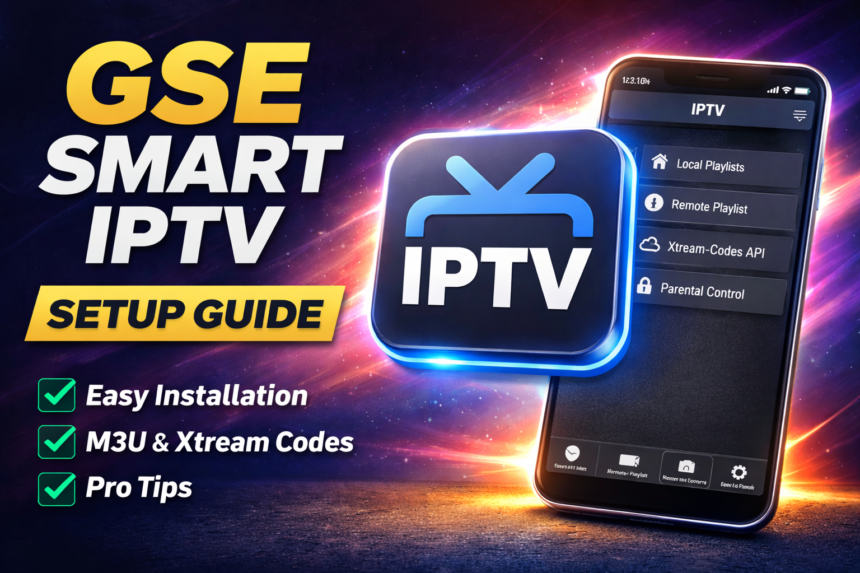
Looking for a powerful IPTV player that works seamlessly across your phone, tablet, computer, and TV? GSE Smart IPTV has emerged as one of the most versatile advanced IPTV solutions for users who want complete control over their streaming experience. As a solution designed for the complete user, GSE Smart IPTV offers a comprehensive, user-configurable platform that lets you customize your experience, manage your own content, and utilize advanced features without relying on third-party providers. This comprehensive guide walks you through everything you need to know—from core features and step-by-step setup to optimization tips and how it stacks up against popular alternatives.
Key Takeaways
- GSE Smart IPTV is an IPTV player, not a content provider—it works on Android, iOS, macOS, and Apple TV, requiring users to add their own playlists from legitimate IPTV services
- Supports major playlist formats and protocols including M3U/M3U8, Xtream Codes API, XMLTV EPG, and streaming protocols like HLS, RTMP, RTSP, MMS, and MPEG-DASH
- Advanced features include 4K-ready playback, Chromecast support, parental control support, a multi-language interface (around 31 languages), offline downloads on some platforms, and Apple Silicon optimization
- Privacy-conscious design means data is typically not linked to your identity; the app itself is legal, but users must ensure their content sources comply with copyright laws
- This guide covers complete setup instructions, troubleshooting tips, and detailed comparisons with TiviMate, IPTV Smarters, UHF IPTV, and legal streaming alternatives
What Is GSE Smart IPTV?
GSE Smart IPTV (often branded as GSE SMART IPTV PRO) is a feature-rich IPTV player app developed by GSETECH / GSE Technology Ltd, released around 2018. The app is available across multiple platforms including Android, iOS, Apple TV, and macOS, making it one of the most cross-platform friendly options in the IPTV space.
Here’s the critical distinction many users miss: this app does not include any channels, movies, videos, or media by default. Think of it as a sophisticated remote control and organizer for IPTV content—you bring your own content by adding M3U links, Xtream Codes credentials, or XMLTV EPG data from a third part provider. With GSE Smart IPTV, users can manage, play, and organize videos alongside live TV and other media, making videos a core part of the user experience.
So what exactly is IPTV? Unlike traditional cable that delivers television through dedicated infrastructure, IPTV (Internet Protocol Television) streams live TV and video on demand directly over your internet connection. GSE Smart IPTV sits between your IPTV provider and your screen, acting as a flexible media player that interprets streaming data and presents it in an intuitive interface.
Who uses GSE Smart IPTV?
- Cord-cutters transitioning from cable to internet-based TV
- Heavy TV viewers managing multiple IPTV subscriptions
- Users who want to centralize live tv, movies, and series from different sources in one app
- International viewers accessing content from providers in Canada, Europe, or other regions
The app has earned a strong reputation among users, with millions of downloads and ratings hovering around 4.5★ on mobile stores. Its stability, wide protocol support, and multi-device compatibility make it a go-to choice for serious IPTV enthusiasts.

Platforms, Devices & System Requirements
One of GSE Smart IPTV’s biggest advantages is its broad platform support. Here’s exactly what you need to run the app on each device type:
Android Support
| Requirement | Details |
|---|---|
| Store | Google Play |
| Minimum OS | Android 5.0 (Lollipop) or later |
| Legacy Support | Older APK versions (e.g., 7.3 from Jan 2024) available for Android 4.0 devices |
| Device Types | Phones, tablets, Android TV boxes |
iOS/iPadOS Support
| Requirement | Details |
|---|---|
| Store | App Store |
| Minimum OS | iOS 12+ (iOS 16+ for latest versions) |
| Device Types | iPhone, iPad, iPod touch |
| Notable Features | 4K HDR hardware-accelerated playback, Dolby Audio |
macOS Support
| Requirement | Details |
|---|---|
| Store | Mac App Store |
| App Size | ~80-90 MB (approximately 89.1 MB) |
| Category | Entertainment |
| Minimum OS | macOS 10.12 Sierra or later |
| Apple Silicon | Fully optimized for M1/M2 chips |
Living Room Devices
GSE Smart IPTV extends beyond phones and computers. Apple TV users can access the app directly, and GSE-branded or compatible apps exist for some Samsung and LG Smart TVs, bringing the full IPTV experience to your living room.
Language Support
The app supports around 31 languages including:
- English, Arabic, Spanish, French, German, Portuguese
- Turkish, Dutch, Japanese, Chinese (simplified)
- Swedish Thai Turkish and many more
What’s particularly useful is the dynamic language switching capability—you can change the app language set without changing device language setting. This flexibility serves multilingual households well, with supported language Arabic, Spanish, French, German, Japanese, Portuguese, Dutch, and others available at any time.
TiviMate IPTV Player: Complete Guide, Setup, and Best Alternatives
Core Features of GSE Smart IPTV
What separates GSE Smart IPTV from basic IPTV players? Let’s break down the features that make this gse iptv player stand out.
Playlist Support
The app handles playlists with remarkable flexibility:
- Unlimited M3U/M3U8 playlists with no artificial restrictions
- Xtream Codes API integration requiring only username for secure access
- Local and remote playlists via FTP, HTTP, or direct URL
- Secure playlist storage with automatic live stream reconnection
- JSON and database format support beyond standard M3U
Playback Capabilities
The built in player delivers serious performance:
- Live TV and VOD playback with seamless switching
- Hardware-accelerated decoding for smooth performance
- 4K and HDR-ready playback on capable devices
- Multi-audio track support for multilingual content
- Dolby Audio enhancement where device supports it
Protocol and Format Support
This is where GSE Smart IPTV truly shines. The app supports an extensive range of streaming protocols:
| Protocol | Use Case |
|---|---|
| HLS (HTTP Live Streaming) | Most common, adaptive bitrate streaming |
| RTMP | Real-time streaming, including token-based protected streams |
| RTSP | Real-time streaming protocol for live feeds |
| MMS | Microsoft Media Server streams |
| UDP | Multicast streaming |
| MPEG-DASH | Adaptive streaming standard |
For file formats, the app handles popular formats including MKV, AVI, MP4, MOV, MPEGTS, FLV, OGG, and dozens more like 3gp, webm, wmv, and divx.
EPG Integration
The app processes XMLTV data in xml, zip, and gz formats for electronic program guides. This means you can see what’s currently playing, what’s coming next, and browse full schedules—just like traditional cable interfaces.
Interface Features
- Channel grouping and custom categories (Sports, News, Movies, Kids)
- Favorites lists for quick access to most-watched channels
- Customizable themes (dark/light modes)
- Intelligent search across channels, movies, and series
- Channel logos when provided in playlist metadata
Extra Conveniences
- Chromecast support for casting from Android device to TV
- AirPlay support on iOS devices for full-screen external display with subtitles
- Background playback for audio content
- Resume-playback functionality for series and movies
Advanced Tools: Parental Control, Subtitles, and Multi-Language
Many basic IPTV apps skip the control and accessibility features that families and international users actually need. GSE Smart IPTV doesn’t.
Parental Controls
The parental control support allows you to:
- Lock entire categories with a PIN code
- Block specific channels from appearing
- Create a family-friendly viewing environment
- Prevent access to adult or inappropriate content without supervision
This makes the app suitable for households where children have access to the same devices as adults.
Subtitle Support
GSE Smart IPTV offers comprehensive subtitle handling with embedded bimap subtitle support and text formats:
Embedded Formats:
- DVB Teletext
- DVD subtitles
- DVB subtitles
- XSUB
- HDMV PGS
Text Formats:
- ASS and SSA
- SubRip (SRT)
- External SRT files uploadable via FTP or HTTP
Users can adjust subtitle size, color, and synchronization for VOD content, ensuring readability on any screen size.
Language Flexibility
Beyond the interface language options, you can:
- Switch audio tracks per channel or VOD when providers include multiple options (English, French, German, etc.)
- Set a default language preference for audio
- Maintain independent language settings from your device’s system language
Accessibility Touches
The intuitive interface includes clear font options, easy-to-navigate EPG layouts, and channel logo display that makes browsing feel like a modern cable box replacement rather than a technical tool.
How to Set Up GSE Smart IPTV (Step-by-Step)
This practical guide works similarly whether you’re on Android, iOS, macOS, or a Smart TV. Let’s walk through the complete setup process.
After completing the installation step (6.1), it is recommended to check the app’s security or antivirus report (if available) to ensure the installation is safe and the app is functioning as expected.
Step 1: Installation
- Open Google Play (Android), App Store (iOS), or Mac App Store (macOS)
- Search for “GSE Smart IPTV” or “GSE SMART IPTV PRO”
- Verify the developer name shows “GSETECH” or “GSE Technology Ltd”
- Tap download and install the official app
Avoid downloading APK files from unknown sources—stick to official stores for security.
Step 2: Initial Permissions
When first launching the app, you’ll see permission requests:
- Network access – Required for streaming
- Storage access – Needed for local playlists
- Casting permissions – Optional, for Chromecast/AirPlay
Allow only what’s necessary for your use case.
Step 3: Add Your First Playlist
Navigate to the playlist manager (usually a “+” icon or “Add Playlist” menu). Choose your method:
| Method | When to Use |
|---|---|
| Remote playlist (M3U URL) | You have an M3U/M3U8 link from your IPTV provider |
| Local playlist | You’ve downloaded a playlist file to your device |
| Xtream Codes API | Your provider gave you server URL, username, and password |
For Xtream Codes, enter only the server URL and username—the app handles the rest without exposing full URL details or email.
Note: Any sample dummy link included in the app is for testing purposes only, not for actual viewing.
Step 4: Configure EPG
To enable program guide data:
- Obtain the XMLTV EPG URL from your IPTV provider
- Enter this URL in the EPG settings (supports xml, zip, or gz formats)
- Map EPG sources to your channel lists
- Adjust time-shift settings to match your local time zone
Step 5: Optimize Player Settings
Fine-tune performance based on your connection:
- Buffer size: Reduce for fast fiber connections (quicker start), increase for slower rural connections (fewer interruptions)
- Decoder: Choose hardware (better performance) or software (better compatibility)
- Resolution: Enable 4K on capable devices, reduce for bandwidth constraints
- Aspect ratio: Adjust for channels that appear stretched
Step 6: Organize Channels
Create custom channel groups to navigate thousands of channels efficiently:
- Sports
- Movies
- Kids
- News
- Local (e.g., Canadian networks like CBC, CTV, Global, TVA)
Set favorites for instant access from a dedicated list.
Step 7: Test on Multiple Devices
Test your IPTV account across phone, tablet, and TV to:
- Confirm playlist compatibility
- Check for buffering issues
- Adjust settings per device’s capabilities
Optimization Tips & Troubleshooting Common Issues
Even the best IPTV setup needs occasional tweaking. Here’s how to maintain smooth streaming with GSE Smart IPTV.
Buffering Issues
| Problem | Solution |
|---|---|
| Constant buffering | Test internet speed; aim for 10-20 Mbps per 4K stream |
| Occasional stuttering | Increase buffer size in app settings |
| Poor Wi-Fi signal | Switch to 5 GHz Wi-Fi or wired Ethernet |
| ISP throttling | Consider a reputable VPN service |
“Stream Not Found” Errors
These typically stem from:
- Expired IPTV subscriptions
- Incorrect M3U URLs
- Server downtime on provider’s end
- Geoblocking restrictions
Quick test: Copy the stream URL and test it in VLC or a web browser to isolate whether the issue is with the app or the source.
EPG Not Syncing
- Adjust time-shift or time zone settings within the app
- Verify your XMLTV source URL is correct and updated
- Clear EPG cache and reload the guide data
- Check that your provider actually includes EPG data
Device-Specific Fixes
- Smart TVs: Restart the device; clear app cache
- Android: Disable battery optimization for the app
- iOS: Check Background App Refresh settings
- macOS: Ensure firewall allows network access for the app
Picture and Audio Quality
- Change aspect ratio (16:9, 4:3, fit to screen) for stretched video
- Switch audio tracks if the wrong language plays by default
- Toggle hardware acceleration if certain codecs don’t play smoothly
- Route to external players like VLC or MX Player for problematic streams
Security Reminders
- Never share playlist URLs publicly
- Store Xtream Codes credentials securely
- Use a VPN only if you want additional privacy or to bypass unfair ISP throttling—while ensuring legal use
GSE Smart IPTV vs Popular IPTV Alternatives
How does GSE Smart IPTV compare with other well-known IPTV apps? Let’s break down the key differences to help you pick the right tool.
GSE Smart IPTV vs TiviMate
| Feature | GSE Smart IPTV | TiviMate |
|---|---|---|
| Platforms | Android, iOS, macOS, Apple TV | Android/Android TV only |
| Multi-playlist | Yes | Yes (premium feature) |
| PVR/Recording | Basic, platform-dependent | Strong recording features |
| Cross-device sync | Same app everywhere | Android ecosystem only |
Unlike TiviMate, which focuses heavily on the Android ecosystem with polished EPG and PVR features, GSE Smart IPTV offers true cross-platform support. If you want the same app on your iPhone, Mac, and Android TV, GSE is the clear choice.
GSE Smart IPTV vs IPTV Smarters Pro
IPTV Smarters integrates tightly with some branded IPTV services, offering login portals with provider branding. GSE Smart IPTV acts as a more neutral, generic player that doesn’t lock you into specific provider ecosystems.
GSE also handles RTMP token-based streams natively without separate configuration—something IPTV Smarters sometimes struggles with.
GSE Smart IPTV vs Perfect Player
Perfect Player has been around longer and appeals to technical users comfortable with detailed setup processes. However, GSE Smart IPTV typically offers:
- More modern, intuitive interface
- Better multi-language support (31 languages vs. limited options)
- iOS and macOS availability (Perfect Player is Android-only)
- More accessible for non-technical users
Pricing Comparison
| App | Pricing Model |
|---|---|
| GSE Smart IPTV | One-time purchase (around 12.99 SAR/~$3.50 on some platforms) or freemium |
| TiviMate | Free basic + subscription for premium |
| IPTV Smarters | Varies by provider licensing |
| Perfect Player | Free with optional donation |
GSE’s one-time purchase model offers better long-term cost predictability compared to subscription-based alternatives.
Unique GSE Advantages
- 31-language UI switching without changing device language setting
- Deep protocol support including RTMP tokens, RTSP, MMS, UDP
- Robust macOS and Apple Silicon optimization
- Strong parental controls and subtitle handling
- Chromecast support and AirPlay that some competitors lack or restrict
Best Legal Alternatives to IPTV & How They Compare
For users who want similar benefits with clearer content licensing, here are mainstream alternatives worth considering.
Mainstream Streaming Platforms
Services like Netflix, Disney+, Amazon Prime Video, and Hulu differ fundamentally from IPTV:
- Content model: On-demand libraries rather than full channel lineups
- Setup: No M3U links, EPG configuration, or playlists needed
- Licensing: Clear content rights and official apps
These are ideal for users who primarily watch movies and series rather than live tv.
Live TV Streaming Services
For those wanting traditional channel lineups legally:
| Service | Availability | Notable Features |
|---|---|---|
| YouTube TV | US | Built-in DVR, major networks |
| Hulu + Live TV | US | Combines on-demand + live |
| Sling TV | US | Budget-friendly channel packages |
| fuboTV | US, Canada | Sports-focused |
These services include built-in channel guides and cloud DVR but cost $50-80/month—significantly more than typical IPTV subscriptions.
Official Network Apps
Region-specific options provide free or low-cost access:
- CBC Gem (Canada) – Canadian broadcasting content
- BBC iPlayer (UK) – British programming
- Network apps (ABC, NBC, etc.) – Catch-up and some live content
How Legal Alternatives Compare to GSE
| Aspect | GSE Smart IPTV | Legal Streaming Services |
|---|---|---|
| Flexibility | Maximum—aggregate multiple providers | Limited to single service |
| Setup | Requires M3U links, EPG, configuration | Simple app install |
| Cost | Low (app purchase + IPTV subscription) | Higher monthly fees |
| Content licensing | User responsibility | Guaranteed |
| Channel customization | Extensive | Limited |
The practical approach: Use GSE Smart IPTV as your powerful player for legitimate IPTV subscriptions while keeping official streaming apps for specific channels, sports, or local content in Canada or your region.
Security, Privacy & Legal Considerations
IPTV raises important questions about data and legality. Here’s what you need to know about GSE Smart IPTV specifically.
Data Collection
The developers collect some usage data and diagnostics for app performance improvements. According to app store disclosures, this data is typically not linked to your personal identity and is used for analytics and bug fixing rather than advertising profiles.
Legal Status
Let’s be clear:
- GSE Smart IPTV itself is legal—it’s a media player, similar to VLC
- Your IPTV sources determine legality—users are responsible for ensuring playlists comply with copyright laws
- The app doesn’t endorse any specific content—it displays whatever playlists you provide
Streaming of copyright protected material without permission from the copyright holder violates copyright law in most jurisdictions. The app respects creative commons attribution and legal content but cannot police what users add.
Safety Best Practices
- Only use IPTV playlists from reputable, licensed providers
- Avoid free “pirate” lists that frequently change URLs and may include malware
- Never stream protected material without permission
- Keep your device’s antivirus and OS protections current
- Access only your own content through legitimate services
Privacy Tips
- Never share M3U or Xtream Codes credentials on forums or social media
- Use strong, unique passwords for IPTV accounts
- Consider a trustworthy VPN if concerned about ISP monitoring
- Respect terms of service and local regulations

FAQ
Does GSE Smart IPTV come with channels or movies pre-installed?
No. GSE Smart IPTV does not include any live channels, movies, or series by default. It’s purely an IPTV player that requires you to add your own playlists or credentials from a legitimate provider. Any sample dummy link inside the app serves only as a placeholder for testing functionality—not for actual long-term viewing.
Can I use GSE Smart IPTV for free, or do I need a subscription?
On some platforms, there’s a free version with ads or feature limitations, plus a paid “Pro” version with full capabilities. The pricing is typically a one-time purchase rather than monthly subscriptions—around $3-4 depending on region and platform. This payment covers only the app itself; you still need a separate, valid IPTV subscription from a third-party provider for actual content.
Is GSE Smart IPTV safe to install on my device?
When downloaded from official stores (Google Play, Apple App Store, Mac App Store), the app is scanned and vetted for malware. It complies with platform policies. The real security risk comes from the IPTV sources you choose, not the player itself. Stick to trusted providers and avoid unknown APK download sites or an older version from unofficial sources.
Can I record or download content with GSE Smart IPTV?
Some versions offer recording or offline download features for live streams and VOD, though capabilities vary by platform and device storage. Recording may have time limitations on certain devices. Always respect copyright rules—recording or downloading content may be restricted by law or by your IPTV provider’s terms of service.
Do I need a VPN to use GSE Smart IPTV?
A VPN isn’t strictly required—the app works on normal internet connections. Some users choose a VPN to reduce ISP throttling, enhance privacy, or access content while traveling. However, a VPN does not make illegal streams legal. You must still follow local laws and only access content you have legitimate rights to view.