



Nothing kills a live sports match faster than that spinning wheel appearing at the worst possible moment. If you’re watching IPTV and experiencing constant pauses, freezing, or that dreaded “connecting” message, you’re dealing with buffering—and it’s fixable.
This guide cuts through the generic advice and gives you concrete, device-specific solutions that actually work in 2025. Whether you’re streaming on a Fire TV Stick, Android TV, or dedicated IPTV box, you’ll find actionable steps to get your streams running smoothly.
Key Takeaways
- Most IPTV buffering in 2025 stems from internet issues, Wi-Fi problems, or ISP throttling rather than the IPTV app itself. Start by checking your real device speed (aim for 20–25 Mbps for HD, 30–50 Mbps for 4K), switching to wired Ethernet if possible, and rebooting your router plus device.
- A quality VPN with proper settings—fast protocol, nearby server, UDP mode, and kill switch enabled—often eliminates buffering caused by ISP throttling and poor routing. Many IPTV users report dramatic improvements after enabling a reliable VPN during peak hours.
- Overloaded or cheap IPTV providers will buffer even on a perfect connection. If your internet speed is solid, your VPN is configured correctly, and you’re still experiencing buffering on all channels, switching your IPTV service may be the only solution.
- This guide provides concrete step-by-step actions for Firestick, Android TV, smart TVs, and IPTV boxes—no vague “restart everything” advice. You’ll learn exactly how to diagnose the cause and apply the right fix.
- Hardware matters: older streaming devices with limited RAM struggle with modern IPTV apps. Clearing cache, managing background apps, and upgrading your IPTV device when necessary can eliminate buffering issues that software fixes cannot solve.
What Is IPTV Buffering and Why It Ruins Your Streams
Buffering occurs when your IPTV device cannot receive and process incoming video data fast enough to maintain continuous playback. The player pauses and preloads several seconds of content ahead of your current position, which is why you see that familiar spinning wheel or loading bar.
Live streaming through IPTV is particularly sensitive to buffering compared to video-on-demand content. When you’re watching live TV, sports, or news, there’s minimal pre-buffered content available—the stream arrives in real-time, leaving no room for your connection to catch up.
Common symptoms IPTV users see in 2025:
- Freezing every 30–40 seconds with brief pauses
- Audio continuing while video freezes
- Channels stuck on “connecting…” in apps like TiviMate or IPTV Smarters or UHF IPTV or GSE SMART IPTV
- Video quality dropping to pixelated 480p unexpectedly
- Complete stream failures during peak viewing hours
Buffering is a symptom, not a single cause. It can result from slow internet speed, unstable internet connection, ISP throttling, overloaded servers at your IPTV provider, weak Wi-Fi signal, or underpowered streaming devices. Understanding which cause applies to your situation determines which fix will work.
Top Causes of IPTV Buffering in 2025
Most users experiencing buffering face a combination of issues rather than a single culprit. Breaking down the technical causes helps you identify where your stream is breaking and apply the right fix.
The primary causes of IPTV buffering issues include:
- Slow or unstable internet connection
- ISP throttling targeting streaming activity
- Overloaded IPTV servers, especially during major events
- Weak Wi-Fi signal and home network congestion
- Poor routing between your ISP and IPTV servers
- DNS resolution delays
- Device performance limitations and app issues
For reference, here are the minimum speeds required for stable IPTV streaming:
| Quality | Minimum Speed Required |
|---|---|
| SD (480p) | 3–4 Mbps |
| HD (720p) | 5–8 Mbps |
| Full HD (1080p) | 10–15 Mbps |
| 4K | 25–35 Mbps |
Real-world examples of when buffering hits hardest: Premier League matches on Saturday evenings, major UFC pay-per-view events, Champions League finals, and any popular live broadcast when millions of viewers tune in simultaneously.
Slow or Unstable Internet Connection
Speeds under 10–12 Mbps per active stream often cause stuttering and forced quality drops to 480p or 720p. This becomes especially problematic during live sports and 24/7 channels where consistent bitrate delivery matters.
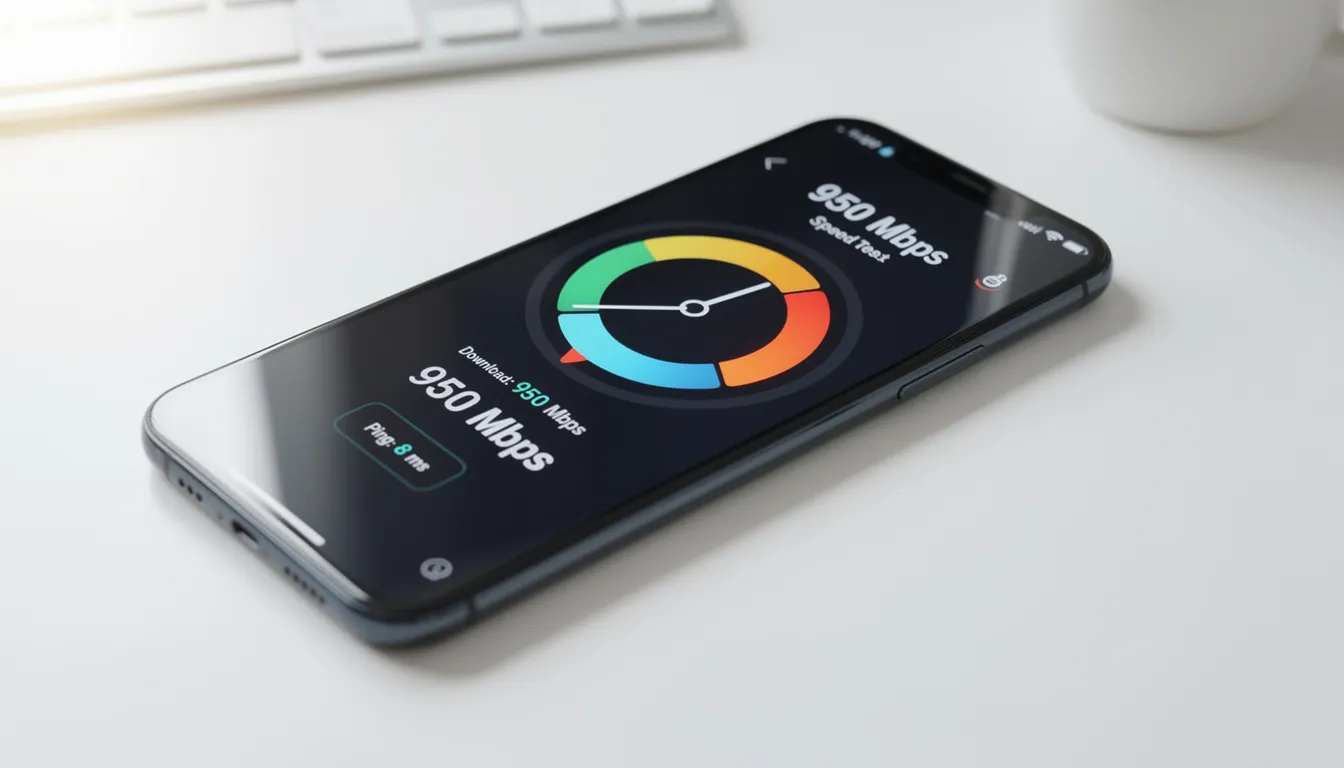
The critical mistake most people make is running a speed test on their phone or laptop instead of the actual IPTV device. To accurately diagnose IPTV buffering, always check internet speed directly on your IPTV device, as your smartphone sitting next to the router will show completely different results than your Fire TV Stick tucked behind the TV cabinet.
Run a proper speed test on your device:
- Firestick users: Download Analiti Speed Test from the Amazon App Store
- Android TV: Use the Ookla Speedtest app
- IPTV boxes: Use the built-in browser to access fast.com or speedtest.net
Several factors can tank your available bandwidth during streaming hours:
- Multiple household members streaming 4K Netflix simultaneously
- Gaming downloads and updates running in the background
- Cloud backup services syncing large files
- Smart home devices consuming bandwidth
Even homes with 100–500 Mbps internet plans experience buffering when network congestion or Wi-Fi issues prevent that speed from reaching the IPTV device.
ISP Throttling and Poor Routing
ISP throttling occurs when your internet service provider intentionally reduces speed or priority on streaming and IPTV traffic. This typically happens during peak hours between 7–11 PM local time when network load is highest.
Classic signs that your ISP detects and throttles IPTV traffic:
- YouTube and Netflix work perfectly while IPTV buffers constantly
- Buffering only happens in evenings and weekends
- Speed tests show full speeds, but streams still lag
- Different IPTV providers all experience the same issues
Poor routing creates a separate problem. Your internet providers may send traffic on inefficient paths to overseas IPTV servers, causing high ping and random freezes even when you have 100+ Mbps available.
This is exactly where a VPN can dramatically help. By encrypting your traffic, a VPN prevents your ISP from identifying IPTV streams and applying throttling rules. Many users report that connecting to a nearby VPN server completely eliminates peak-hour buffering that no other fix could solve.
Example scenario: A user in the UK streaming from European servers experiences heavy buffering every evening. After connecting to a London VPN server using a fast protocol, the same channels play smoothly because the ISP can no longer detect and throttle the IPTV traffic.
Overloaded IPTV Servers and Provider Issues
When too many subscribers watch the same channels simultaneously—think Champions League finals or major UFC events—weak IPTV servers become overloaded and buffer for everyone.
How to identify provider-side problems:
- All channels from one IPTV service lag at the same time
- Netflix, YouTube, and other streaming apps work perfectly
- Speed tests show excellent results
- A second IPTV provider or backup playlist works smoothly
Test multiple channels across different categories. If sports channels buffer while movie channels play fine, those specific streams may be overloaded. If everything buffers equally, the entire provider infrastructure is struggling.
Cheap, unverified IPTV services are more likely to have oversold servers and inconsistent video quality. Budget providers often cut corners on server capacity, leading to chronic buffering issues that no amount of home network optimization can fix.
Weak Wi-Fi Signal and Home Network Problems
Distance from your wireless router, walls, floors, and interference from neighboring networks and household electronics can dramatically reduce your Wi-Fi speed.
Real-world examples of Wi-Fi problems:
- Firestick mounted behind the TV cabinet on 5 GHz, only receiving 5–10 Mbps
- Android box in a different room showing one Wi-Fi bar
- Microwave interference causing brief dropouts every time it runs
- Neighbor’s competing Wi-Fi networks on the same channel
The 2.4 GHz band penetrates walls better and offers more stability at distance, while 5 GHz provides faster speeds but shorter range. Many IPTV users find that switching to 2.4 GHz solves freezing issues in rooms far from the router.
Network congestion from other devices also chokes bandwidth. Smart TVs, phones, gaming consoles, and smart home gadgets all compete for the same Wi-Fi connection. During peak household usage, your IPTV device may not receive enough bandwidth to maintain smooth playback.
A wired connection using an ethernet cable usually solves many of these issues in one step—and it’s the single most effective upgrade for eliminating buffering.

Device Performance and App Issues
Older or low-RAM streaming devices struggle with modern IPTV apps. Early Fire TV Stick models, cheap Android boxes with 1 GB RAM, and outdated smart TVs often cannot handle the processing demands of HD and 4K streams.
Symptoms of device-related buffering:
- Device UI lagging and slow to respond
- Slow channel zapping with delays between channel changes
- IPTV app crashing or force-closing
- Video freezing while audio continues playing
- Device running hot to the touch
Heavy themes in IPTV players, too many background apps, and bloated cache files all impact performance. TiviMate, IPTV Smarters, and OTT Navigator can accumulate hundreds of megabytes of cached data over weeks of use.
On devices like the Amazon Firestick with limited storage, installed apps can consume 50–70% of available memory, starving the IPTV player of resources. Background processes also trigger thermal throttling—processors drop 30–50% clock speed when temperatures exceed safe levels, directly slowing video decode rates.
When a VPN Can Fix IPTV Buffering
Many IPTV users report dramatic improvements in their streaming experience after enabling a fast, paid VPN on their Firestick, Android TV, or IPTV boxes. The key is proper configuration—the VPN settings matter as much as the VPN itself.
For even better results, consider using advanced features such as App Filter, Site Filter, and StealthVPN. These specialized tools can help manage complex streaming scenarios, further optimize streaming performance, and address persistent buffering issues.
Peak-Hour Buffering and ISP Throttling
The classic pattern: IPTV streams smoothly at 10 AM but buffers constantly at 9 PM, even though speed tests still show decent numbers. This happens because some internet providers inspect traffic and deprioritize video packets during busy network periods.
A VPN encrypts your traffic, making it difficult for the ISP to detect IPTV streams and apply throttling rules. Your data appears as generic encrypted traffic rather than identifiable video streaming.
Before/after scenario: Heavy buffering during Saturday evening Premier League games. After connecting to a nearby VPN server using a fast protocol like WireGuard, the same matches play smoothly because the ISP can no longer identify and throttle the IPTV traffic.
Research indicates that VPNs can provide 70–90% buffering reduction on throttled connections, making this one of the most effective fixes for users dealing with ISP interference.
Accessing Geo-Restricted or Blocked IPTV Services
Geo-restriction prevents IPTV streaming when you’re outside a specific country or region. Your IPTV provider or channel source may only allow connections from certain locations.
Example: A UK-based IPTV user travels to Spain in 2025 and suddenly loses access to their usual channels. By connecting to a UK VPN server, they can stream as if they were still at home.
Some ISPs also block IPTV domains or apps outright. A VPN tunnel bypasses these DNS or IP blocks by routing your connection through an encrypted tunnel to an external server.
Best practice: Always connect your VPN before launching the IPTV app or loading your playlist. This prevents connection errors and ensures the app establishes its initial connection through the VPN tunnel.
Improving Routing and Stability on Long-Distance Streams
Many IPTV servers are hosted in data centers overseas—Europe, North America, or other regions. Your ISP’s routing to these locations may be inefficient, causing higher ping times and packet loss that manifests as random freezing.
Quality VPN providers often have better peering agreements and optimized network paths to common data centers. This can lower latency and reduce the random freezes that occur even on fast connections.
Testing approach:
- Try multiple VPN server locations
- Start with servers near your physical location
- Test servers in the same region as your IPTV provider’s servers
- Monitor which server gives the most stable playback
This fix is particularly valuable for users in regions with less reliable backbone infrastructure or restrictive internet providers who route traffic inefficiently.
Best VPN Settings to Reduce IPTV Buffering
Simply turning on any VPN with default settings is not enough for smooth IPTV streaming. Proper configuration makes the difference between eliminating buffering and making it worse.
Key VPN settings to optimize:
- Protocol choice (WireGuard, Lightway, OpenVPN)
- Server selection and location
- UDP vs TCP mode
- Split tunneling and app filtering
- Kill switch and auto-reconnect
- App restart procedures
For IPTV, speed and stability matter more than maximum encryption. Modern protocols provide plenty of security while maintaining the performance needed for real-time video streaming.
Choose the Right VPN Protocol
Modern, lightweight protocols like WireGuard or Lightway deliver the fastest speeds for IPTV streaming in 2025 and should be your first choice.
Protocol recommendations:
| Protocol | Speed | Stability | Best For |
|---|---|---|---|
| WireGuard | Fastest | Excellent | Primary choice for IPTV |
| Lightway | Very Fast | Excellent | Alternative modern protocol |
| OpenVPN UDP | Fast | Good | Fallback if modern protocols unavailable |
| OpenVPN TCP | Moderate | Most stable | Very unreliable networks only |
Fall back to OpenVPN UDP if WireGuard or Lightway is unavailable or unstable on your network. Only use TCP if your connection is extremely unreliable and UDP packets are being dropped.
Simple rule: Start with the fastest recommended protocol in your VPN app’s settings, then test a stream for a few minutes. If it works smoothly, you’re done. If not, try the next fastest option.
Connect to a Nearby or Optimized Server
Select servers either in your own country or as close as possible to the IPTV server’s location. Physical distance directly correlates with ping time and buffering likelihood.
Server selection guidelines:
- Start with servers in your own country
- If those don’t work, try neighboring countries
- Avoid servers on other continents unless necessary
- Use “streaming optimized” servers if your VPN offers them
- Switch servers if one feels slow or overloaded
Test at least 2–3 different servers during your usual peak viewing time. VPN server loads vary depending on time of day and user demand, so what works best on Tuesday evening may differ from Saturday night.
This is a quick trial-and-error process that takes only a few minutes but can dramatically improve your IPTV experience.
Use UDP Instead of TCP (Where Possible)
UDP sends data faster by not waiting for confirmation of every packet, making it ideal for live streaming like IPTV where real-time delivery matters more than perfect reliability.
TCP is stricter and more reliable but introduces overhead that causes extra lag and buffering. It’s designed for accuracy over speed, which isn’t what you need for live video.
How to configure:
- Open your VPN app settings
- Look for “Protocol” or “Advanced” settings
- Find UDP/TCP toggle or dropdown
- Select UDP for IPTV streaming
- Save and reconnect
If streams become unstable or your network is very flaky, experiment with TCP as a backup. Some networks actively interfere with UDP traffic, making TCP the more reliable option in those specific situations.
Enable App or Site Filtering (Split Tunneling)
Split tunneling lets only your IPTV apps go through the VPN while other applications use your normal internet connection.
Benefits of split tunneling:
- Better overall speed on your home network
- Less load on the VPN connection
- Fewer issues with online banking and region-locked apps
- Reduced data usage through the VPN
Example configuration: Route TiviMate or IPTV Smarters through the VPN while leaving Netflix, gaming, and web browsing on your regular connection. This gives you the throttling protection where you need it without affecting other activities.
Some VPN apps support app-based split tunneling on Android and Fire TV. Others offer website or domain filtering for routers and desktops. Make sure your IPTV app is definitely included in the VPN tunnel—misconfiguration here defeats the entire purpose.
Activate Kill Switch and Auto-Reconnect
A VPN disconnection mid-stream causes sudden buffering or app errors as your IP address and network path change unexpectedly. Kill switch and auto-reconnect prevent these disruptions.
Kill switch blocks all internet traffic if the VPN disconnects, preventing data leaks and the weird partial connections that cause IPTV apps to freeze.
Auto-reconnect quickly reestablishes the VPN tunnel without requiring you to manually intervene, which is critical during long live events like sports matches or pay-per-view broadcasts.
Look for these options under “Security,” “Privacy,” or “Connection” settings in your VPN app. Both features ensure smoother, uninterrupted viewing during extended streaming sessions.
Restart Your IPTV App After Connecting VPN
Always connect your VPN first, then reopen or relaunch your IPTV player afterwards. This small habit fixes many “channel not loading” or “stuck on connecting” issues.
Correct startup order:
- Open VPN app
- Connect to your chosen server
- Wait for connection confirmation
- Force close your IPTV app completely
- Relaunch IPTV app and load your playlist
- Test streams for a few minutes
Some IPTV apps cache IP addresses and routes. Restarting forces them to detect the new VPN IP and network path, ensuring all traffic flows through the encrypted tunnel.
Restart your device occasionally (once a week is reasonable) to clear system-level glitches that accumulate over time.
Non-VPN Fixes to Eliminate IPTV Buffering
While VPNs solve many ISP and routing problems, they don’t replace basic home network hygiene. For smooth IPTV streaming and to prevent issues like buffering, freezing, or disconnections, having high speed internet is essential. These fixes address buffering causes that a VPN cannot help with.
Core non-VPN fixes:
- Wired Ethernet connection
- Wi-Fi optimization
- Cache clearing and app maintenance
- Background traffic management
- Firmware and app updates
- Regular hardware restarts
Using custom DNS settings can also help improve streaming performance and reduce buffering. This can be a simple adjustment in your device or router settings that may lead to a more stable IPTV experience.
Start with quick wins like Ethernet, speed tests, and reboots before moving to more involved steps like router upgrades or Wi-Fi extenders. Test changes one at a time so you can identify which fix makes the biggest difference.
Use a Wired Ethernet Connection Wherever Possible
Using an ethernet connection by plugging your IPTV device directly into the router almost always provides the most stable streaming experience. Real-world tests show Ethernet can reduce buffering by 80–90% in congested environments.
Devices with built-in Ethernet ports:
- Nvidia Shield Pro
- Formuler Z11 Pro Max
- BuzzTV boxes
- Most dedicated IPTV boxes
Firestick users and some smart TV owners need a separate Ethernet adapter, typically costing $15–25. This cheap upgrade delivers significant improvements in connection stability.
Benefits of wired connections:
- Near-zero interference
- Lower latency
- Consistent speeds
- Fewer random freezes
- No competition with other Wi-Fi devices
Even a 100 Mbps wired link exceeds what you need for multiple HD IPTV streams, making Ethernet the single most effective hardware change for stop buffering issues.
Optimize Your Wi-Fi Network
If wired Ethernet isn’t practical, optimizing your wireless router setup can significantly improve IPTV performance.
Wi-Fi optimization steps:
- Move the router to a central, elevated location
- Keep it away from thick walls, metal objects, and electronics
- Test both 2.4 GHz and 5 GHz bands
- Change Wi-Fi channel if your network is congested
- Consider a Wi-Fi extender or mesh system for larger homes
Use your router’s admin panel or phone apps like WiFi Analyzer to detect channel congestion. Switching to a less crowded channel can dramatically improve signal strength and reduce interference from neighboring networks.
For multi-floor homes or larger spaces, mesh Wi-Fi systems provide consistent coverage throughout the building, eliminating dead zones that cause IPTV buffering.
Manage Background Traffic and Device Load
Large downloads, game updates, and 4K streaming on other devices can starve your IPTV connection of bandwidth and cause buffering even on fast internet plans.
Actions to reduce network congestion:
- Pause cloud backups during important live events
- Stop torrent downloads and large file transfers
- Pause game console updates
- Limit the number of active Wi-Fi devices during peak viewing
- Disable automatic OS updates during streaming hours
Some routers offer QoS (Quality of Service) settings that let you prioritize specific devices or traffic types. Enable QoS for your IPTV device to ensure it receives bandwidth priority over less time-sensitive activities.
During major events like championship games, temporarily reducing the number of active network devices makes a noticeable difference in stream stability.
Clear Cache and Keep Apps Updated
IPTV apps accumulate cached data and temporary files that can slow performance or cause glitches after weeks of heavy use. Clear cache periodically to maintain smooth operation.
Cache clearing steps:
- Go to device Settings > Applications
- Find your IPTV app (TiviMate, IPTV Smarters, etc.)
- Select “Clear Cache” (not “Clear Data”)
- Restart the app
Clearing app cache can free 200–500MB of space and eliminate accumulated bugs without losing your settings or playlists.
Keep all apps updated—IPTV players, VPN apps, and device firmware. Performance fixes and compatibility improvements in 2024–2025 releases often address specific buffering issues.
After major updates, perform a full device restart to stabilize performance and clear any lingering update-related issues.
Restart Your Network Hardware Regularly
Long-running routers can overheat, experience memory leaks, or get stuck in degraded states that impact all streaming services including IPTV.
Proper restart procedure:
- Power off modem and router
- Wait 30–60 seconds
- Turn modem on first
- Wait for full sync (lights stable)
- Turn router on
- Wait for Wi-Fi to become available
- Restart your IPTV device
Reboot your modem and router every few weeks as preventive maintenance, or immediately when persistent buffering appears. Many users find that fresh restarts eliminate slow speeds and freezing issues for days afterward.
If buffering returns quickly after each restart, consider whether your router hardware needs upgrading—older models may not handle modern streaming demands effectively.
Choosing a Reliable IPTV Provider to Avoid Buffering
Even a perfect home setup and VPN cannot fix chronically overloaded or badly managed IPTV providers. Server quality at your IPTV service directly determines your streaming experience.
Qualities of stable providers:
- Strong uptime history
- Good server capacity during major live events
- Responsive customer support
- Consistent HD and 4K video quality
- Multiple server redundancy
Test multiple channels and VOD content during peak hours before committing long-term to any provider. Weekend evenings and major sporting events reveal how well a provider handles real demand.
Keep a backup IPTV service or at least a free alternative available for critical events. Relying on a single provider means one server outage ruins your viewing plans.
How to Tell If the Problem Is Your Provider
Provider-side problem indicators:
- Internet and other apps work perfectly
- A second IPTV playlist from a different provider works well
- All channels from the first provider lag simultaneously
- Other users report the same issues in provider forums or groups
Check provider social channels, support chats, or community groups to see if others report buffering at the same time. If problems affect many users, the issue is definitely server-side.
When buffering affects only specific channels or events (big sports matches) while other content plays smoothly, those particular streams are overloaded—a common issue with budget providers during popular broadcasts.
Contact your provider with specific details: channel name, time of issue, device type, and connection method. Monitor whether they acknowledge and address the problem. Recurring issues over weeks without clear communication strongly indicate you should switch to a more robust IPTV service.
Quick Troubleshooting Checklist (Step-by-Step)
Use this 10–15 minute checklist whenever IPTV starts buffering or freezing:
- Run a speed test on the actual IPTV device — Confirm at least 10–15 Mbps per active HD stream, 25+ Mbps for 4K
- Switch to Ethernet — If using Wi-Fi, connect directly to router with an ethernet cable
- Test a different Wi-Fi band — Try 2.4 GHz if on 5 GHz, or vice versa
- Reboot router and modem — Power off for 60 seconds, restart modem first, then router
- Restart your streaming device — Full power cycle, not just app restart
- Enable or reconfigure VPN — Connect to nearby server using fast protocol (WireGuard/Lightway) with UDP
- Clear IPTV app cache — Settings > Apps > Your IPTV app > Clear Cache
- Close background apps — Force stop unused applications consuming memory
- Test a different IPTV channel — Isolate whether one channel or all channels buffer
- Test backup provider or playlist — Determine if issue is provider-specific
Test for at least 5–10 minutes of continuous viewing after each change before moving to the next step. This lets you accurately gauge whether each fix improves your situation.
Additional Tips:
- Configure VPN settings for optimal speed and privacy.
- Upgrade your streaming device or router to newer models for better performance.
- Use high-quality ethernet cables to ensure stable connections.
- Keep your IPTV app and device firmware updated to the latest version.
- Minimize the number of devices connected to your network during streaming.

FAQ
This section addresses common questions about IPTV buffering not fully covered in the main guide.
Why does my IPTV freeze every 30–40 seconds even though my speed test looks fine?
This pattern typically indicates ISP throttling, poor routing, or overloaded IPTV servers rather than raw speed limitations. Your connection may be fast in bursts but inconsistent over sustained periods.
Test with and without a VPN during the same time window. Try a different IPTV provider or backup playlist to isolate whether the issue is provider-specific. Switching from Wi-Fi to Ethernet and changing VPN servers can also break this frustrating 30–40 second freeze cycle. Monitor whether the problem only occurs during peak hours—if so, ISP or provider congestion is likely the root cause.
Can changing buffer size in my IPTV player really help with buffering?
Increasing buffer size (setting 3–10 seconds in players like TiviMate or VLC) can smooth out minor, brief connection quality drops. This works best when your connection is mostly stable but occasionally experiences momentary dips.
However, very large buffers delay live streams by tens of seconds, which creates problems for live sports viewing or time-sensitive content. Experiment with small buffer increases first and observe whether freezes become less frequent. If your connection or provider is fundamentally weak, buffer size adjustments alone won’t fix chronic buffering—they’re a band-aid, not a solution.
Is it safe and legal to use a VPN with IPTV?
Using a VPN is legal in most countries and commonly used to protect privacy and prevent ISP throttling. VPN technology itself is a legitimate privacy tool used by millions of people worldwide.
The legality of IPTV content depends on licensing and your specific jurisdiction, which you should verify independently. This guide does not encourage accessing unlicensed content. Review local laws and the terms of service for both your IPTV provider and VPN provider to ensure compliance.
Why does IPTV work fine on my phone but buffer on my TV or box?
Your phone likely connects to a different Wi-Fi band, sits closer to the router, or has better hardware and app optimization than your TV or IPTV box.
Many TVs and cheap Android boxes have weaker Wi-Fi chips, less RAM, or outdated software that struggles under streaming load. Test your TV or box with Ethernet, clear the app cache, and compare speed test results between devices on the same network. If only one device buffers while others stream smoothly, the problem is device-specific. Consider upgrading to a more capable streaming box if your current hardware is several years old.
Will upgrading my internet plan alone stop IPTV buffering?
Upgrading from very low speeds (under 10 Mbps) can significantly improve your IPTV experience. However, many buffering issues stem from Wi-Fi quality, ISP throttling, or provider server overload rather than raw bandwidth limitations.
Users with 100–300 Mbps plans still experience heavy buffering when their Wi-Fi connection is poor or their IPTV provider’s servers are overwhelmed. Address home networking basics—Ethernet, router placement, VPN for throttling—before or alongside any internet plan upgrade. Higher speed helps, but only if other bottlenecks are also removed.
Introduction to IPTV Buffering
IPTV buffering is one of the most common frustrations for anyone streaming live TV over the internet. When your favorite show or sports match suddenly pauses, stutters, or freezes, it’s usually a sign that your internet connection isn’t keeping up with the demands of IPTV streaming. This problem can be caused by several factors, including slow internet speed, unstable internet connection, ISP throttling, or even overloaded servers at your IPTV provider.
For many IPTV users, the key to fixing IPTV buffering is understanding what’s actually causing the issue. Sometimes, it’s as simple as your internet speed not being fast enough for high-quality streams. Other times, your internet service provider (ISP) might be throttling your connection, especially during peak hours or when they detect streaming activity. Even the settings in your VPN or IPTV apps can play a role, as can the overall health of your home network.
To stop buffering and enjoy a smooth streaming experience, it’s important to check your internet speed, review your VPN settings, and make sure your IPTV apps are optimized. By identifying the root cause—whether it’s a weak internet connection, ISP throttling, or overloaded servers—you can apply the right fix and get back to uninterrupted IPTV viewing. Understanding these several factors is the first step toward eliminating buffering and making the most of your IPTV service.
Checking Internet Speed
Before diving into more advanced troubleshooting, checking your internet speed is a crucial first step in resolving IPTV buffering issues. A slow or inconsistent internet connection is often the main reason for buffering, freezing, or lag during IPTV streaming. To accurately assess your connection, IPTV users should use a speed test tool—ideally on the same device they use for live streaming, such as a Fire TV Stick, Android TV, or IPTV box. This ensures you’re measuring the real-world speed that reaches your streaming device, not just your phone or laptop.
For a smooth IPTV experience, a minimum internet speed of 12 Mbps is recommended for HD streaming, but requirements can vary depending on the video quality and how many devices are connected to your network. If you’re streaming in 4K or have multiple users online, you’ll need even higher speeds to avoid buffering issues. If your speed test results are lower than needed, consider upgrading your internet plan, switching to a wired connection for more stability, or optimizing your router’s settings to boost performance.
Sometimes, even with a fast internet plan, IPTV users may experience slow speeds due to ISP throttling—where your provider intentionally slows down streaming activity. In these cases, using a reliable VPN can help bypass throttling and improve your streaming experience. Regularly checking your internet speed and making adjustments as needed is one of the most effective ways to fix IPTV buffering and ensure uninterrupted live streaming.