
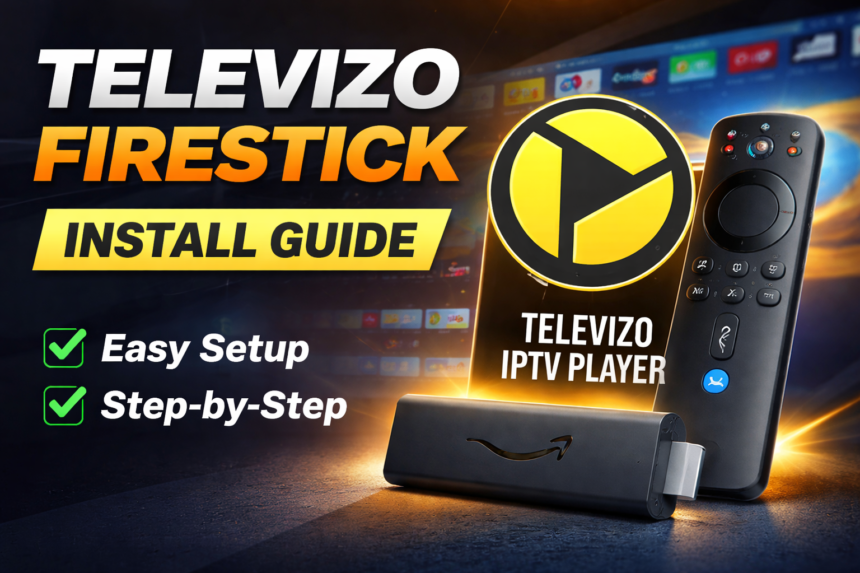
Looking to transform your Firestick into a powerful IPTV streaming hub? Televizo has emerged as one of the best iptv player options for Amazon Fire TV devices, offering a clean user interface and robust playlist management. Televizo stands out for its ability to support multiple stream formats and its versatility across devices, making it a user-friendly choice for a wide range of users. It is compatible with various devices, including tv boxes and tablets, providing flexible viewing options for different screen sizes and preferences. Televizo provides a user-friendly interface for streaming live channels on nearly any device. This guide walks you through everything from installation to advanced customization.
Key Takeaways
- Televizo is an iptv player application (not a content provider) that works excellently on Firestick and other Fire TV models—you must bring your own IPTV subscription or M3U/Xtream Codes playlist
- On Firestick, you typically install Televizo via the Downloader app using the official APK from televizo.net (Amazon build)
- The app offers both a free version and an affordable premium version with extras like parental controls, backup/restore, and advanced playback options
- Televizo supports live broadcasts, VOD content, EPG guides, multiple audio tracks, and subtitles where provided by your iptv provider
- This guide provides step-by-step Firestick installation, setup instructions for M3U and Xtream Codes playlists, and key tips for the best viewing experience
What Is Televizo and Why Use It on Firestick?
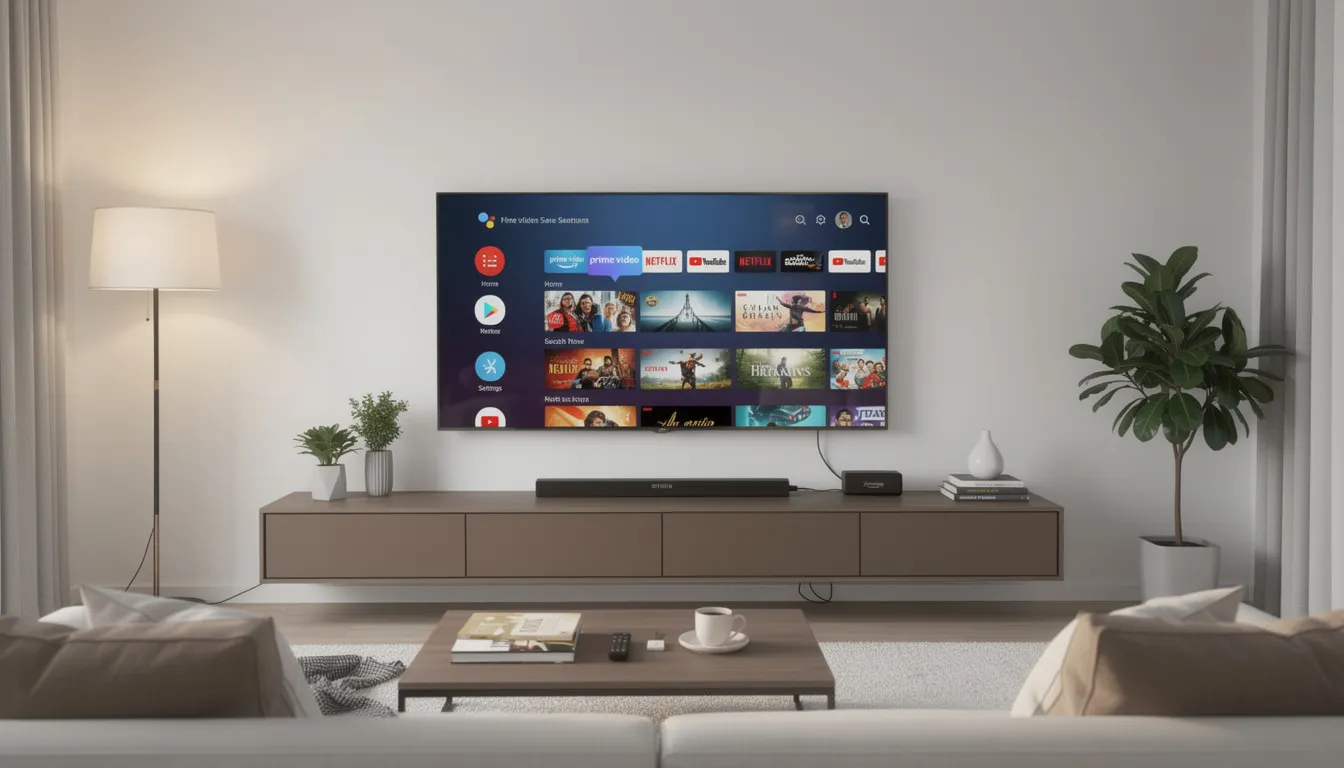
Televizo is a dedicated iptv player app designed to play user-supplied IPTV playlists on Firestick, Fire TV, Android TV boxes, phones, and tablets. It is compatible with a wide range of devices, including TV boxes and smartphones, making it easy to enjoy live TV streaming and media control whether you’re at home or on the go. Think of it as a sophisticated media player specifically built for streaming tv channels from your chosen iptv services.
The televizo iptv player focuses exclusively on playback and playlist management. It does not host, sell, or provide any channels, movies, or series. Instead, it simply plays content from your iptv provider’s playlist—you supply the subscription, and Televizo handles the playback. Televizo has the ability to support multiple stream formats and features, enhancing its versatility and user-friendly functionalities. It supports various stream formats such as HLS, UDP, and RTMP.
Why do Firestick users prefer Televizo? Several reasons stand out:
- Remote-friendly interface optimized for tv navigation
- Fast channel zapping between live streams
- Support for large playlists with thousands of channels
- EPG integration for program schedules
- Catch-up and vod support where provided by your service
- Multiple playlists management from different providers
Compatible devices include Fire TV Stick (2nd gen and newer), Fire TV Stick 4K, Fire TV Stick 4K Max, Fire TV Stick Lite, Fire TV Cube, and Fire TV smart TVs. Televizo stands as a strong alternative to players like TiviMate, IPTV Smarters, and UHF IPTV, and GSE SMART IPTV with regular bug fixes and feature improvements from the developer.
Is Televizo Available in the Amazon Appstore?
Televizo is primarily distributed through Google Play, which means Firestick users typically install it via sideloading rather than the Amazon Appstore directly.
On certain Fire TV models with Google Play access (some android tv-based Fire TVs), you can install the app directly from the Play Store. However, the standard Firestick installation flow requires downloading the APK from televizo.net.
The official Televizo website offers two APK builds:
| APK Type | Best For |
|---|---|
| Amazon Only APK | Firestick and Fire TV devices |
| Generic Android APK | Android phones, tablets, and android device boxes |
Since the application doesn’t bundle any IPTV content, it’s generally safe to install. However, always download exclusively from the official Televizo site to avoid modified APKs that could contain unwanted software. The interface and features remain nearly identical across Firestick, android tv, and mobile device platforms.
How to Install Televizo on Firestick / Fire TV
Installing Televizo on your Firestick takes about five minutes. Before starting, ensure your device is connected to Wi-Fi, signed into your Amazon account, and has at least 200-300 MB of free storage.
Step 1 – Install Downloader App
- From the Firestick Home screen, navigate to Find > Search
- Type “Downloader” using the on-screen keyboard
- Select the orange Downloader app by AFTVnews from the results
- Click Download or Get and wait for installation to complete
Step 2 – Enable App Installs from Unknown Sources
- Go to Settings > My Fire TV > Developer Options
- Look for “Install unknown apps” (some OS versions show “Apps from Unknown Sources”)
- Find Downloader in the list and toggle it ON
If you don’t see Developer Options, you may need to enable it first by clicking on “About” and selecting your device name seven times.
Step 3 – Download Televizo APK from Official Site
- Open the Downloader app and accept any initial prompts
- In the URL field, enter: https://televizo.net
- Navigate the website and select the APK labeled “Amazon only” for Fire TV devices
- The download will begin automatically inside Downloader
Step 4 – Install Televizo
- After the download completes, Downloader displays an install prompt
- Select Install and wait for the “App installed” message
- Click Done to return to Downloader
- Optionally, delete the APK file to save storage space
Step 5 – Launch Televizo on Firestick
- Navigate to Home > Apps & Channels > See All
- Find Televizo in your apps list
- Long-press the app icon and select Move to Front for quick access
- Launch the app—the first opening may request basic permissions
How to Set Up Televizo IPTV Player on Firestick
When you first launch Televizo, you’ll see an empty screen. The app requires you to add your provider’s playlist to display any content.
After installation, users can create a playlist by selecting M3U Playlist or Xtream Codes Playlist.
Televizo supports adding unlimited M3U or Xtream Codes playlists for flexible content management.
Initial Setup Dialog
On first launch, Televizo shows an introductory splash dialog. You can check “Don’t show again” and click Continue to skip this in the future.
Creating Your First Playlist
From the home screen, select Create playlist. You’ll see two main options:
- M3U Playlist – For standard M3U/M3U8 URLs
- Xtream Codes Playlist – For Xtream Codes API credentials
Choose whichever format your iptv provider sent you.
For M3U Playlist Setup
- Select M3U Playlist
- Enter a playlist name (e.g., your provider’s name)
- Paste the M3U URL provided by your IPTV service
- Users can also load a local M3U file from storage if transferred via USB
For Xtream Codes API Setup
Xtream Codes credentials typically include a server URL, username, and password.
- Select Xtream Codes Playlist
- Enter the server URL exactly as provided (watch for typos)
- Input your username and password using the Firestick remote
- Give the playlist a clear name like “Sports IPTV 2026”
EPG (Electronic Program Guide) Setup
Some iptv services include EPG automatically with your playlist. Others provide a separate EPG URL. If you have a separate EPG link:
- Open your playlist settings within Televizo
- Locate the EPG configuration option
- Add your provider’s playlist EPG URL
Finishing Configuration
Save your playlist and wait while Televizo loads channels, categories, and EPG data. Large playlists may take a minute to fully populate. Once loaded, you can access Live TV, Movies, Series, and Catch-Up sections based on what your provider supports.
How to Install on Firestick (Step-by-Step Guide for 2026)
Using Televizo on Firestick: Interface & Everyday Features
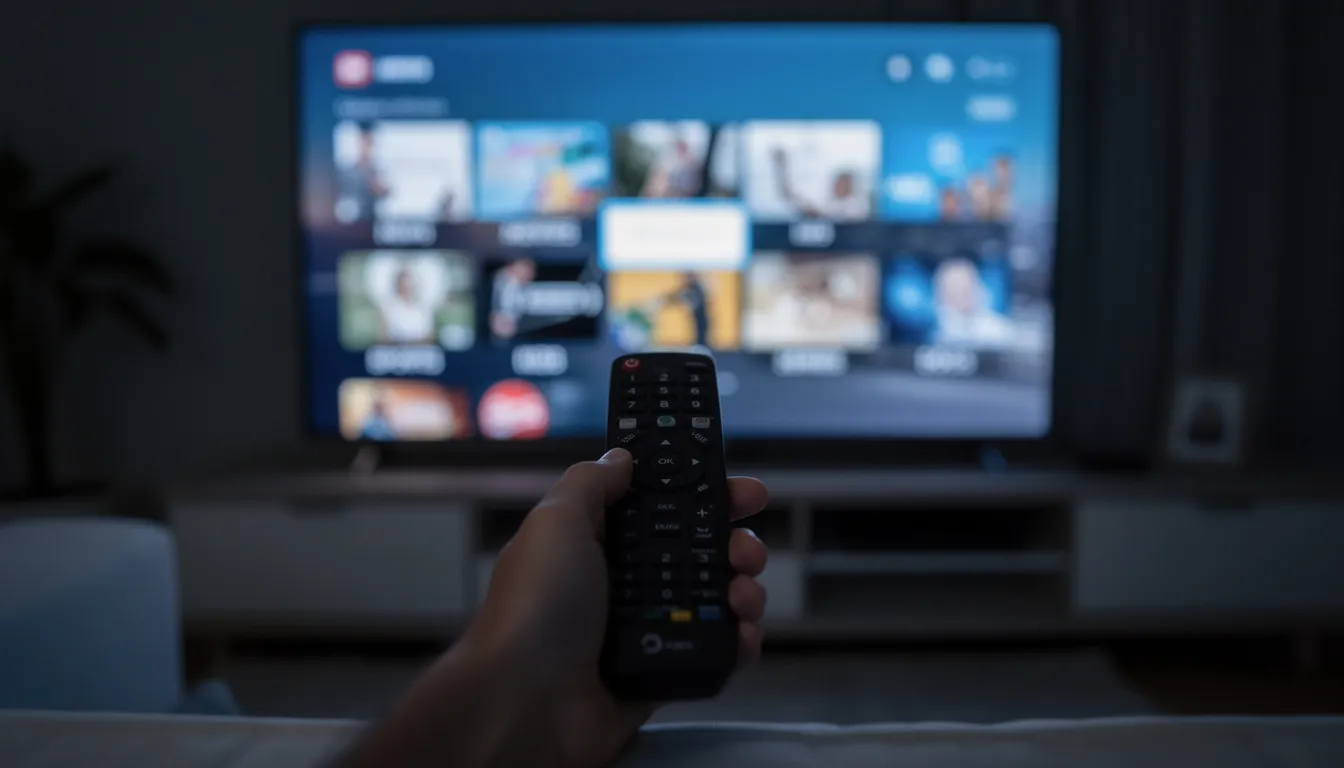
Televizo’s user friendly interface on Firestick displays categories on the left side with channels and content on the right—perfectly optimized for remote navigation. This organized layout helps users avoid feeling lost when browsing large playlists or channel lists.
Channel Browsing
Navigate through categories (Sports, Movies, Kids, News) using your Firestick directional pad. The app supports creating a favorites list for favorite channels you watch regularly, making quick access simple for power users.
Search and Sorting
For large playlists with thousands of channels, use the search feature to find specific content by name. Sorting and filtering tools help manage all the content by organizing channels by name, group, or other criteria.
VOD and Series
Many iptv providers include movies and TV Shows as separate VOD sections. You can:
- Browse content by poster thumbnails
- Read brief info where metadata is available
- Resume playback from where you left off
- Access videos organized by category
Playback Controls
Basic Firestick remote controls work seamlessly:
| Button | Function |
|---|---|
| Play/Pause | Start or pause streams |
| Left/Right | Rewind/Fast-forward (where supported) |
| Up/Down | Channel switching |
| Select | Access stream options |
During playback, you can switch between audio tracks and subtitles when streams include multiple languages.
Catch-up TV
If your iptv provider offers catch-up functionality, Televizo displays previously aired programs in the EPG or dedicated catch-up section. Watch yesterday’s football match or last night’s news directly from your channel list.
Televizo Premium vs Free on Firestick
Televizo works perfectly in its free version, but the premium version unlocks additional features that enhance the Firestick experience.
Pricing Details
Premium subscriptions typically cost around $1.99/month or approximately $11.99/year. Televizo occasionally offers a limited free trial (around 1 hour) so users can test advanced options. Check the app or official site for current pricing.
Free Version Capabilities
| Feature | Free Version |
|---|---|
| Multiple playlists (M3U/Xtream) | ✓ |
| Live TV playback | ✓ |
| Basic EPG display | ✓ |
| Favorites | ✓ |
| Basic settings | ✓ |
For many users with modest needs, the free version provides sufficient functionality.
Premium Features Worth Considering
- Parental controls: Restrict access to channels or categories behind PIN codes
- Auto full-screen: Customize startup behavior (resume last channel, open specific playlist)
- Backup and restore: Save playlists and settings—invaluable if your Firestick is reset
- Playlist editor enhancements: Better tools to manage your own content
- Additional interface customization: Faster playlist handling and convenience tweaks
How to Upgrade
On Firestick, premium purchases are typically managed through Google Play on an associated android device, or via the app’s internal purchase flow. Check in-app prompts or official Televizo documentation for current purchase methods on Fire TV.
Advanced Settings and Customization on Firestick
Televizo includes deeper configuration menus to fine-tune playback, visuals, and security for your setup.
Playback and Buffering Options
Adjust settings to optimize performance:
- Buffer size: Increase for unstable connections to reduce freezing
- Stream type selection: Choose between HLS, RTMP, or UDP where multiple options exist
- Hardware acceleration: Enable or disable based on your device’s performance
- External players: Option to use alternative video players if preferred
EPG and Time Shift
If your program guide shows incorrect times:
- Navigate to EPG settings
- Adjust the time offset (e.g., +2 or -2 hours)
- Save to align schedules with your local timezone
Parental Control Setup
Protect family viewing on shared devices:
- Access parental controls in settings
- Create a PIN code
- Lock specific channels or entire categories
- Combine with Amazon’s own parental tools for extra protection
Display and Screen Scale on TVs
Some Fire TV boxes display cut-off text due to display scaling issues:
- Go to Fire TV Settings > Display & Sounds > Display
- Adjust screen scale to ensure all Televizo menus and favorites are visible
- Test with Televizo open to confirm proper fit
Backup & Restore (Premium)
For users managing multiple large playlists, regularly export your data and settings. This allows quick recovery after resetting or replacing your Firestick—no need to re-enter all your provider’s playlist information.
Televizo vs Other IPTV Players on Firestick
Firestick supports several iptv player applications, and users frequently compare Televizo with apps like TiviMate, IPTV Smarters, and Sparkle TV.
Televizo Strengths
- Remote-friendly layout designed for TV navigation
- Robust playlist handling for multiple providers
- Comprehensive feature set (EPG, catch-up, audio tracks, subtitles, favorites)
- Regular improvements and bug fixes from the developer
- Strong support for users managing multiple M3U or Xtream playlists
Trade-offs to Consider
- Televizo doesn’t download external subtitles automatically—it only displays subtitle tracks embedded in streams
- Locking many channels via parental controls requires individual selection rather than batch processing
- Some advanced features require the premium version
Who Should Choose Televizo?
| User Type | Televizo Fit |
|---|---|
| Multiple IPTV subscriptions | Excellent |
| Single provider, casual viewer | Good |
| Families needing parental controls | Excellent (Premium) |
| Power users wanting customization | Excellent |
| Users who browse lots of vod content | Good |
For all IPTV players including Televizo, success depends on a stable, legal IPTV source and good home Wi-Fi (25 Mbps or more recommended for HD streaming). Without quality streams from your provider, no player can deliver a smooth experience.
FAQ
Does Televizo come with channels pre-installed on Firestick?
Televizo never includes any built-in tv channels, movies, or series on Firestick or any other device. The app functions purely as a player and organizer for content you supply. Users must obtain their own IPTV subscription or legal M3U/Xtream Codes playlist from a provider, then add that playlist into Televizo. This design keeps Televizo focused on playback excellence rather than content distribution, and it means your experience depends entirely on the quality of your chosen iptv services.
Is using Televizo on Firestick legal?
Televizo itself is simply a media player application and is completely legal to install and use on your Firestick. The legality question centers on your IPTV source: using playlists from licensed, legitimate providers is generally acceptable, while unauthorized streams may violate copyright laws in your jurisdiction. Always use Televizo with iptv services you’re legally permitted to access in your country. The app doesn’t collect data about what you watch or how you watch it—your viewing habits remain private.
Why is Televizo buffering or freezing on my Firestick?
Buffering typically stems from network issues, overloaded IPTV servers, or weak Wi-Fi signal rather than the Televizo app itself. Try these troubleshooting steps:
- Test your internet speed (aim for 10-15 Mbps minimum per HD stream)
- Use 5 GHz Wi-Fi when possible for faster, more stable connections
- Move the Firestick closer to your router or use an HDMI extender
- Close background apps consuming bandwidth
- Adjust Televizo’s buffer settings in player options
If problems persist, contact your iptv provider—their servers may be experiencing high load.
Can I use one Televizo premium account on multiple Firesticks?
Televizo premium is typically tied to your user account or purchase method (such as your Google account) rather than a single device. In most cases, premium features work across multiple android and Fire TV devices you own. However, specific limits and policies may vary, so check Televizo’s latest documentation or the purchase screen within the app for current device sharing rules. The developer occasionally updates these terms, so confirming directly ensures you have accurate information.
What happens if Televizo stops working after a Firestick update?
Major Fire OS updates occasionally cause temporary compatibility issues with sideloaded apps like Televizo. If this happens:
- Restart your Firestick completely
- Clear Televizo’s cache through Settings > Applications > Manage Installed Applications
- Reinstall the latest version APK from the official televizo.net site
- Verify your playlist details are still valid with your provider
Developers typically release updates quickly after major Fire OS changes to address compatibility issues. Check the official site or app stores for the latest version, and consider joining user communities where others share solutions. Most issues resolve within days as both Amazon and app developers release fixes.